You know what you want to accomplish in Excel. You just don’t know which function will get you there. Maybe you need to look up a price, pull part of an email address into another column, or count distinct items without counting duplicates.
That’s where ChatGPT gets interesting. You can describe the task in plain English, get a formula, and then ask how it works. You can even use it to get started with VBA macros.
I’ll work through six examples using the Kevin Cookie Company, starting with a simple total and building up to an invoicing macro that sends personalized emails through Outlook. The important part is not just getting an answer. It’s learning how to check that answer and make the few refinements your workbook needs.
What You'll Learn
- Describe spreadsheet tasks in plain English to generate formulas without knowing function names.
- Ask follow-up questions to understand formulas and explore alternative solutions.
- Check generated ranges, headers, placeholders, and column references before trusting the results.
- Generate a starting VBA macro, then review and test it before sending real emails.
Table of Contents
- Get Set Up with ChatGPT and Excel
- 1. Write a SUM Formula in Plain English
- 2. Calculate Profit from Revenue and Cost
- 3. Find a Price with VLOOKUP or INDEX and MATCH
- 4. Extract Text with Nested LEFT and FIND Functions
- 5. Count Unique Values Without Counting Duplicates
- 6. Generate an Excel Macro to Send Invoice Emails
- Use ChatGPT to Get Started, Then Verify
Get Set Up with ChatGPT and Excel
Open ChatGPT and sign in or create an account if prompted. You can also open the practice Excel workbook to follow along with the examples.
This workflow uses ChatGPT alongside Excel. You ask for help in the chat, then copy the formula or code into your workbook. There’s no Excel add-in required for these examples.
Be specific about your worksheet layout. Tell ChatGPT what you want to calculate, which cells contain the data, and where relevant, whether the range includes a header. Those details help turn a general explanation into something you can actually use.
1. Write a SUM Formula in Plain English
On the first worksheet, I have a list of Kevin Cookie Company markets and their associated revenue. I want to calculate total revenue, but suppose I don’t know which Excel function to use.
Excel’s Insert Function dialog lets you describe what you need. In my test, asking it to add the values from B2 through B10 didn’t return a useful result. ChatGPT handled that same request directly.
Try this prompt:
Write an Excel formula that adds all the values in cells B2 through B10.
The formula is:
=SUM(B2:B10)Copy it into your total cell and press Enter. Excel adds the revenue values in that range.
Ask for an explanation, not just an answer
Here’s one of the most helpful parts: you can keep the conversation going. If you’re not sure what the colon means or why the formula works, ask:
Explain how this formula works, including what the colon means.
SUM adds numbers, and B2:B10 identifies a continuous range from B2 through B10, including both endpoints. You can also ask how to add separate ranges.
That turns ChatGPT into more than a formula generator. You can use the answer to finish your task and understand the function well enough to use it again.
2. Calculate Profit from Revenue and Cost
Next, I have revenue in cell A2, cost in B2, and an empty profit cell in C2.
Profit is revenue minus cost. But even if you didn’t know the calculation, you could describe the goal and identify the inputs:
Create an Excel formula to calculate profit using revenue in A2 and cost in B2.
ChatGPT returns the straightforward calculation:
=A2-B2Enter that in C2. In the sample worksheet, revenue of $4,956,936,255 minus costs of $1,652,312,085 gives a profit of $3,304,624,170.
Like I’ve always said, the cookie business is a very good business to be in.
The useful lesson here is that you don’t always need to request a particular function. Describe the business question and the relevant cells, and ChatGPT can help translate that into Excel syntax.
3. Find a Price with VLOOKUP or INDEX and MATCH
Now for something a little more complex. I want Excel to find the price of a sugar cookie in a list of cookie types and prices.
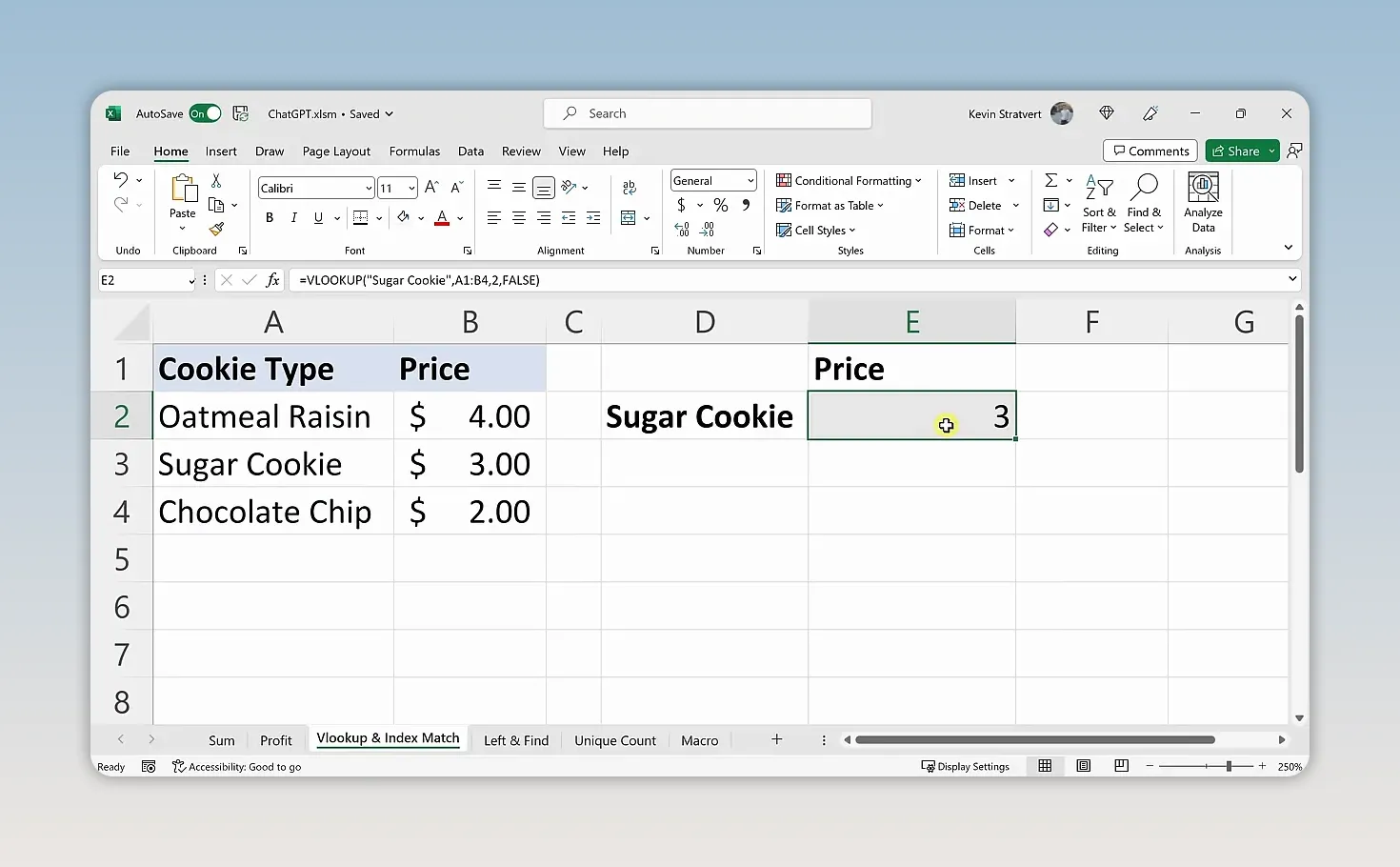
The lookup data occupies A1:B4:
- Column A: Cookie type.
- Column B: Price.
- Row 1: Column headers.
- Rows 2 through 4: Oatmeal raisin, sugar cookie, and chocolate chip cookies.
Ask ChatGPT to find Sugar Cookie in the list and return its price. For a more precise response, include the range and column information in your request.
A suitable VLOOKUP formula for this worksheet is:
=VLOOKUP("Sugar Cookie",A1:B4,2,FALSE)Here’s what each part does:
"Sugar Cookie"is the value to find.A1:B4is the lookup range, with cookie types in its first column.2tells Excel to return the value from the second column.FALSErequests an exact match.
The result is 3, matching the sugar cookie’s $3.00 price.
Replace placeholders before using a formula
In my initial response, ChatGPT used a range ending in Bn, where n represented the final row. That is a placeholder, not a ready-to-use cell reference. I replaced it with B4 to match the worksheet.
Check every range before pressing Enter. A formula can use the right function and still need adjustments for your data.
Ask for another way to solve it
You can also follow up by asking whether another function can do the same job. ChatGPT suggested combining INDEX with MATCH.
For this layout, the equivalent is:
=INDEX(B2:B4,MATCH("Sugar Cookie",A2:A4,0))MATCH finds the cookie’s position in A2:A4, and INDEX returns the corresponding price from B2:B4. XLOOKUP is another lookup option, but you don’t need to know all these function names before asking for help.
4. Extract Text with Nested LEFT and FIND Functions
On the next worksheet, I have email addresses in column A and want the text before the @ symbol in column B. In these sample addresses, that text is the person’s first name.
There are two useful ways to approach this.
Use Flash Fill for a quick pattern-based result
- Type the first name from the first email address into B2.
- Press Enter, then select B2 again.
- Go to Data > Flash Fill, or press Ctrl + E.
Excel recognizes the pattern and fills the remaining names. That’s a handy option when you just need the extracted values.
Ask ChatGPT for a formula
If you need a formula instead, describe the text rule precisely:
Write an Excel formula that returns all text before the @ symbol in cell A2.
ChatGPT supplies a nested formula using LEFT and FIND:
=LEFT(A2,FIND("@",A2)-1)The inside function runs first:
FIND("@",A2)locates the position of the @ symbol.- Subtracting 1 excludes that symbol from the result.
LEFTreturns that number of characters from the beginning of A2.
Enter the formula in B2 and fill it down through B5. In the sample, I select B2:B5, enter the formula in the formula bar, and use Ctrl + Enter to apply it across the selection.
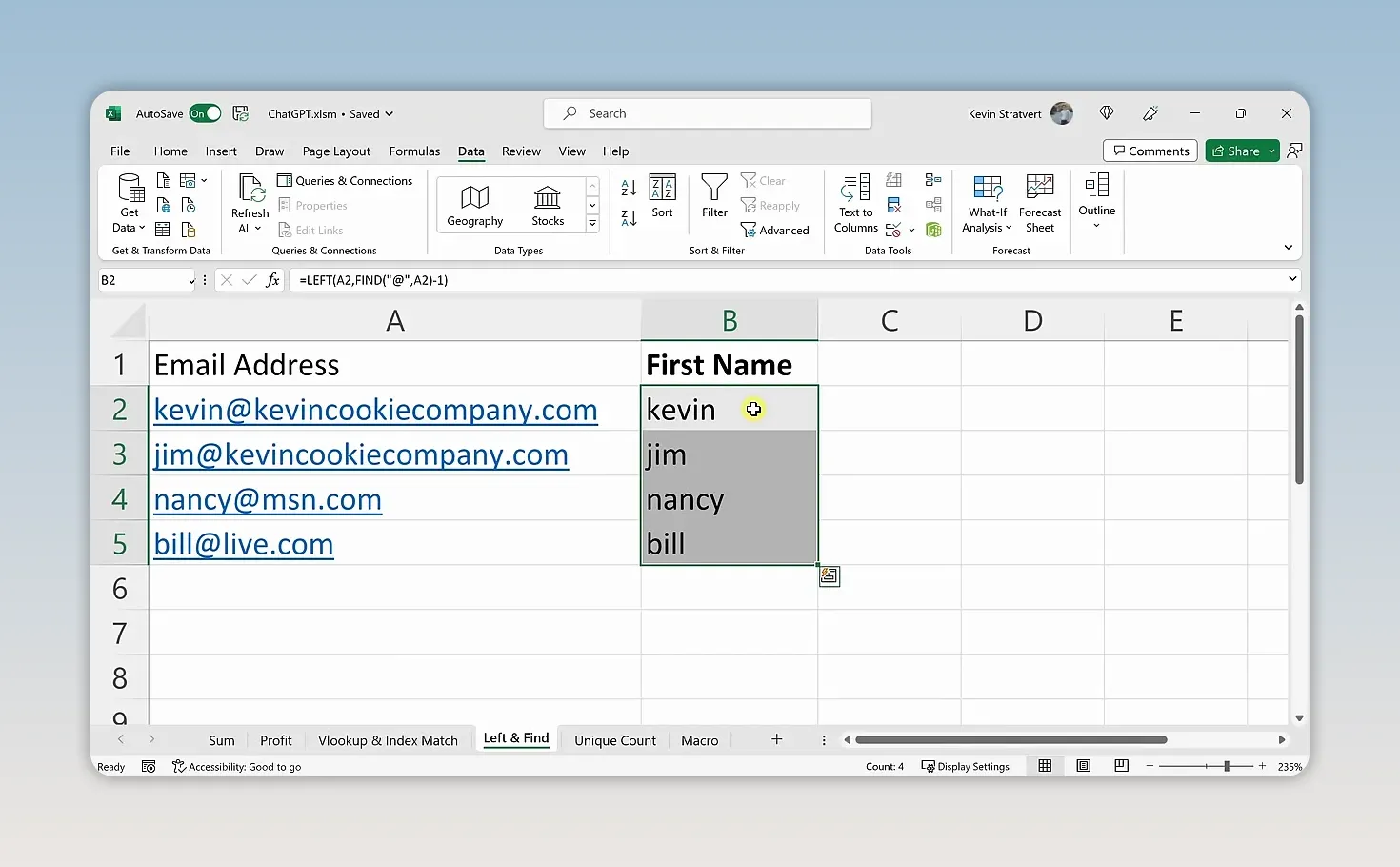
The key is how the request is phrased. “Extract the first name” depends on how an address is structured. “Return the text before @” gives Excel a clear rule to follow.
5. Count Unique Values Without Counting Duplicates
Counting distinct items has traditionally been a little more challenging in Excel. On the Unique Count worksheet, some cookie types appear more than once. Chocolate chip, for example, appears several times.
I don’t want the total number of entries. I want to know how many different types of cookies we sell.
Ask ChatGPT:
Create an Excel formula to count the distinct values in a list.
The response combines SUM and COUNTIF. After adjusting the range to match the sample data and exclude the header, the formula is:
=SUM(1/COUNTIF(A2:A10,A2:A10))How the formula counts each cookie type once
COUNTIF calculates how often each entry appears in the range. The formula then divides 1 by those counts and adds the resulting fractions.
If a cookie type appears three times, each occurrence contributes one-third. Together, those three entries contribute 1 to the total. A cookie type that appears once contributes 1 on its own.
For the sample list, the result is 7 unique cookie types.
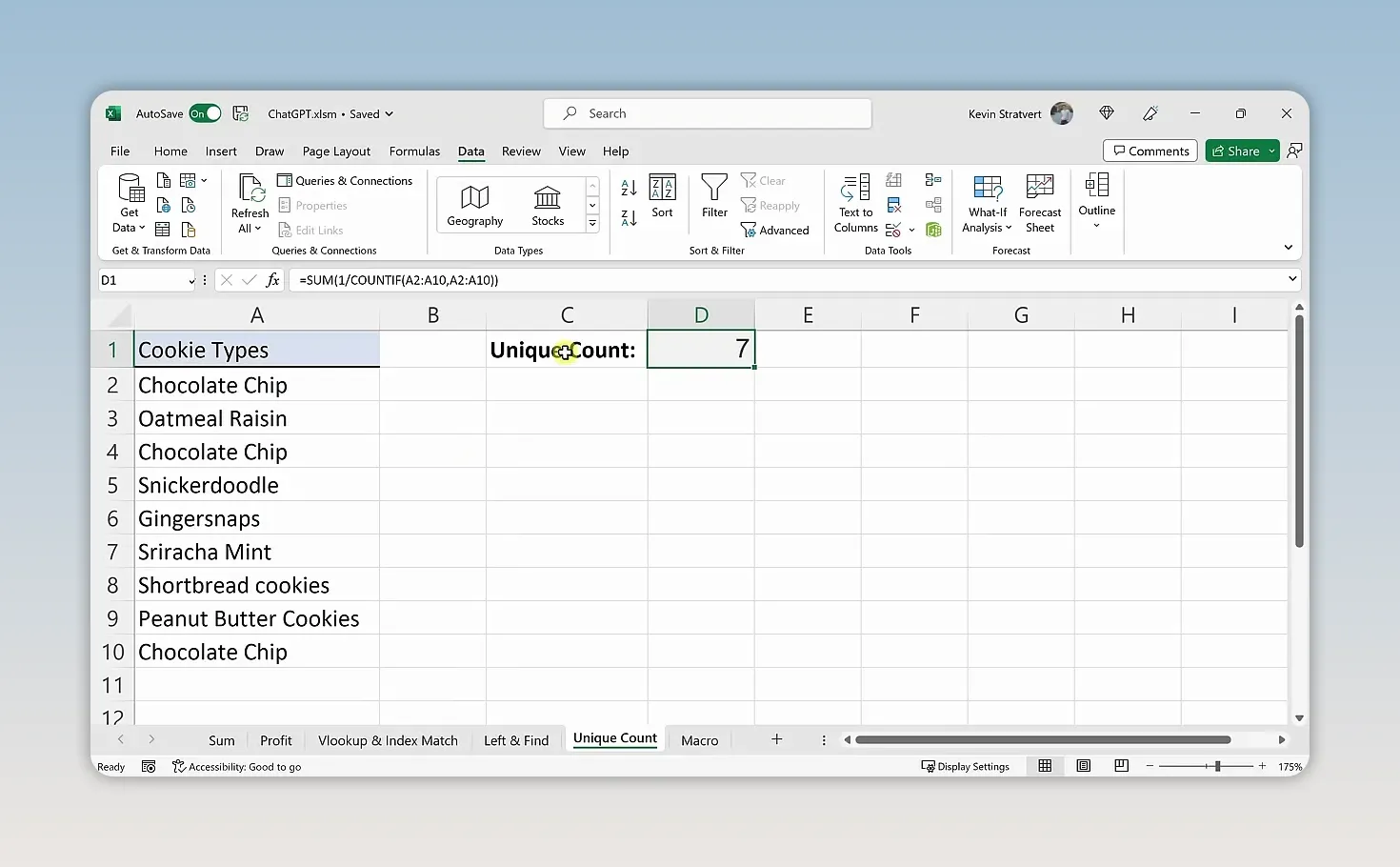
My initial response included row 1 in the range. Since row 1 contains the header, I changed both range references to start at row 2. Otherwise, the header would count as another distinct value.
This particular formula assumes the range contains no blank cells. If your list includes blanks, tell ChatGPT that it needs to ignore them. Also specify your Excel version if you run into an array-formula issue, since formula support and entry behavior can differ.
6. Generate an Excel Macro to Send Invoice Emails
Formulas are useful, but can ChatGPT help write an entire macro from scratch? For the final example, I use it to create a basic invoicing workflow.
The Macro worksheet contains:
- Column A: The amount each customer owes.
- Column B: The customer’s email address.
The goal is to send each customer an email with the subject “Kevin Cookie Company Invoice” and a message containing that customer’s amount due. This example uses desktop Excel’s VBA editor and Outlook.
Show the Developer tab and insert a module
- Right-click the Excel ribbon and choose Customize the Ribbon.
- Select the Developer checkbox and click OK.
- Open the Developer tab and select Visual Basic.
- In the Visual Basic editor, select Insert > Module.
Showing the Developer tab gives you access to the tools. It does not mean you should enable every macro indiscriminately. Review generated code before allowing it to run.
Describe the email workflow to ChatGPT
A useful prompt specifies the subject, body, and source columns:
Create an Excel VBA macro that sends emails through Outlook. Use Kevin Cookie Company Invoice as the subject. The body should tell the customer how much they owe the Kevin Cookie Company, using the amount from column A. Send each email to the corresponding address in column B.
ChatGPT generates the VBA code and an explanation of how it works. In this example, it also instructs me to enable the Microsoft Outlook object library.
To check that reference:
- In the Visual Basic editor, select Tools > References.
- Find Microsoft Outlook Object Library. Its name may include a version number.
- Make sure it is checked, then select OK.
Review the code before running it
Here’s the most important detail in the entire exercise: the generated macro contained an error.
Although I specified that email addresses were in column B, the code initially checked column A for email addresses. I corrected that reference before running the macro.
Don’t assume that a detailed prompt guarantees correct code. Confirm that the macro:
- Reads amounts from column A.
- Reads and checks email addresses in column B.
- Uses the intended subject and message text.
- Processes the intended rows without treating the header as customer data.
Because this macro sends real email, test with addresses you control before using customer information. For background on Excel automation, Microsoft’s introduction to VBA in Office is a useful reference. My Excel macros and VBA tutorial also covers how to understand and build macros.
Run the macro and confirm the result
Once the code is reviewed and corrected, save it and return to Excel. To retain the VBA code in the workbook, use a macro-enabled format such as .xlsm.
- Open Developer > Macros.
- Select the generated macro, named SendEmails in this example.
- Click Run.
- Check Outlook to confirm the recipient, subject, and amount.
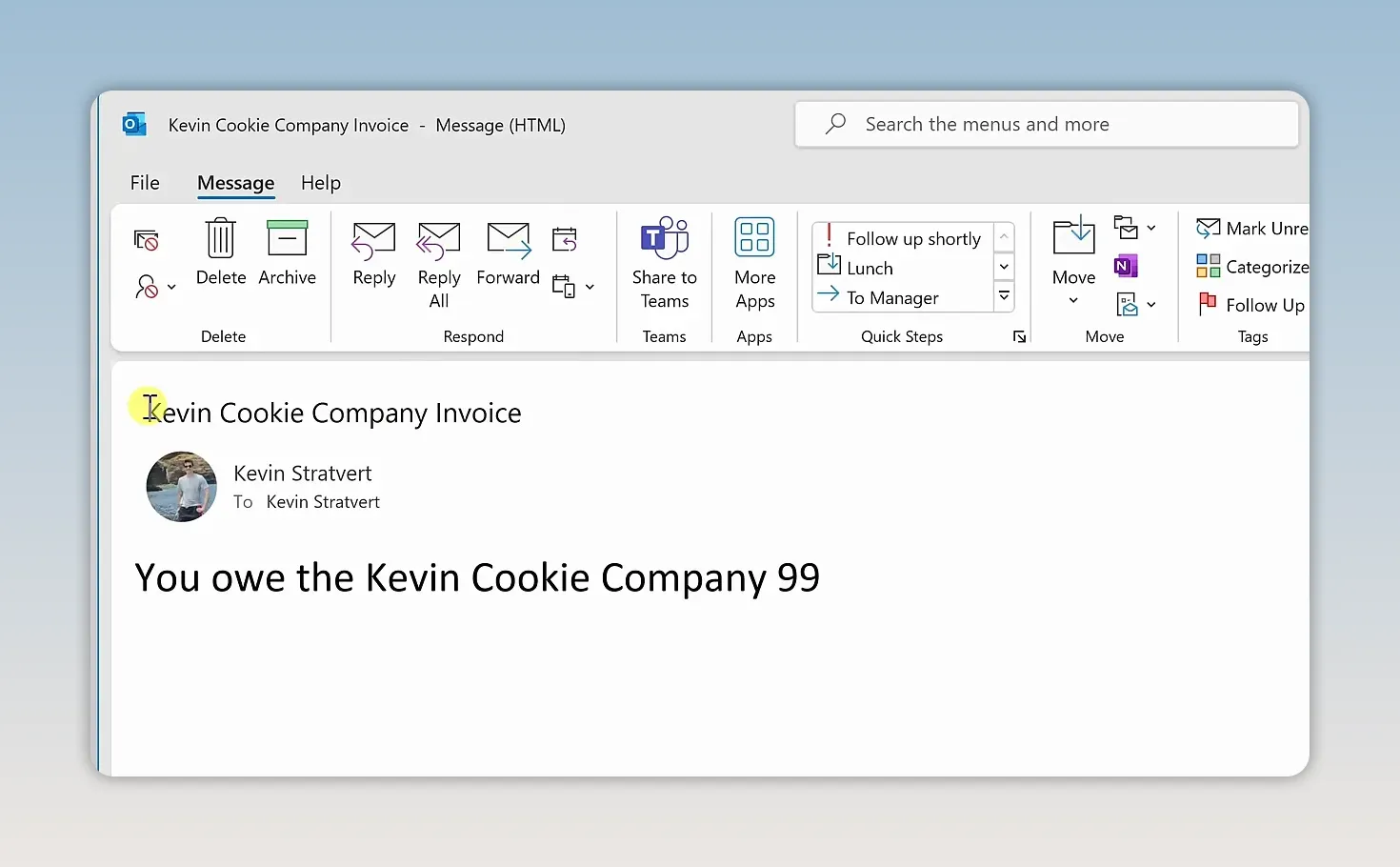
In my test, Outlook shows the custom invoice subject and the amount from the worksheet in the email body. With a small correction, the generated macro completes the workflow.
Use ChatGPT to Get Started, Then Verify
Excel feels a lot less intimidating when you can describe a task rather than first having to memorize the right function names.
The same approach works across all six examples: explain the goal, provide the cell references, ask for an explanation, and test the result. Sometimes the answer is ready to paste. Other times, you’ll need to replace a placeholder, exclude a header, or correct a column reference.
Let AI handle the first draft while you stay in charge of the result. That’s how ChatGPT can help you finish the spreadsheet and build your Excel skills at the same time.
Made with VideoToBlog using 10X Your Excel Skills with ChatGPT 🚀


