Converting a PDF into an editable Word document is easier than you might think. If you already have Microsoft Word, you can open the PDF directly in Word and let it handle the conversion. There’s no need for a separate PDF converter.
I’m using the desktop version of Word included with Office 365. For this example, I have a sample resume called name.pdf. It includes a photo, graphics, text, and a table, so it gives us a useful test of more than just plain text.
Convert a PDF by dragging it into Word
The quickest method is to drag your PDF onto Word’s start screen.
- Open Microsoft Word. Leave it on the start screen where you can choose a new document or open an existing file.
- Locate your PDF. In this example, the file is on the desktop. Position Word so you can access both the file and the Word window.
- Drag the PDF into Word. Drop the file onto Word’s start screen.
- Confirm the conversion. Word displays a message explaining that it will convert the PDF into an editable Word document. Select OK to continue.
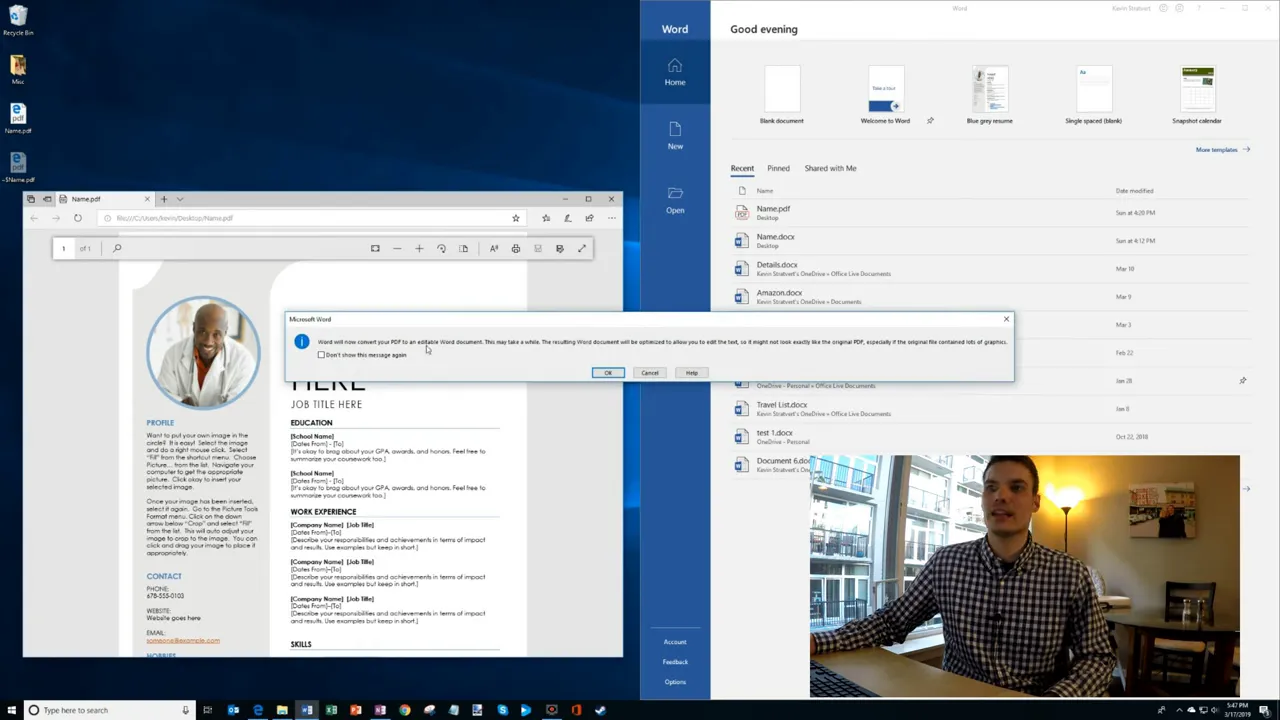
That confirmation message includes an important caveat: conversion may take a little time, and the result might not look exactly like the original PDF. Word is turning the PDF’s content into editable document elements, so expect to check the formatting afterward.
Another option: Use File > Open
If you prefer menus to dragging and dropping, you can start the same conversion from within Word:
- Select File > Open.
- Browse to the folder containing your PDF, such as the desktop.
- Select the PDF and open it.
- Select OK when Word asks to convert the file.
Both methods start the same conversion process. You don’t need to convert the file somewhere else before opening it in Word. For additional help with the application, Microsoft provides Word support resources.
Check and edit the converted document
With the sample resume, the result looks pretty good. Word brings across the graphics, text, images, and table, and I can select the individual elements to work with them.
To test the text, I replace the name placeholder with Kevin Stratvert. That’s the useful part of this conversion: the content is editable, rather than simply being a picture of the original page.
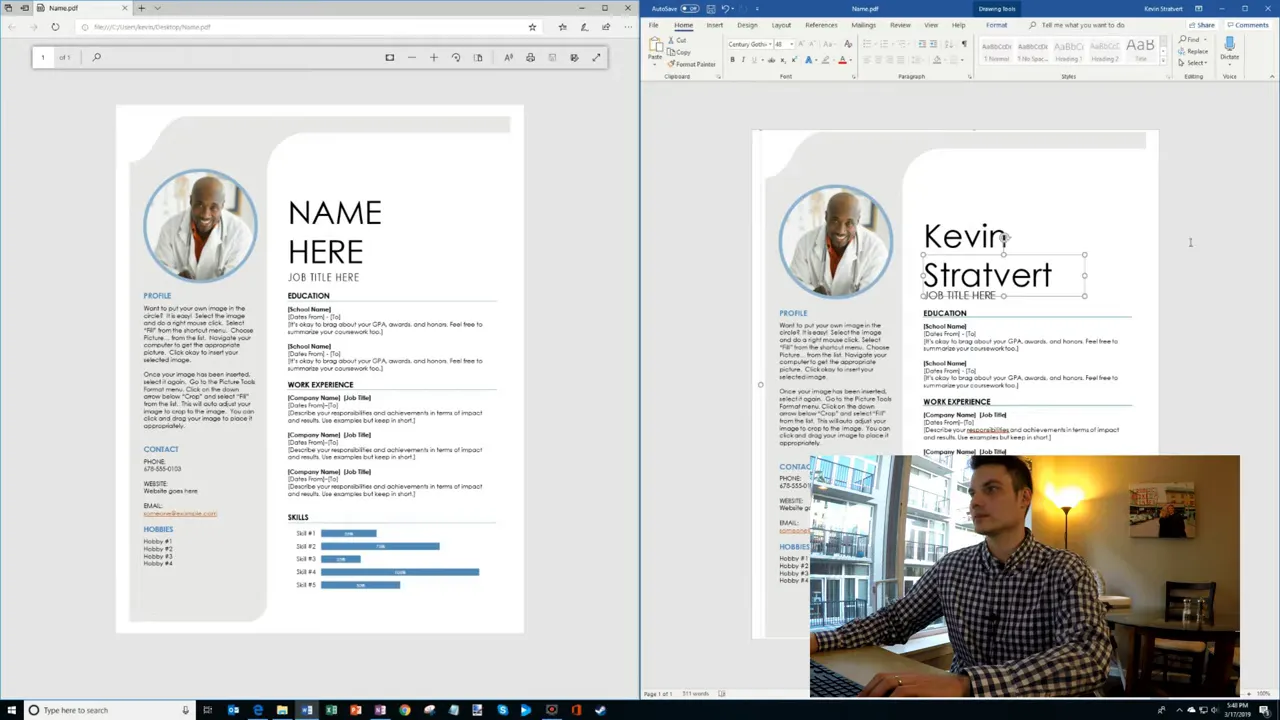
There are a couple of formatting details worth checking.
Restore an image’s shape
The original resume has a circular photo, but its crop changes during conversion. To restore it, select the photo, open the picture Format tab, and use Crop > Crop to Shape to choose a circle or oval shape that matches the original.
That small adjustment brings the photo back in line with the PDF’s appearance.
Clean up separate text boxes
Some text comes through as separate line-by-line elements rather than one continuous block. It’s still editable, but the structure can feel a little unusual.
One way to tidy it up is to remove unnecessary text boxes and expand the first box to hold the text together. The important distinction is that editable content does not always mean identical formatting.
Keep the editable Word version
Once you’ve checked the layout and made your changes, save the document in Word’s .docx format to keep an editable Word copy.
That’s really all there is to it: open the PDF in Word, approve the conversion, and review the result. Even a resume with mixed text and graphics can convert well, with just a little cleanup afterward.


