When Windows 11 first launched, Microsoft took away quite a few ways to customize it. Many of those options are finally coming back, along with some useful new ones.
You can move the taskbar to the top or sides of your screen, make it smaller, simplify the Start menu, and stop Windows Search from mixing web results into your local searches. Here’s how to put those settings to work for a cleaner desktop.
What You'll Learn
- Move the taskbar to any screen edge and adjust its size.
- Hide unused taskbar controls while keeping Search available through keyboard shortcuts.
- Resize Start and remove sections you don’t use for a simpler menu.
- Turn off web and Microsoft Store results to focus Windows Search on your PC.
Move and Resize the Windows 11 Taskbar
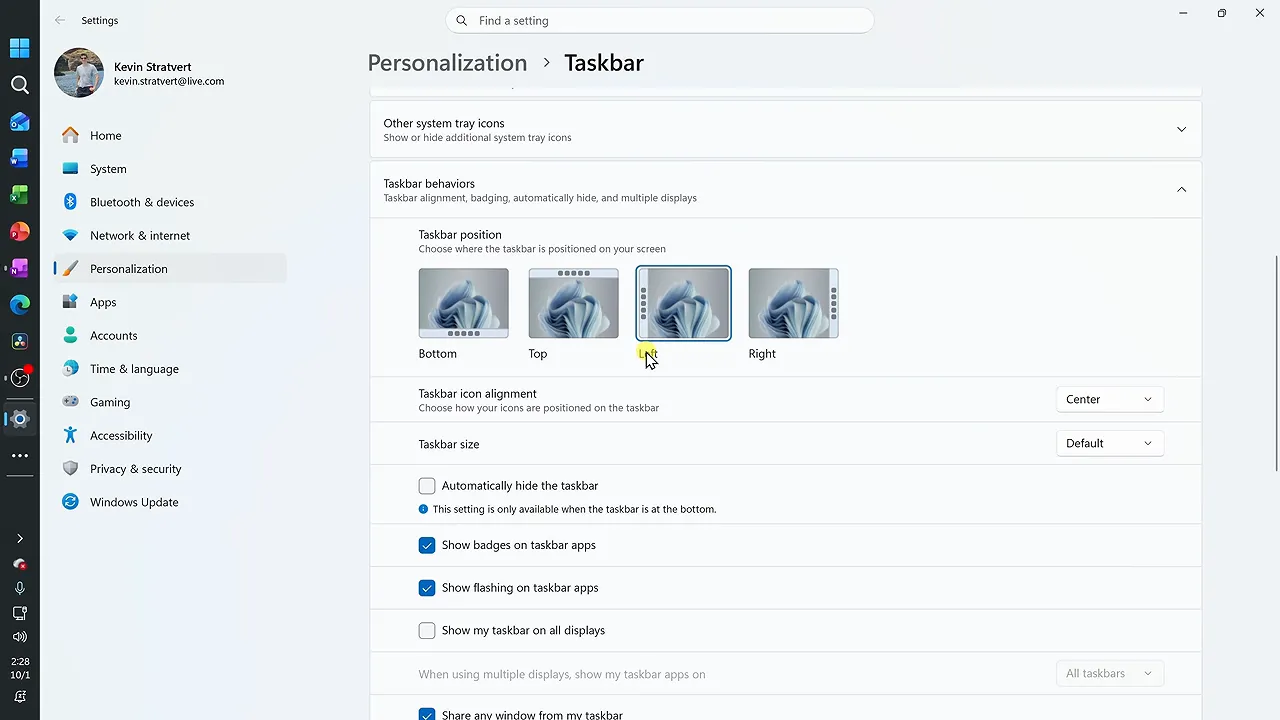
Change the taskbar position
The biggest change is the ability to move the taskbar. You’re no longer limited to keeping it along the bottom of the screen.
- Right-click an empty area of the taskbar and select Taskbar Settings.
- Scroll down to Taskbar Behaviors.
- Find the taskbar location options and choose Bottom, Top, Left, or Right.
Feel free to try each position and see which one feels most comfortable. I personally prefer the bottom, but having the choice is the important part.
Make the taskbar smaller
In the same settings area, use the taskbar size dropdown to switch from Default to Small.
With the taskbar at the bottom, Small reduces both the icon size and the taskbar’s height. The same thing happens when you place it at the top, giving you a little more vertical space for your open windows.
There’s one limitation: when the taskbar is on the left or right, Small reduces the icons but leaves the taskbar itself at the same width. You don’t gain additional horizontal space. Hopefully, Microsoft improves that behavior in the future.
To restore the original layout, choose Bottom for the location and Default for the size.
Clean Up Taskbar Items and Search
Position and size are only part of the picture. You can also choose which controls appear on the taskbar.
Scroll back to the top of Taskbar Settings. From there, turn off items you don’t use, such as Task View or Widgets. Hiding unused controls is a simple way to make the taskbar less crowded.
Search has its own display options. You can keep the full search box, switch to just the search icon, or hide Search entirely.
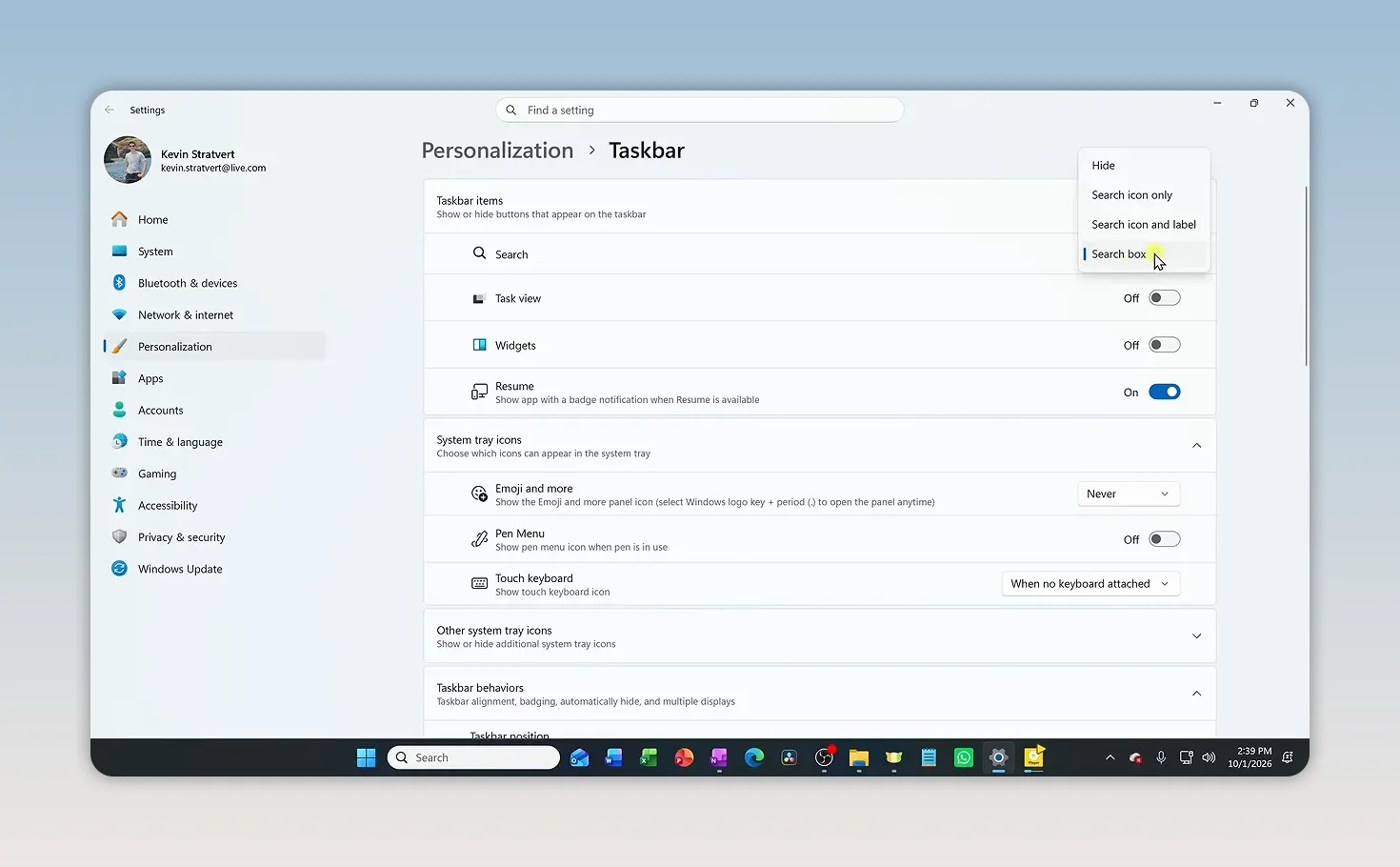
Hiding Search doesn’t remove your ability to search. You can still open it with the keyboard:
- Windows + S: Open Windows Search directly.
- Windows key, then type: Open Start and begin typing your search immediately.
If you usually search with the keyboard, you may not need a search box taking up space on the taskbar at all.
Show the Desktop Instantly
Here’s a useful trick when your screen is full of open windows: click the very bottom-right corner of the taskbar. Windows hides your open windows and shows the desktop. Click the corner again, and your windows come right back.
You can do the same thing with Windows + D. Press it once to show the desktop and again to restore your windows.
For more keyboard options, Microsoft maintains a Windows keyboard shortcut reference.
Resize and Simplify the Start Menu
The Start menu also has new customization options, including controls for its size and the sections it displays.
Open Start, right-click an empty area of the menu, and select Start Settings.
Choose a Start menu size
The size setting gives you three choices:
- Small: A more compact menu that takes up less screen space.
- Large: A bigger menu that uses more of the screen.
- Automatic: Let Windows adjust the menu’s size for you.
Select a size, then open Start to see how it feels. You can switch between the options until you find the layout you prefer.
Hide sections you don’t use
You can also control whether Pinned, Recent, and All appear in Start.
For a simpler menu, turn off Recent and All, leaving only Pinned enabled. Open Start again, and the main app area contains just your pinned apps.
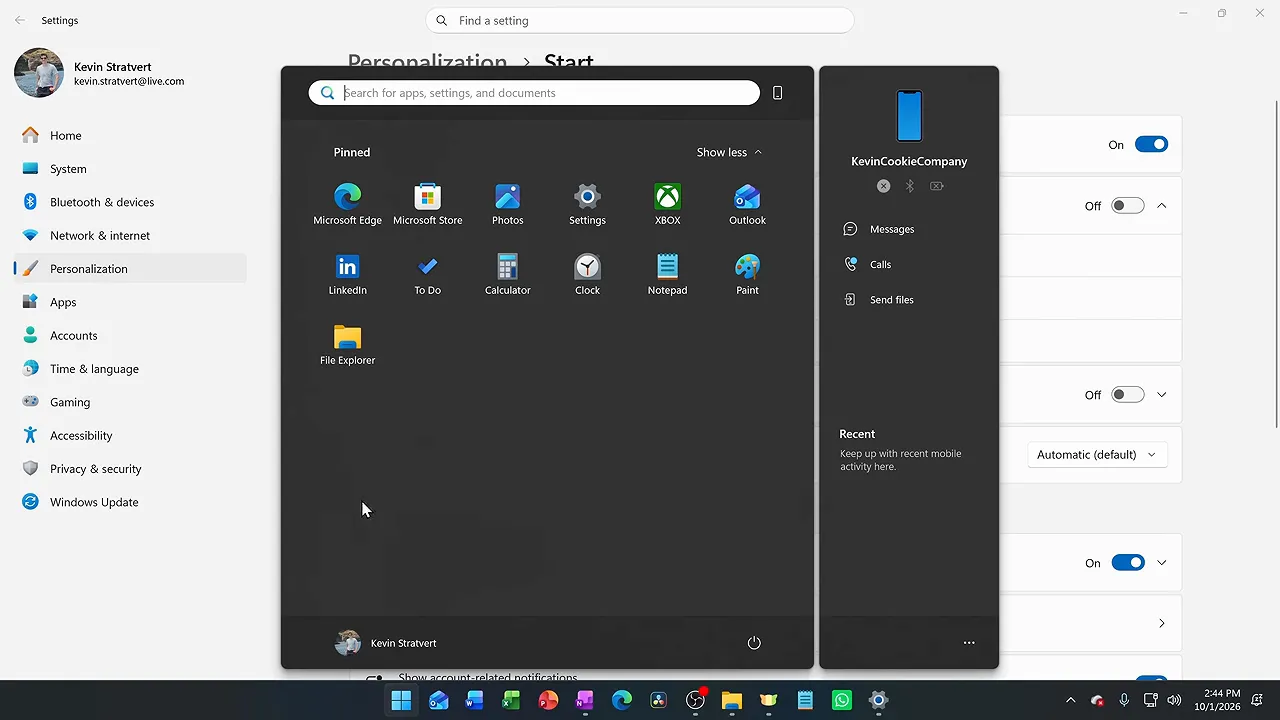
You don’t have to hide everything. The goal is to keep the sections you actually use and remove the ones that get in the way.
Turn Off Web Results in Windows Search
This is one of my favorite changes: you can turn off web results in Windows Search. If you want Search to focus on your PC, you no longer have to mix local results with results from the web.
- Open Search from the taskbar, or press Windows + S if you hid it.
- Select the Settings gear in the upper-right corner.
- Turn off Web searches.
- Turn off Microsoft Store results if you don’t want those included either.
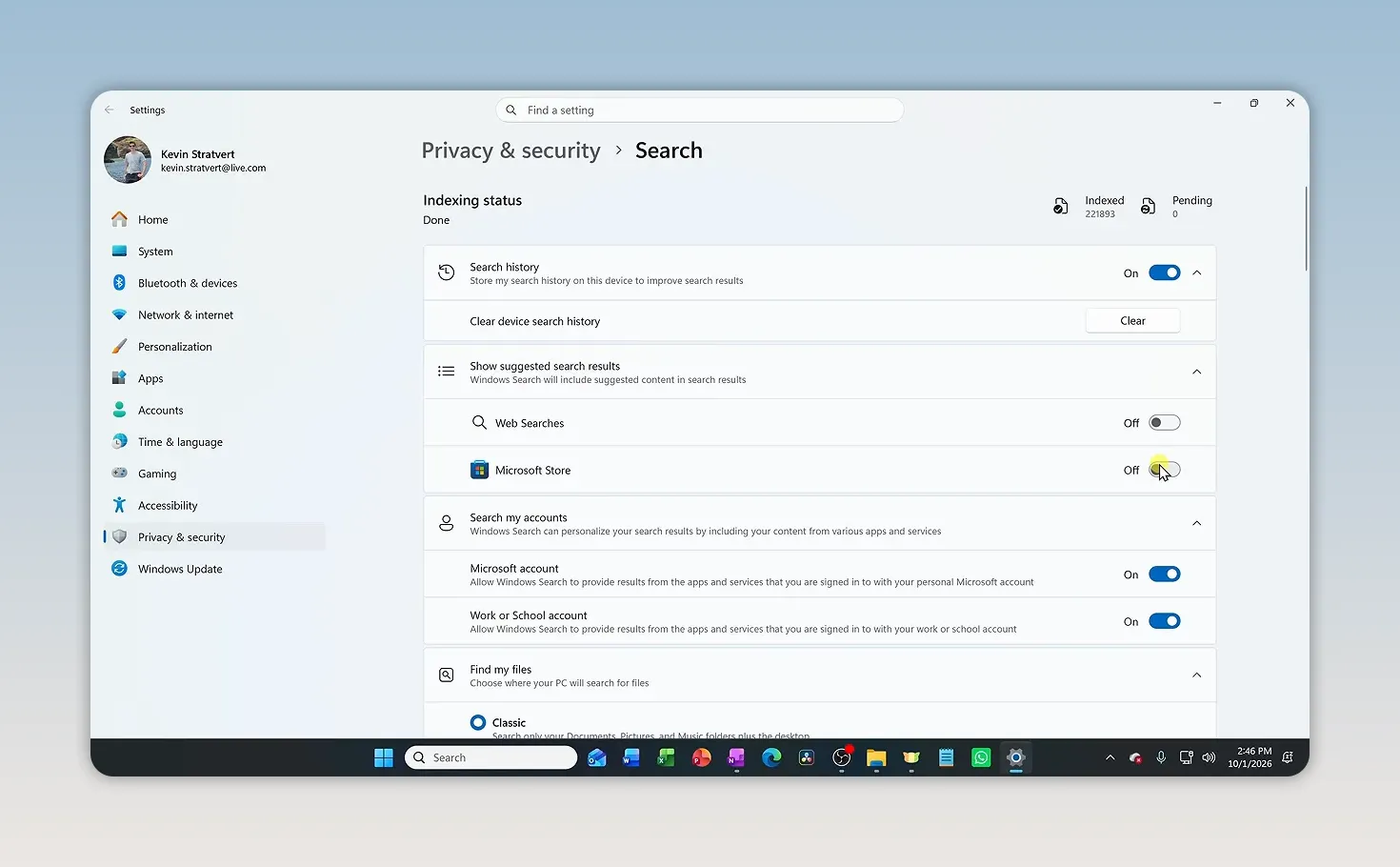
Now try a search. For example, searching for ChatGPT brings up matching apps, files, and settings on the PC instead of mixing in web results.
Personally, I prefer Search this way. When I want something on my computer, I use Windows Search. When I want to search the web, I use my browser.
Between a less crowded taskbar, a simpler Start menu, and more focused Search results, these settings give you much more control over how Windows 11 looks and works.


