YouTube has its own built-in way to download videos for offline playback. It works on a laptop or desktop computer, as well as an iPhone or Android phone, without a separate video downloader.
The catch? The method covered here requires YouTube Premium. That costs money, but downloads are only one part of the membership. You also get an ad-free YouTube experience, background play, and YouTube Music Premium.
I signed up primarily because ads were starting to slow me down, and having videos ready for a flight is a nice bonus. Here is how the membership works, what to check before paying, and how to download and manage your videos.
A quick note: Prices, trial offers, menu labels, and download options can change. The prices below describe the offer available when I demonstrated the service, not a current price quote.
What You'll Learn
- YouTube Premium provides built-in offline video downloads on computers, iPhones, and Android phones.
- The Downloads section lets you access saved videos, remove items, and manage desktop download quality.
- Downloaded content requires periodic internet access to remain available offline.
- Premium also includes ad-free videos, background play, and YouTube Music Premium.
Table of Contents
- What You Get With YouTube Premium
- Compare YouTube Premium Plans Before Signing Up
- Start a Trial and Manage Your Membership
- How to Download YouTube Videos on a Laptop or Desktop
- How to Download YouTube Videos on iPhone or Android
- Access YouTube Music With Your Membership
- Is YouTube Premium Worth It for Downloads?
What You Get With YouTube Premium
An ad-free YouTube experience
Premium removes the ads served by YouTube before and during videos, along with display ads around the video page. Instead of waiting through a pre-roll ad, you can get straight to the content.
YouTube also has a collection of free movies and TV shows. In the offering demonstrated here, Premium removed ads from that collection as well.
And creators still benefit. A portion of Premium membership revenue goes to creators whose content members play. For example, during one 28-day period, my channel earned a little over $500 from Premium activity. So removing ads does not mean removing all financial support for your favorite creators.
Background play on your phone
Background play lets the audio continue when you switch apps or turn off your phone’s screen.
This is especially useful for music, but it also works well for content you mostly listen to. You do not have to keep the YouTube video page open on your screen just to hear the rest.
Videos available offline
Premium adds a Download option to supported videos. Download a video while you have internet access, then open it from YouTube’s Downloads section when you are offline.
There is an important limit: downloads need periodic internet access to remain available. The demonstrated service required a connection roughly once every 30 days. For the latest device-specific requirements, see YouTube’s official offline download guidance.
For a flight or a trip, that is easy enough to manage. If you are heading underwater in a nuclear submarine for more than a month, this might not be your ideal entertainment plan.
YouTube Music Premium
The membership also includes YouTube Music Premium, YouTube’s music streaming service. Think of it as an alternative to a service like Spotify: a large music catalog, ad-free listening, background playback, and music downloads for offline listening.
If you already pay for a music subscription, that makes the value comparison more interesting. You may be able to cover your music needs and get YouTube’s video benefits with one membership.
Compare YouTube Premium Plans Before Signing Up
To find the available plans, open YouTube in a browser and select YouTube Premium from the left-hand menu.
At the time of my demonstration, the U.S. pricing worked out approximately as follows:
- Individual monthly: About $12 per month.
- Individual annual: About $120 paid upfront, equivalent to about $10 per month.
- Family: About $18 per month, with access for the account holder and up to five other eligible family members in the household.
With all six family slots filled, that example worked out to about $3 per person per month. That is a pretty good deal, provided the people sharing the plan meet the eligibility requirements.
Check the live offer for your country before making a decision. Pricing varies by market, and the figures above are historical examples.
The comparison is not just “How much does downloading a video cost?” If you would otherwise pay for a music service, compare that expense with the combined value of YouTube Music, ad-free videos, background play, and offline downloads.
Start a Trial and Manage Your Membership
Review the trial and billing details
- Open the YouTube Premium page in your browser.
- Select Try it free, if a trial is available.
- Sign in with the Google account you want to use.
- Review the trial length, payment details, and date paid billing begins.
- Complete the signup process.
The offer I used included a one-month trial, with billing beginning afterward. Your account may receive a different offer, so read the checkout details rather than assuming the same terms apply.
One small money-saving discovery: closing the checkout window with the X brought up an offer for 30% off my first paid month. That was an offer presented during my signup, not a guaranteed discount, but it is worth checking the terms of any promotion you receive.
Compare the website price before subscribing through an iPhone app. In the signup flow I demonstrated, the iPhone price was higher because of App Store billing fees. Signing up on the website avoided that higher price.
Find the cancellation controls
After signup, YouTube displays a welcome message and a Premium label near the logo. To manage the membership:
- Select your profile picture in the upper-right corner.
- Choose Purchases and memberships.
- Find YouTube Premium and expand Manage membership.
- Use the deactivation option if you decide not to continue.
This is also the place to go if you want to stop the membership from continuing beyond the trial period.
How to Download YouTube Videos on a Laptop or Desktop
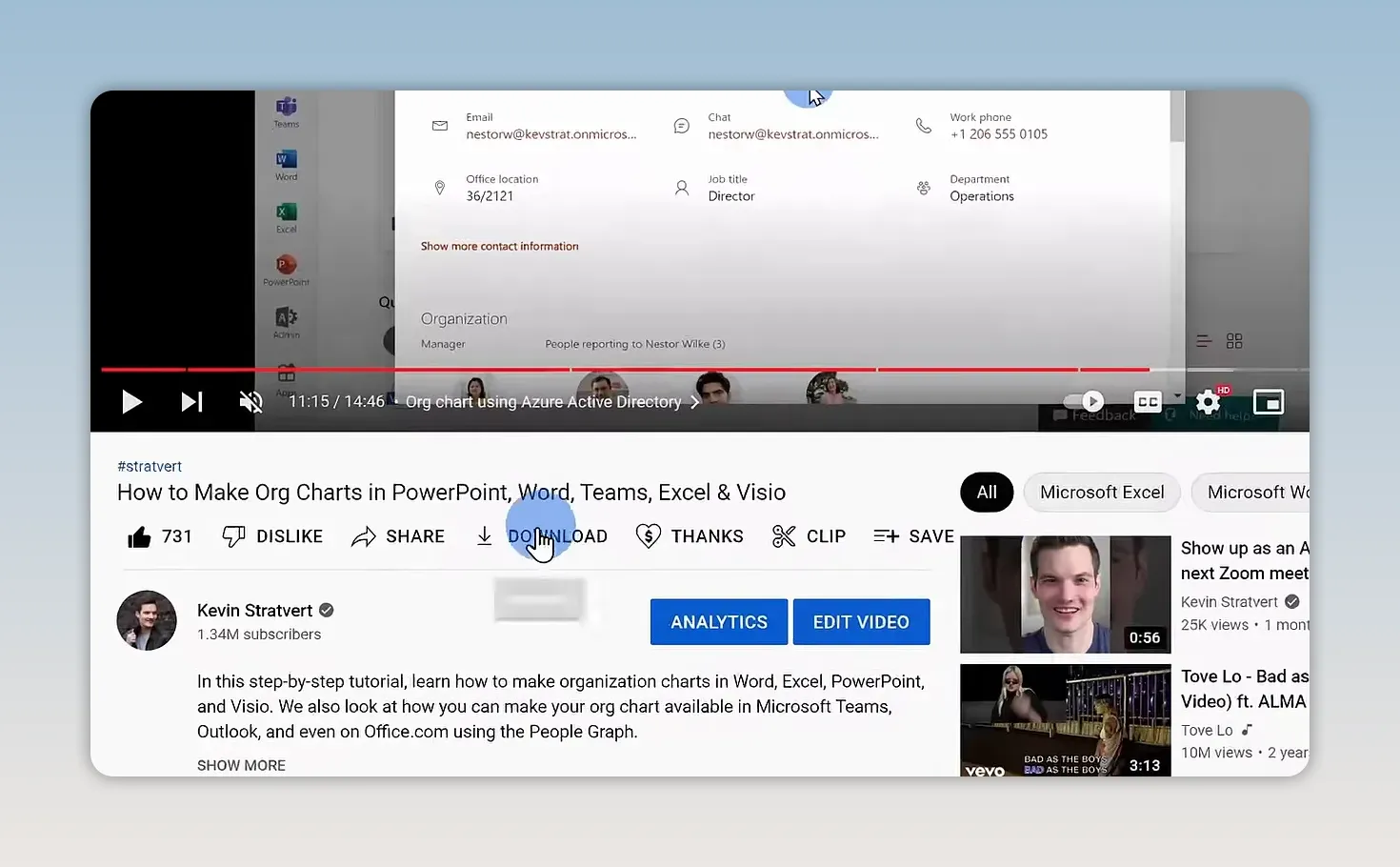
Once Premium is active, downloading a video takes just a few clicks.
Suppose you have a flight coming up and want to learn how to create an organizational chart. A thrilling choice for in-flight entertainment, I know. Realistically, I might pick a movie, but the process is the same.
- Open YouTube in your browser and sign in to your Premium account.
- Open the video you want to save for offline playback.
- Click Download beneath the video.
- Wait for the download to finish.
Find and play your downloaded videos
Open the three-line menu in the upper-left corner of YouTube and select Downloads. This page brings your downloaded content together so you can select a video for offline playback.
The key is to return to YouTube’s Downloads section, which is where this method makes your offline videos available.
Remove a downloaded video
On the Downloads page, click the three-dot menu next to the video and select Remove from downloads. This is useful when you no longer need a video stored on your computer.
Change the download quality
Click Download settings in the upper-right corner of the Downloads page. From there, choose the resolution for your downloads.
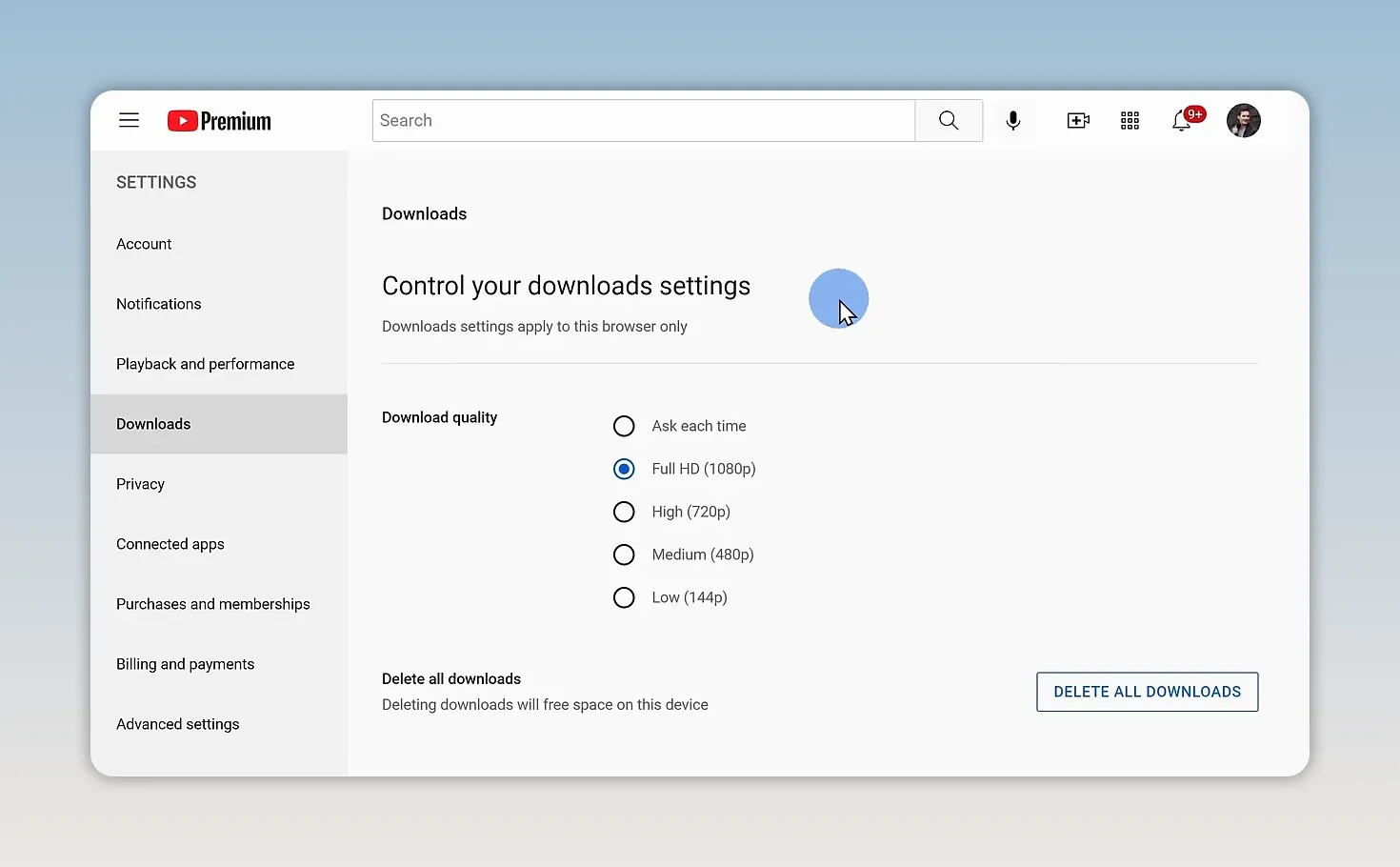
In the settings demonstrated here, the highest available option was Full HD at 1080p. Lower-resolution options were also available, but 4K was not offered.
For on-the-go playback, 1080p is often sufficient. Check the options shown in your own settings rather than assuming every source video can be downloaded at its original resolution.
How to Download YouTube Videos on iPhone or Android
The mobile process is very similar, using the YouTube app.
- Open the YouTube app and sign in with your Premium account.
- Open the video you want to download.
- Tap the Download icon beneath the video.
- Allow the download to complete before going offline.
To find saved videos, open Library in the bottom-right corner of the app, then select Downloads. Those are the labels in the app version demonstrated here; navigation may look different in another version.
Tap a downloaded video to start playback. To remove one, tap its three-dot menu and choose Delete from downloads.
Use Smart Downloads for automatic recommendations
The mobile Downloads page also includes an optional feature called Smart Downloads.
In the version demonstrated here, turning it on allowed YouTube to download 20 recommended videos over Wi-Fi and refresh those selections weekly. That gives you something available offline even if you did not manually choose every video before leaving home.
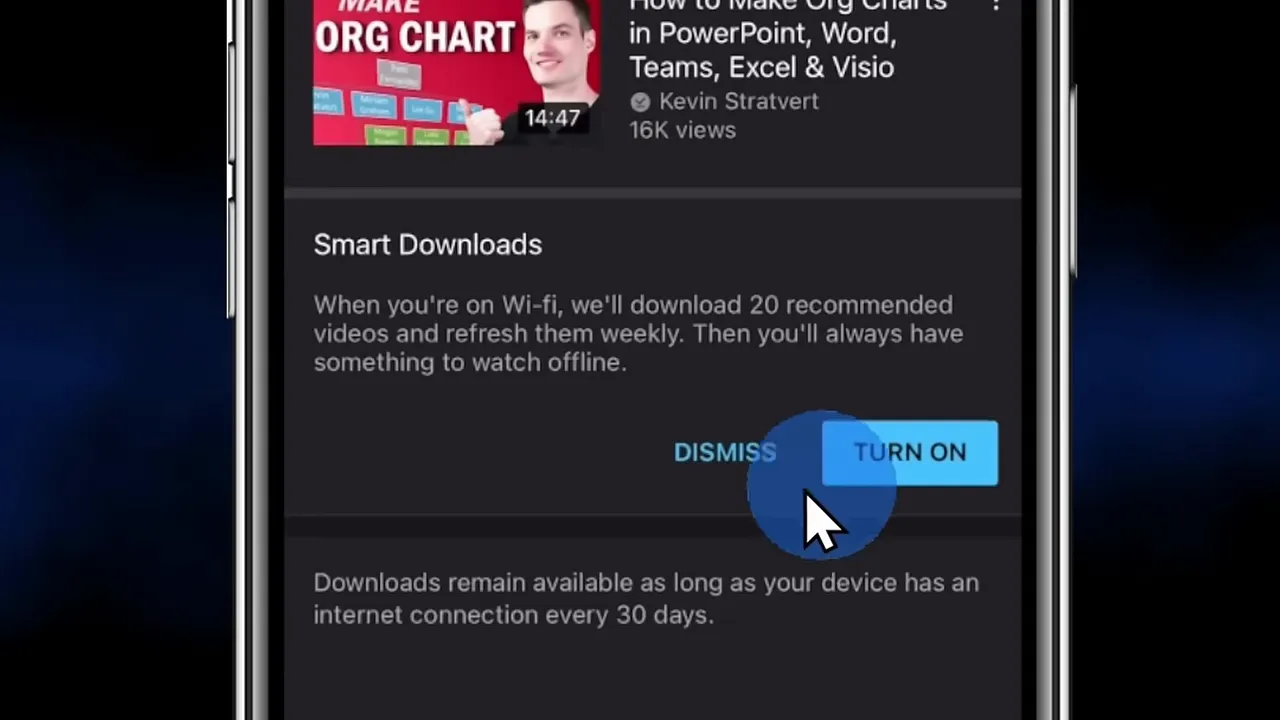
Manual downloads are useful when you know exactly what you want. Smart Downloads adds a selection of recommendations with less planning. Either way, remember to reconnect periodically so your offline content remains active.
Access YouTube Music With Your Membership
For music on your computer, select YouTube Music from YouTube’s left-hand menu. This opens the music service, where you can browse its catalog, including albums, songs, and music organized by mood or genre.
On iPhone or Android, install the dedicated YouTube Music app and sign in with the account connected to your Premium membership.
YouTube Music Premium includes:
- Ad-free music from its catalog.
- Offline music downloads for listening without an internet connection.
- Background playback when you switch apps or lock your phone.
That last feature is particularly handy. Start your music, lock your screen, and the audio keeps playing.
Is YouTube Premium Worth It for Downloads?
If you only need an occasional offline video, the subscription cost is the main trade-off. But if you use YouTube frequently and already pay for music streaming, the full package is worth comparing with what you spend today.
For me, removing ads made the biggest difference. Downloads, background play, and YouTube Music made the membership more useful beyond that.
The practical routine is simple: download your videos before leaving, find them in YouTube’s Downloads section, and reconnect periodically. Your next flight can have a movie, some music, or, if you are feeling especially productive, an organizational chart tutorial ready to go.
Made with VideoToBlog using ⬇️ How to Download YouTube Video


