You can use Microsoft Word, Excel, and PowerPoint entirely for free, and it is completely legal. Microsoft provides browser-based versions of these apps, so you can create documents, spreadsheets, and presentations without buying the desktop software.
The important distinction is free Office on the web versus the paid desktop apps. The web apps require an internet connection and do not include every desktop feature, but they offer a lot more than a basic document editor. You also get templates, commenting, and real-time collaboration.
There are two ways to access the apps covered here: through your browser or through the Office app shown on Windows 10. The browser is the most direct route, whether you use Windows, Mac, Linux, or Chrome OS. Page layouts and app names may change over time, but the key is to sign in for the web apps rather than choose an option to purchase Office.
What You'll Learn
- A free Microsoft account gives you browser-based access to Word, Excel, and PowerPoint.
- You can upload existing Office files and download your work to your computer.
- The free web apps require internet access and do not include every desktop feature.
- Real-time editing and comments let multiple people work together in the same file.
Table of Contents
- Method 1: Use Microsoft Office for Free in Your Browser
- Use Templates and Find Your Recent Files
- Upload Existing Files and Download Your Work
- What Is Free, and What Requires Paid Office?
- Method 2: Access Office Through the Windows Office App
- Explore More Than Word, Excel, and PowerPoint
- Collaborate in Real Time and Leave Comments
- Request Features and Make the Most of the Free Apps
Method 1: Use Microsoft Office for Free in Your Browser
Sign in with a free Microsoft account
Start by opening your browser and going to Microsoft Office online. In the interface shown here, the landing page offers two main choices: Get Office and Sign in.
That choice matters. Get Office leads to purchasing options, such as a subscription or the desktop software. For free access, choose Sign in.
- Open Office.com in your browser.
- Select Sign in.
- Enter your Microsoft account email address and password.
- If you do not have an account, use the account creation option. Creating a Microsoft account is free.
If you already use a Microsoft service, you may already have the account you need. There is no need to create another one just for Office.
You may also see an option to stay signed in. That can save you from entering your credentials each time on your own computer.
Create a Word document, Excel workbook, or PowerPoint presentation
Once you are signed in, the Office home page brings your apps and documents together. Select Start new to choose what you want to create.
- Word document: Write and format a document.
- Excel workbook: Work with a spreadsheet.
- PowerPoint presentation: Create a slide deck.
- Other content: The interface also includes options for forms, surveys, and Sway content.
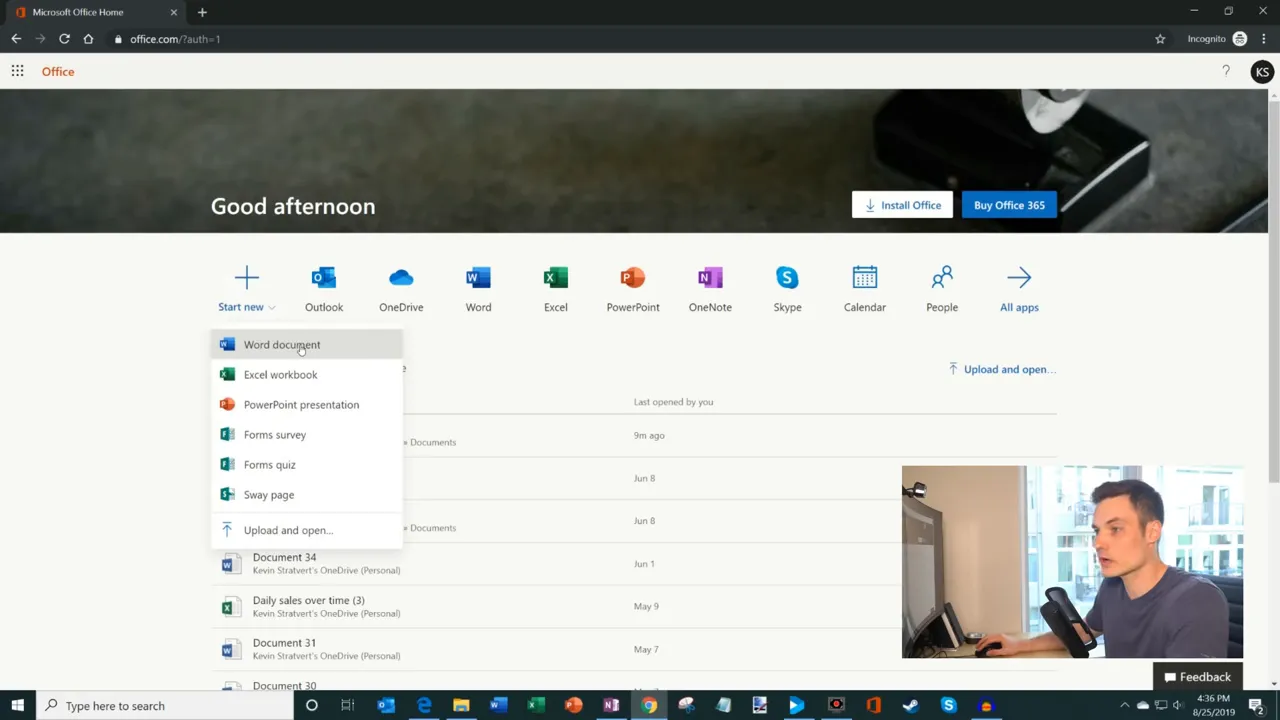
For example, choose Word document. A new document opens directly in your browser. Give it a name at the top, click on the page, and start typing.
I named my example document “Kevin YouTube star.” Maybe a little ambitious, but naming the file works exactly the way you would expect.
From there, you can apply headings, change styles, and format your text using the ribbon. You are working in Word without installing the desktop version.
Use Templates and Find Your Recent Files
You do not have to start from a blank page. Instead of using Start new, select an app tile, such as Word, to open that app’s start page.
Here you can choose a blank document or browse templates. Select More templates for additional starting points. Excel and PowerPoint have similar start pages, with templates appropriate to spreadsheets and presentations.
The app start pages also help you return to existing work. You can browse recent files, pinned files, and files shared with you.
One of my favorite parts of the Office home page is the combined Recent list. Rather than remembering which app you used or where you left a document, you can pick up your work from one place.
A file’s menu includes useful options such as:
- Pin: Keep an important file easy to find.
- Remove from list: Clear an entry from your recent list.
- Open file location: Go to the location where the file is stored.
Upload Existing Files and Download Your Work
Free Office on the web is not limited to files you create there. You can bring in an existing document from your computer, edit it online, and download a copy afterward.
Upload a file from your computer
- Return to the Office home page.
- Select Upload and open.
- Choose a Word, Excel, or PowerPoint file from your computer.
- Upload it and continue working in the corresponding web app.
This gives you a way to continue working on an existing file without needing the paid desktop app on that computer.
Download a Word document or PDF
Your work does not have to stay only in the cloud. In Word, open the document and select File > Save As.
From there, you can choose Download a Copy to save a Word document in .docx format to your computer. You can also choose Download as PDF when you need a PDF version to send to someone.
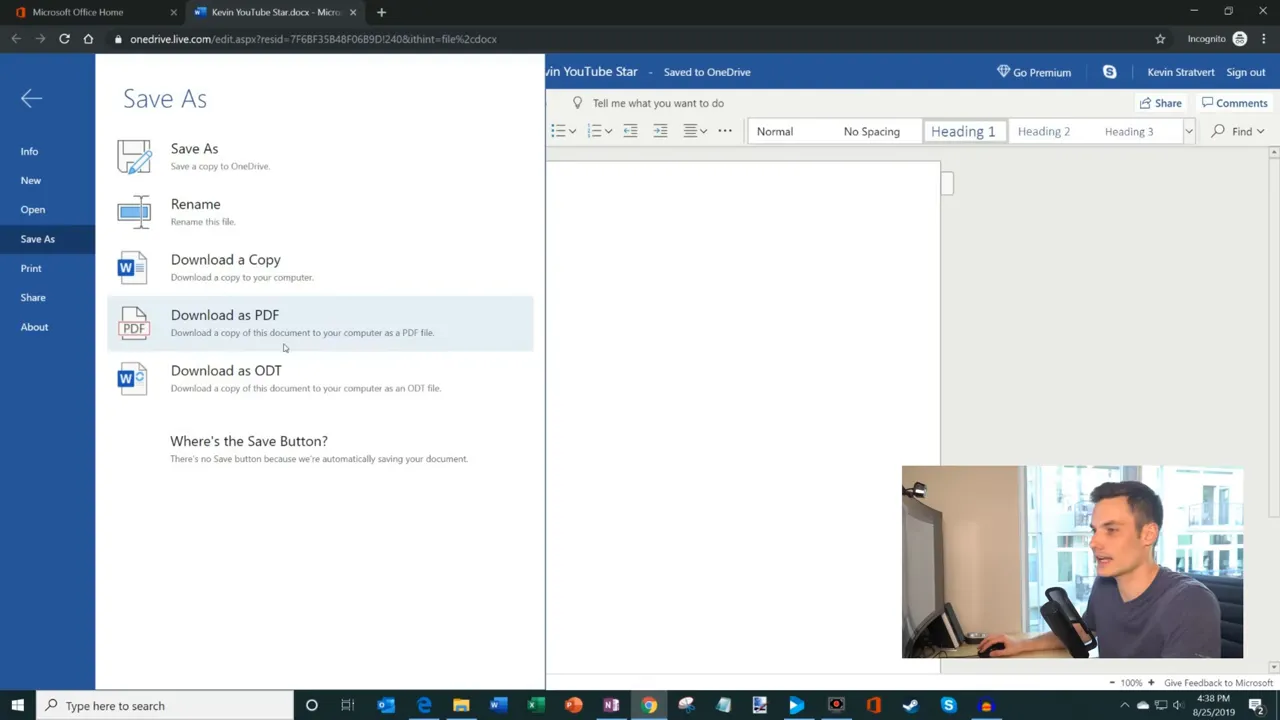
Downloading a file and having an offline editor are two different things, though. Saving a copy to your computer does not install the desktop version of Word or unlock its features.
What Is Free, and What Requires Paid Office?
The free method uses the web apps. You need a browser and an internet connection to take advantage of them.
The installed desktop versions are a separate offering. In the interface shown here, selecting Install Office displays a prompt to purchase a subscription. You do not need that purchase to keep using Word, Excel, and PowerPoint in your browser.
- Free web apps: Create and edit files online, use templates, collaborate, and add comments.
- Paid desktop apps: Install the full applications for offline work and access features that are not available in the web versions.
The web apps are not identical to their desktop counterparts. If your work depends on a particular advanced feature, check whether it is available online before relying on the free version.
For many everyday documents, spreadsheets, and presentations, however, the browser apps give you a useful place to start without paying for the desktop suite.
Method 2: Access Office Through the Windows Office App
The second route uses the Office app on Windows 10. This is a central place to access Office apps and files, not a free installation of the full desktop suite.
- Click the Windows search box.
- Type Office.
- Select the Office app from the search results, if it is available on your PC.
The Office app shown here looks very similar to Office.com, with app shortcuts and a list of recent documents.
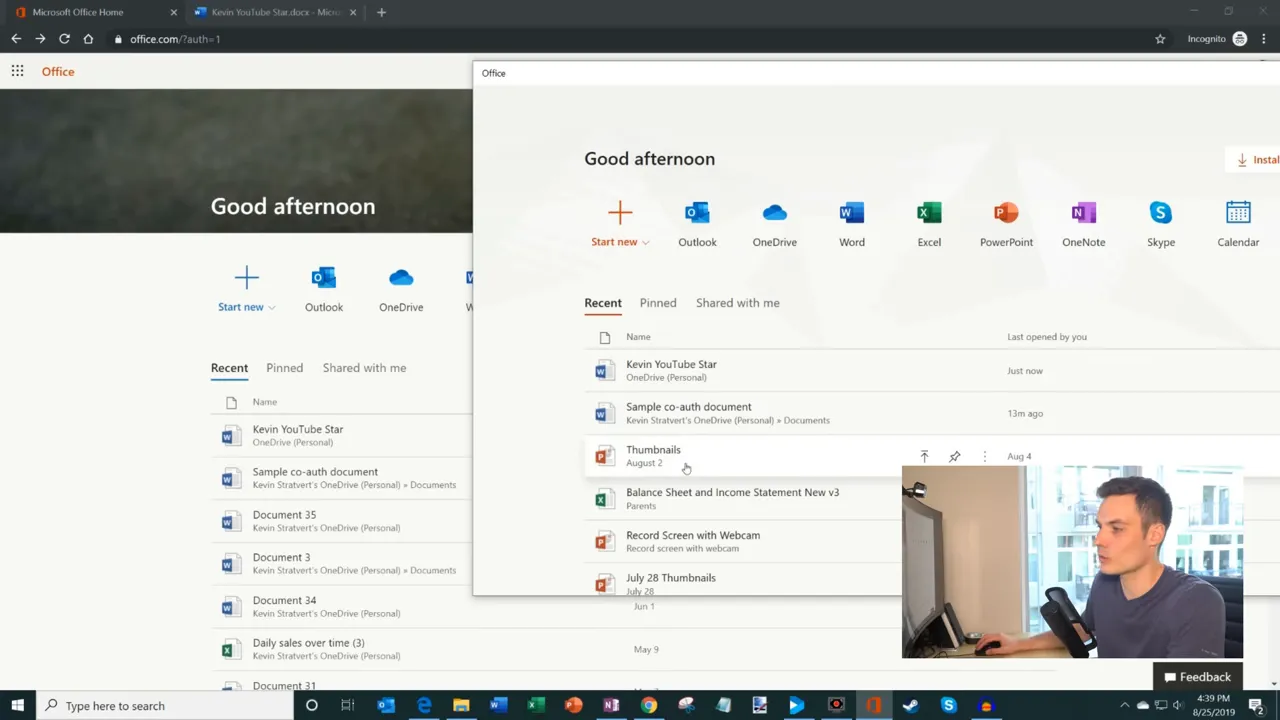
There is one useful difference: the Windows app can show local documents alongside cloud documents. That explains why its recent list may contain more files than the website.
I prefer that combined view because I can find work stored on my computer and work stored online in the same place. But it does not change the licensing distinction: the Office app itself does not give you free offline editing in the paid desktop applications.
Explore More Than Word, Excel, and PowerPoint
The Office home page goes beyond the three best-known apps. Select All apps to explore the other tools associated with your account.
The app collection shown here includes:
- OneNote: A note-taking app that I use all the time.
- Forms: A tool for creating surveys and quizzes.
- Sway: A way to create interactive web-based content you can share.
- Calendar and Tasks: Tools for keeping track of your schedule and work.
- Flow: The automation tool listed in this interface for setting up routines and tasks.
- Skype: The calling app listed in this interface.
The exact collection and names can vary as Microsoft updates its services, so use the apps listed in your account as your guide. The useful point is that your account can provide more than document, spreadsheet, and presentation tools.
Collaborate in Real Time and Leave Comments
One of the best features of Office on the web is real-time collaboration. Multiple people can work in the same Word document, Excel workbook, or PowerPoint presentation at the same time.
To illustrate this, I opened the same Word document in two browser windows, each signed in with a different account. Text entered in the right window appeared in the left window automatically.
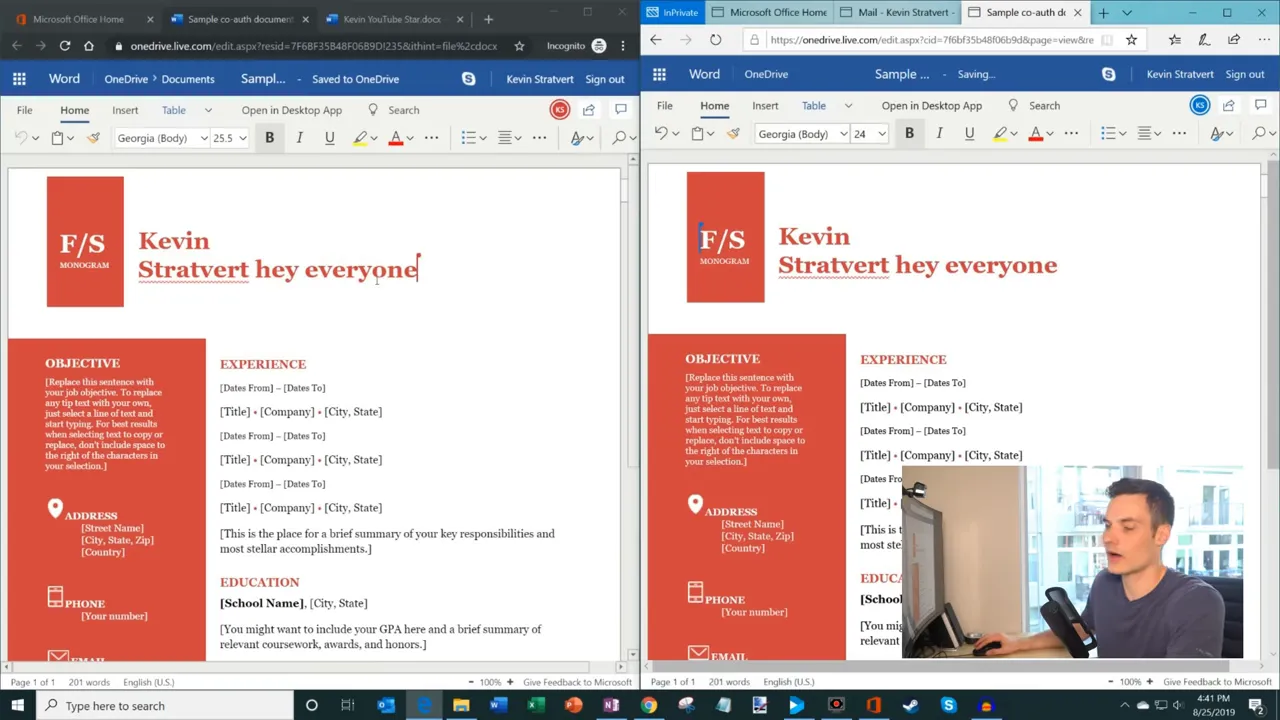
That is useful when you have several people contributing to one file. Instead of passing separate copies back and forth, everyone can work in the same document and see changes as they happen.
You can also discuss the work without putting every note into the document’s main text:
- Open the Review tab in Word.
- Add a comment, such as a request to review part of the document.
- Post the comment.
- Other collaborators can open the comments pane to read it and respond.
Real-time editing and comments work together: you can make changes while keeping the conversation about those changes attached to the file.
Request Features and Make the Most of the Free Apps
The web apps continue to gain functionality. PivotTables in Excel are one example of a capability that was added as the online tools developed.
If something you need is missing, look for Give feedback to Microsoft. In the interface shown here, that option is in the lower-right corner. You can describe something you like, report something you do not like, or request a feature.
Feedback is a way to explain what would make the apps more useful for your work, although it is not a guarantee that a particular request will be added.
The bottom line is simple: you can legally create and edit Word documents, Excel spreadsheets, and PowerPoint presentations for free using Microsoft’s web apps. Sign in with a free Microsoft account, stay in the browser-based experience, and you can start working without purchasing the desktop suite.


