You can stream movies entirely for free, and you don’t have to use questionable websites to do it. There are legitimate services with plenty of high-quality movies worth your time.
So, what’s the catch? You trade a little of your time for occasional ads. You also won’t find every movie you’re looking for. But if you’re open to browsing, there are some excellent options.
The trick is knowing where each service keeps its free movies, especially when paid rentals and premium titles appear alongside them.
Availability note: These instructions describe the services and free offerings as originally presented. Service names, menus, account requirements, and free plans can change, so check each site’s current offerings before signing up.
Table of Contents
- 1. YouTube Movies: Find the Free Section
- 2. Tubi: Start Without Registering
- 3. Vudu: Separate Free Movies From Paid Rentals
- 4. Freevee: Use IMDb Scores to Help You Choose
- 5. The Roku Channel: Check What’s Arriving and Leaving
- 6. Peacock: Understand the Free-Tier Labels
- 7. Pluto TV: Choose Live Channels or On-Demand Movies
- Where Should You Start?
1. YouTube Movies: Find the Free Section
YouTube has more than short clips and tutorials. It also has a dedicated collection of free, ad-supported movies, although it’s surprisingly easy to miss.
To find it through YouTube Movies & Shows:
- Select Movies & Shows from YouTube’s left-hand navigation.
- Scroll down to Free to watch movies.
- Select See more to open the larger collection.
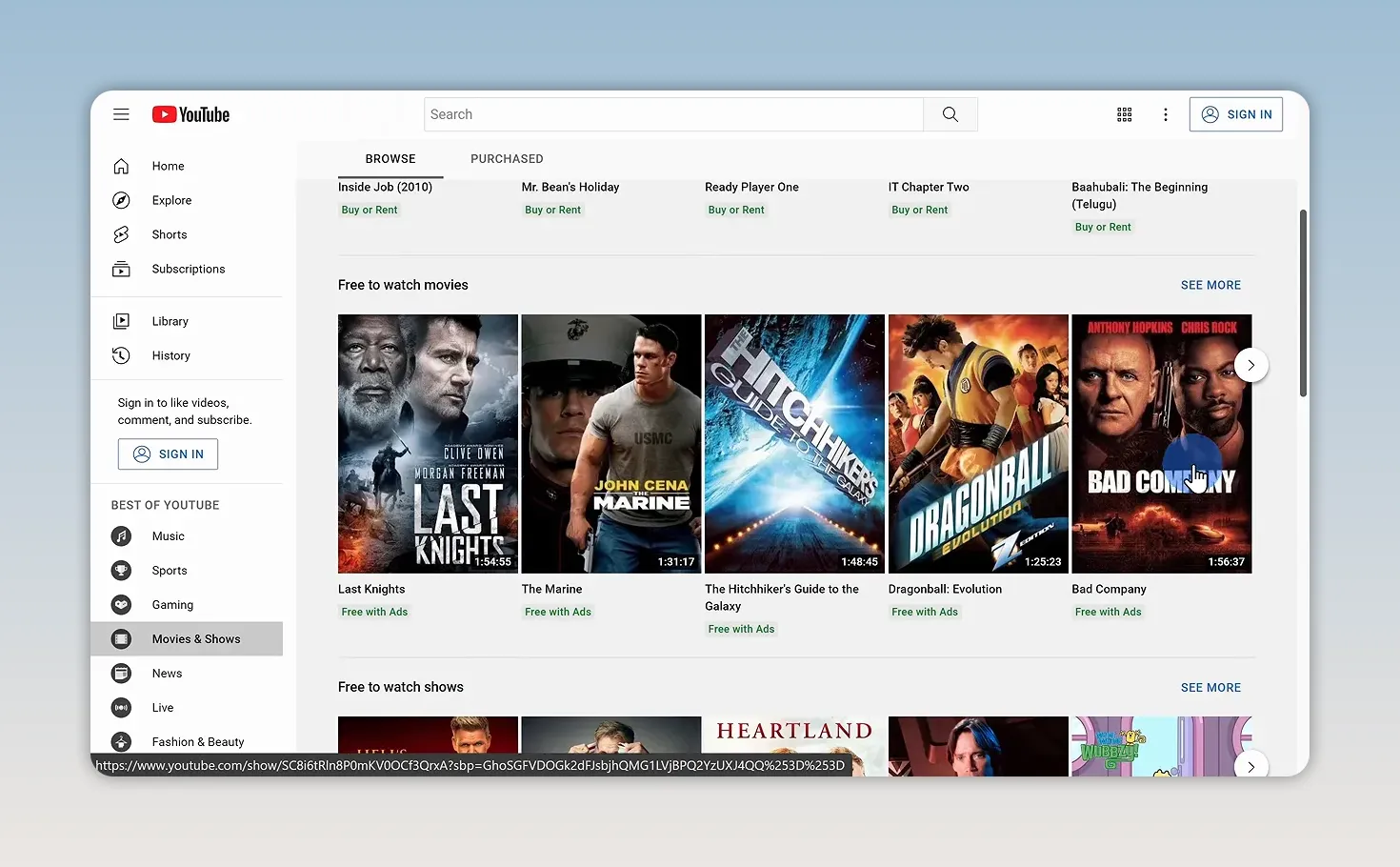
There’s also a free TV section just below the free movies, so it’s worth scrolling a little farther if you’d prefer a series.
The main downside is discovery. In this layout, you can’t limit a search to just the free collection, and there aren’t filters to narrow the list. It’s more of a browse-and-find experience than a precise search tool.
2. Tubi: Start Without Registering
Tubi is a straightforward place to start because you don’t have to register to begin streaming movies.
- Open the homepage and select Start Streaming.
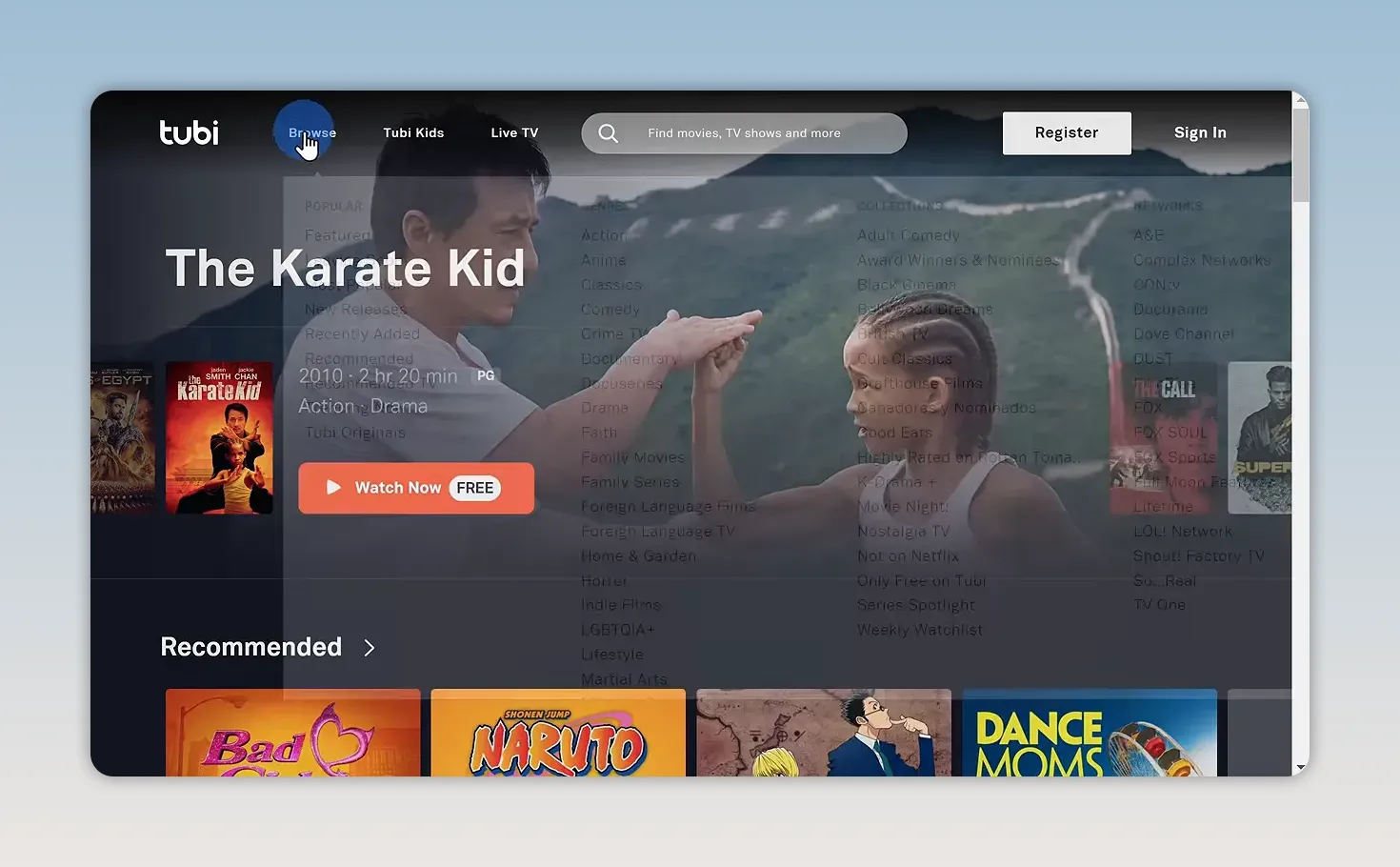
- Use Browse in the top navigation to explore the catalog.
- Select Most Popular if you want an easy starting point.
The Browse menu gives you more direction than a single long list. You can explore genres or head straight to popular titles when you don’t have a particular movie in mind.
Although an account is optional, creating one adds a few useful features:
- More personalized recommendations to help you find something you might enjoy.
- A personal list for saving titles for later.
- Viewing history so you can keep track of what you’ve already played.
If you just want to pick a movie and get started, though, you can skip registration.
3. Vudu: Separate Free Movies From Paid Rentals
Vudu, the Fandango-owned service, mixes paid movies with a free, ad-supported collection. That distinction matters: landing on the homepage doesn’t mean everything you see is free.
To isolate the free options:
- Select Free from the top navigation.
- Choose Movies, or select a category such as comedy, horror, or action.
- Browse the movie collection using the available sorting controls.
The collection offers a popularity-based view, labeled Most Watched, along with a Release Date option. Switching between them gives you another way to explore beyond the titles that appear first.
Now, the catalog includes both strong movies and some less promising options. Here’s a useful shortcut: open Filters and select Fresh Only under Tomatometer to narrow the collection to movies rated Fresh.
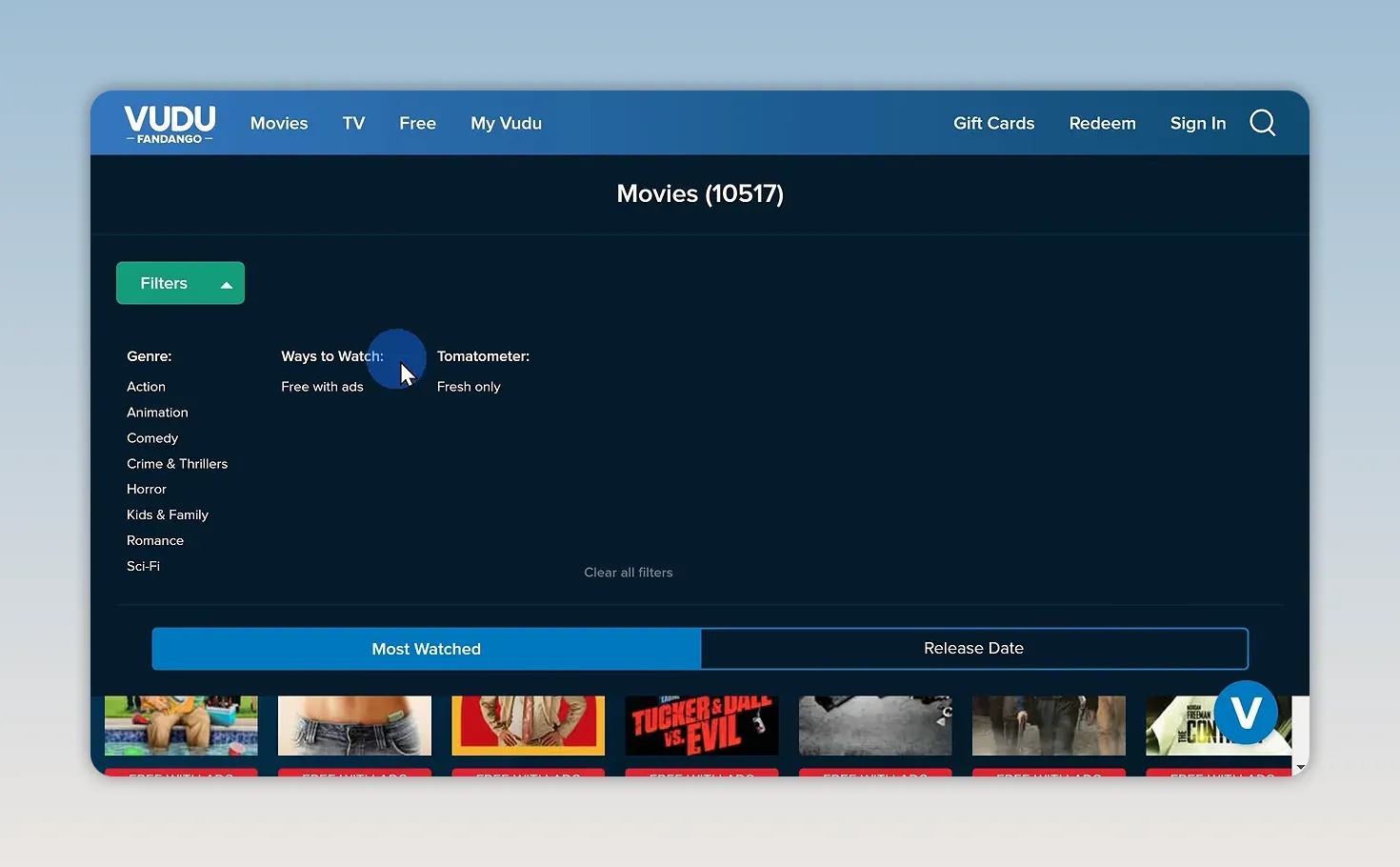
That gives you a more focused place to start than browsing the entire free catalog.
4. Freevee: Use IMDb Scores to Help You Choose
Freevee, previously known as IMDb TV, is Amazon’s ad-supported movie and TV offering covered here. The branding has changed, so you may encounter different names around the Amazon free-with-ads collection.
The browsing process is simple:
- Select the homepage’s streaming option to open the catalog.
- Find the popular movies section.
- Select See more to expand the list.
- Hover over a title to reveal its details and IMDb score.
The IMDb score is particularly handy when you recognize a poster but don’t know much about the movie. It gives you one more piece of information before committing your time.
Personally, I like to look for an IMDb score of at least 6.5. That’s a preference, not a guarantee that you’ll enjoy a movie, but it’s a useful starting point when there are lots of choices.
5. The Roku Channel: Check What’s Arriving and Leaving
You might recognize Roku as the company behind Roku streaming devices. It also offers The Roku Channel, with live TV plus movies and TV shows on demand.
Two sections are especially useful when browsing:
- Last Chance to Watch Free: Titles that are leaving the service soon.
- New This Month: Content recently added to the collection.
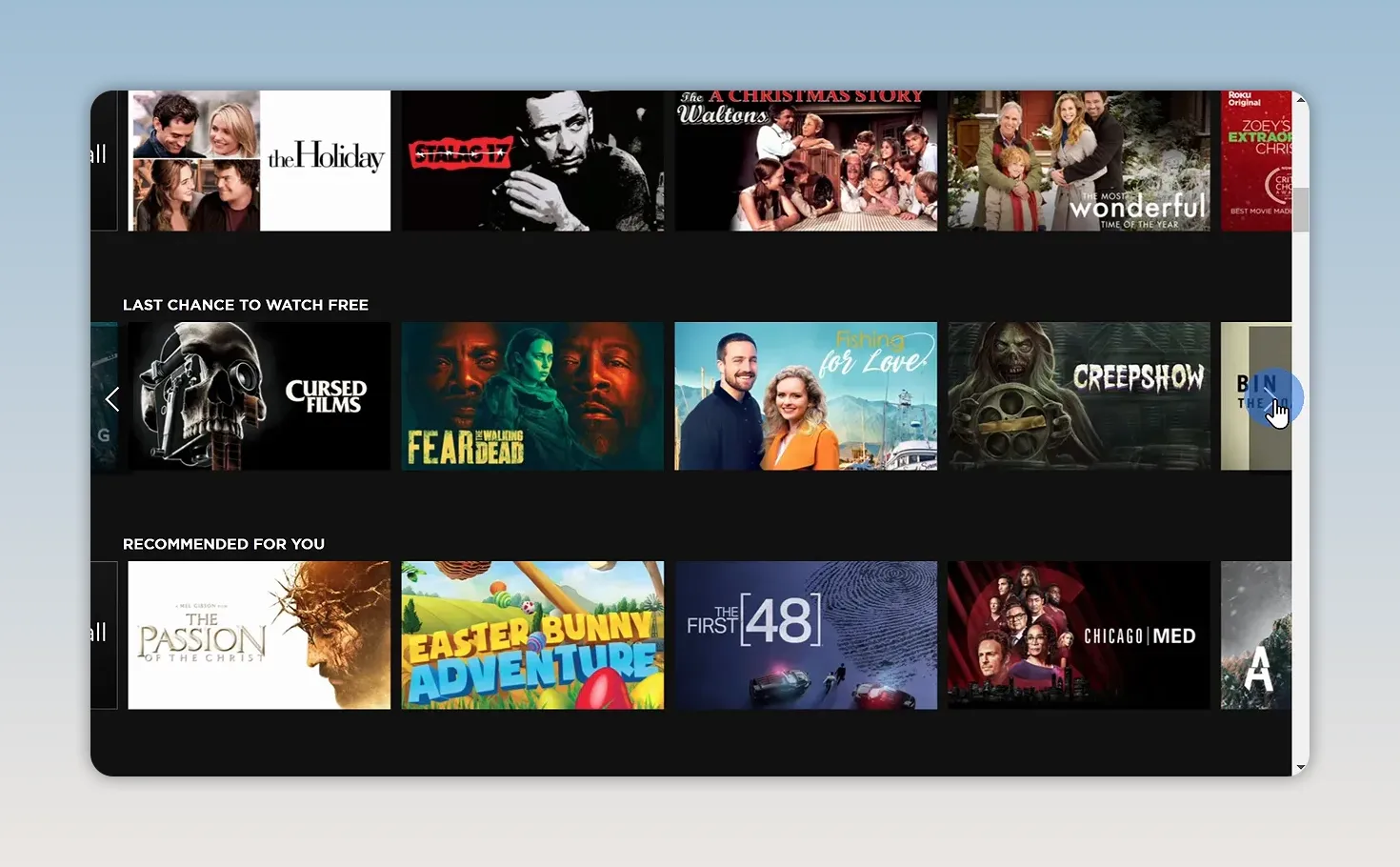
If something on your list appears in the last-chance section, that’s a good reason to prioritize it. Otherwise, the newly added row is a convenient way to find fresh choices without browsing the same recommendations again.
It’s also a useful option if you want both scheduled live programming and movies you can start on demand.
6. Peacock: Understand the Free-Tier Labels
Peacock, owned by Comcast, used a different setup in the free-tier offering covered here: you needed to create an account, although registration itself was free.
After signing in, the process was to select Movies from the top navigation and look carefully at the title artwork.
- A purple feather icon in the upper-left corner indicated a premium title.
- No purple feather icon identified a movie accessible through that free offering.
The drawback was that there wasn’t an easy filter to show only free movies. You had to browse the mixed collection and check the icons yourself.
Check Peacock’s current plans first. The free-tier instructions above describe that earlier setup, not a promise that the same free access is available now.
7. Pluto TV: Choose Live Channels or On-Demand Movies
Pluto TV has a familiar television feel. Open the site, and a live channel starts playing automatically, much like turning on a TV.
The guide beneath the player shows programs currently airing and what’s coming up next. That works well if you’d rather browse channels than choose a specific title.
For movies you can start on your own schedule, use the on-demand collection:
- Select On Demand at the top of the page.
- Choose Most Popular Movies from the left-hand menu.
- Browse the row, then select View All to open the full popular-movie collection.
The important distinction is Live TV versus On Demand. The live guide follows a schedule, while the on-demand section lets you choose a movie rather than join whatever is already playing.
Where Should You Start?
If you want the simplest starting point without registration, try Tubi. If you already spend time on YouTube, check its free movie section. For more selective browsing, Vudu’s Tomatometer filter and Freevee’s IMDb scores offer useful shortcuts.
The Roku Channel is handy for tracking arrivals and departures, while Pluto TV gives you the choice between channel surfing and on-demand movies.
You may not find the exact movie you originally had in mind. But with a little browsing and a willingness to sit through occasional ads, you can find something worthwhile without paying for another rental or subscription.


