Programming lets you take an idea and turn it into a series of steps a computer can execute. Maybe you want to create a game, build an internal tool for work, or simplify something you do every day. Learning to program gives you a way to make those ideas real.
Python is a great place to start, even if you have no programming experience. We’ll begin with installing Python and running your first line of code, then build up to variables, conditional logic, functions, loops, and importing modules. Along the way, you’ll also learn how to make sense of errors when something doesn’t work quite as expected.
What You'll Learn
- Install Python and configure Visual Studio Code to write, save, and run your own programs.
- Use operators, strings, variables, and input to work with numbers and text.
- Combine conditional logic, reusable functions, and loops to control how your programs execute.
- Import existing modules and distinguish syntax problems, runtime failures, and incorrect program logic.
Table of Contents
- Why Learn Python?
- 1. Install Python and Check That It Works
- 2. Run Your First Code in the Python Terminal
- 3. Save and Run a Python File Using Notepad
- 4. Set Up Visual Studio Code for Python
- 5. Work with Numbers and Operators
- 6. Work with Text and Strings
- 7. Explain Your Code with Comments
- 8. Store Values in Variables
- 9. Compare Values with Conditional Logic
- 10. Make Decisions with if, elif, and else
- 11. Make Code Reusable with Functions
- 12. Repeat Actions with while and for Loops
- 13. Reuse Existing Code by Importing Modules
- 14. Troubleshoot Common Python Errors
- You Now Have the Building Blocks
Why Learn Python?
There are plenty of programming languages to choose from: C, C#, C++, Java, JavaScript, PHP, and many more. So why Python?
- It’s readable. Python code tends to be concise and relatively easy to understand.
- It’s general purpose. You can use it for web applications, company tools, games, and scientific analysis.
- The concepts transfer. Variables, functions, conditions, and loops are useful in many other programming languages, too.
Think of programming languages a little like spoken languages. “Hello,” “hallo,” and “bonjour” communicate the same basic idea using different words. Programming languages also have different syntax and rules, but the underlying goal is the same: communicate instructions to a computer.
1. Install Python and Check That It Works
First, check whether Python is already installed. On Windows, open the Start menu, search for Command Prompt, and open it. Enter this command:
python --versionIf Python is installed and available through that command, you’ll see a version number. If the command reports that Python wasn’t found, you’ll need to install it.
- Go to the official Python website.
- Open Downloads and choose the recommended Python 3 release for your operating system.
- Download and open the installer.
- On the Windows installer, enable Add Python to PATH if that option appears, then proceed with the installation.
- After installation, open a new Command Prompt window and run
python --versionagain.
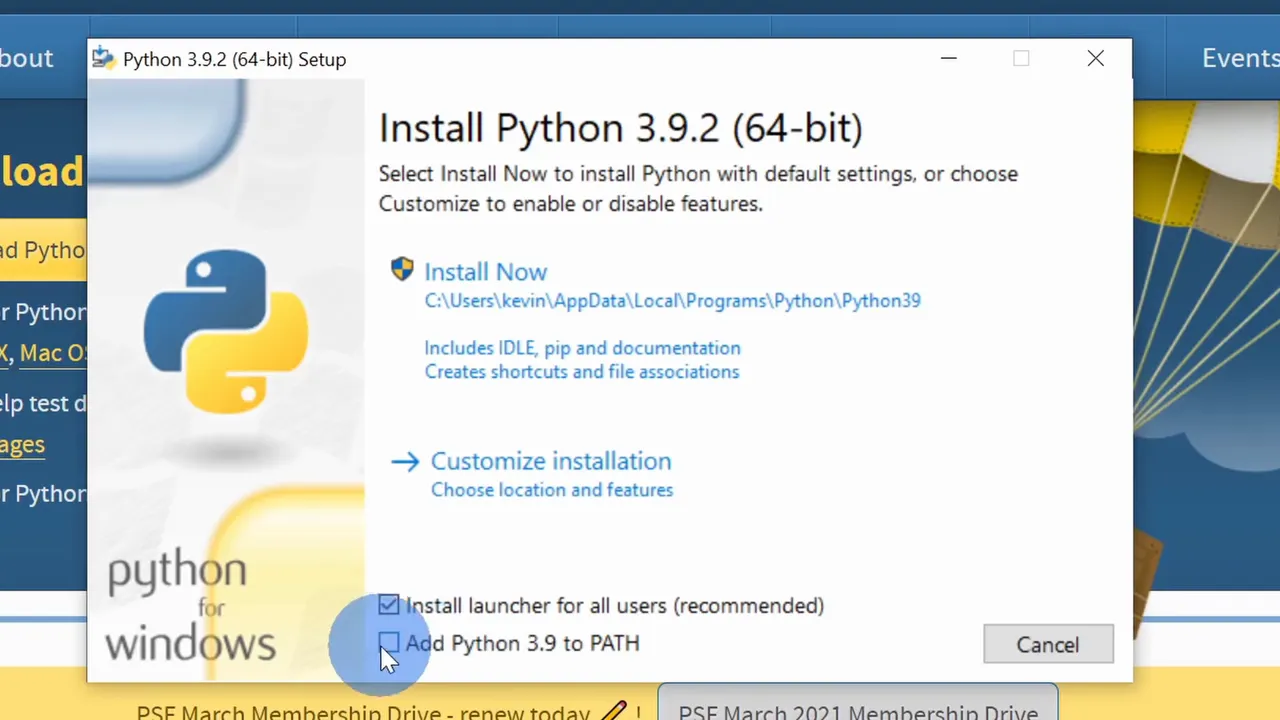
The installer shown here uses Python 3.9.2, but you don’t need that specific version to follow these examples. Choose the recommended Python 3 release available to you.
2. Run Your First Code in the Python Terminal
Open Python from the Start menu, or enter python in Command Prompt to start its interactive interpreter. This is a place where you can enter Python expressions and get results immediately.
Try entering:
1 + 2Python evaluates the expression and returns 3. Pretty neat. You’ve already executed some code.
Now, if you enter what is 1 + 2?, Python won’t understand it. You’ll get a SyntaxError because the sentence doesn’t follow Python’s rules. A computer needs instructions written in a form it recognizes.
Print a message
Python includes built-in functions that perform useful actions. One of the first you’ll use is print(), which displays output:
print("Hello World")Press Enter, and Python displays Hello World. The text goes inside quotation marks, and the function’s input goes inside parentheses.
Python lets you run these examples without a separate manual compilation step. You enter an instruction, and the interpreter evaluates or executes it.
To leave the interactive interpreter, enter exit().
3. Save and Run a Python File Using Notepad
The interactive interpreter is useful for quick experiments, but you’ll usually want to save your code so you can run it again.
You don’t need a specialized editor to create source code. A plain text editor, such as Notepad on Windows, works just fine.
- Open Notepad.
- Enter
print("Hello World"). - Choose File > Save As.
- Name the file
Hello World.py. - If necessary, choose All Files as the file type so Notepad doesn’t append
.txt. - Save the file somewhere convenient, such as your desktop.
The .py extension identifies a Python source file. A normal text document typically ends in .txt, while a JavaScript file commonly ends in .js.
To run your new file, open Command Prompt, type python followed by a space, and drag the file into the window. That inserts its location for you. If the path contains spaces, make sure it is surrounded by quotation marks.
Press Enter. Python runs the file and displays Hello World in Command Prompt.
Congratulations, you’ve now written, saved, and executed your first Python program.
4. Set Up Visual Studio Code for Python
Notepad works, but a coding environment makes writing programs easier. Think of the difference between drafting a school paper in a basic text editor and using a word processor with helpful editing tools.
An integrated development environment, or IDE, brings programming tools together. Visual Studio Code is a free code editor that, with its Python extension, provides many of those conveniences.
Install Visual Studio Code
- Visit the Visual Studio Code website.
- Download the stable version for Windows, macOS, or Linux.
- Run the installer and complete the setup prompts.
- On Windows, review the additional tasks, including file associations and Open with Code options.
- Launch Visual Studio Code.
If you need to return to its starting screen later, use Help > Welcome.
Install the Python extension and select an interpreter
VS Code needs both Python support in the editor and access to the Python interpreter you installed.
- Select the Extensions icon on the left.
- Search for Python.
- Choose the Python extension published by Microsoft and install it.
- Press Ctrl + Shift + P to open the Command Palette.
- Search for Python: Select Interpreter.
- Select your installed Python version.
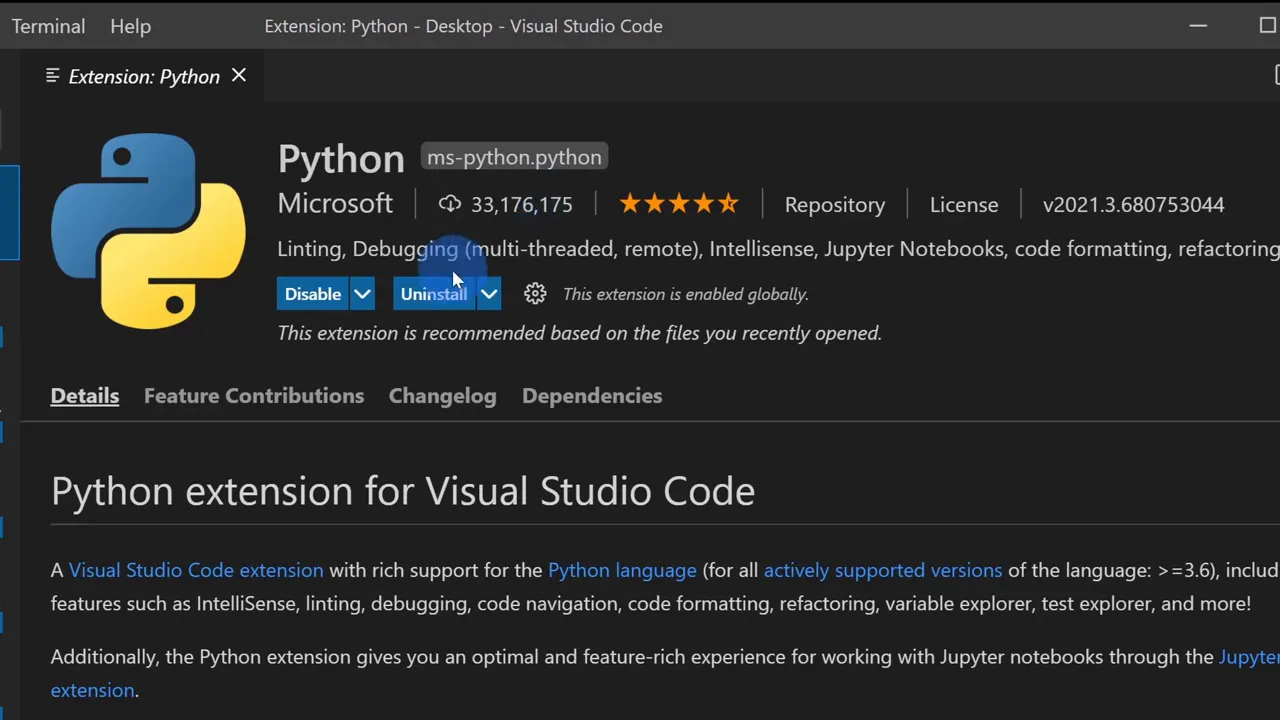
The extension adds Python-specific editing tools. Selecting the interpreter tells VS Code which Python installation should execute your code. These are two separate pieces of the setup.
Open and run your file
Use File > Open File to open Hello World.py. You’ll immediately notice some useful features:
- Line numbers make individual lines easier to find.
- Syntax highlighting uses colors to distinguish functions, strings, and other code elements.
- Suggestions help complete names as you type.
- Hover information explains functions and their expected inputs.
To execute the file, right-click in the editor and choose Run Python File in Terminal, or use the play button near the top right. Your output appears in the integrated terminal below.
For the remaining examples, enter the code in your Python file, save it, and run it. If you want to experiment interactively in VS Code’s terminal, first enter python to start the Python interpreter.
5. Work with Numbers and Operators
Python can handle familiar arithmetic operations. Run these examples to see the results:
print(1 + 2)    # 3
print(5 - 2)    # 3
print(4 * 4)    # 16
print(10 / 5)   # 2.0
Use an asterisk, *, for multiplication and a forward slash, /, for division. Ordinary division returns a floating-point result, so 10 / 5 displays 2.0.
Spaces around these operators don’t change the answer. Both 1+2 and 1 + 2 work, but spacing makes the expression easier to read.
Understand the order of operations
Python follows the familiar arithmetic order of operations. For example:
print(2 + 2 * 5)     # 12
print((2 + 2) * 5)   # 20
In the first expression, multiplication happens before addition. In the second, parentheses tell Python to add first.
For these arithmetic examples, think of PEMDAS: parentheses, exponents, multiplication and division, then addition and subtraction. Multiplication and division share a precedence level, as do addition and subtraction, and are evaluated from left to right.
Exponents, floor division, and remainders
Python also provides a few operators that may be less familiar:
- Exponentiation,
**:2 ** 3means 2 to the third power and returns8. - Floor division,
//:5 // 2returns2, the quotient rounded down. - Modulo,
%:5 % 2returns1, the remainder after division.
Notice the difference between a fractional quotient and a remainder: 5 / 2 gives 2.5, while 5 % 2 gives 1.
When entering a large number, don’t use commas as thousands separators. Write 1000000, not 1,000,000. Inside a function call, commas separate inputs rather than make one large number.
6. Work with Text and Strings
A string is a sequence of characters. You can surround a Python string with either single or double quotation marks:
print("Hello World")
print('Hello World')
Both produce the same output. The choice becomes useful when your text contains quotation marks of its own:
print("What's up?")
print('He said "Hello World".')
Double quotes around the first string allow the apostrophe in What's to remain part of the text. Single quotes around the second string allow the double quotes inside it.
Make sure your opening and closing quotes match. Otherwise, Python may interpret part of your text as code and report an error.
You can add spacing around the elements of a simple expression for readability, but spaces inside a string are part of its content. Later, you’ll also see that indentation at the beginning of a line has a very important meaning in Python.
7. Explain Your Code with Comments
A comment is a note for the people reading your code. Python ignores it when executing the program.
Start a comment with the hash symbol, #. It can sit on its own line or follow a statement:
# This prints some text.
print("What's up?")

print("Hello World")  # A comment can also go here.
Comments are also useful when troubleshooting. Put # in front of a line of code to temporarily disable it:
# print("This line will not run.")Remove the hash symbol when you’re ready to test the line again. This is called commenting out code.
8. Store Values in Variables
The easiest way to picture a variable is as a named bucket. You can put a value in it, refer to that value using the bucket’s name, and replace it with a different value later.
For our bucket, we’ll use the name red_bucket:
red_bucket = "Kevin"
print(red_bucket)
The single equals sign assigns the value "Kevin" to red_bucket. Printing the variable displays Kevin.
Now assign a different value before printing:
red_bucket = "Kevin"
red_bucket = 10
print(red_bucket)
This time, the output is 10. Python executes the statements in order, so the second assignment replaces the first value associated with that name.
Follow Python’s variable naming rules
- Use letters, numbers, and underscores for the names in these examples.
- Don’t start a name with a number.
- Don’t include spaces.
- Don’t use reserved Python keywords, such as
breakortry. - Choose short, descriptive names.
- Remember that names are case sensitive:
red_bucketandRed_bucketare different names.
Check a value’s data type
You don’t need to declare a variable as a string or an integer before assigning it. Python determines the type of the value you provide.
red_bucket = 10
print(type(red_bucket))

red_bucket = "Kevin"
print(type(red_bucket))
The first call reports int, meaning integer. The second reports str, meaning string.
You can also remove a variable name using del red_bucket. If you then try to print red_bucket without assigning it again, Python raises a NameError because that name is no longer defined.
Ask for input
You don’t have to supply every value yourself. Use input() to ask the person running the program for a response:
red_bucket = input("What do you want to put in the bucket? ")
print(red_bucket)
Run the program, click in the terminal, type shovel, and press Enter. The response is assigned to red_bucket, and the next line prints it.
The space after the question mark simply gives the typed response a little breathing room. Also, input() returns text, even when the response looks like a number.
9. Compare Values with Conditional Logic
Comparisons let a program test whether something is true or false.
print(5 == 4)   # False
print(5 != 4)   # True
A single equals sign assigns a value. Two equals signs test equality. That distinction is easy to miss when you’re starting out.
Here are the comparison operators you’ll use:
==means equal to.!=means not equal to.<means less than.>means greater than.<=means less than or equal to.>=means greater than or equal to.
You can compare variables just as you compare numbers:
thomas_age = 3
age_at_kindergarten = 5

print(thomas_age == age_at_kindergarten)
This prints False, because 3 doesn’t equal 5. We’ll use five as the kindergarten age in this simplified programming example.
10. Make Decisions with if, elif, and else
A comparison gives you a result. An if statement lets you decide what to do with it.
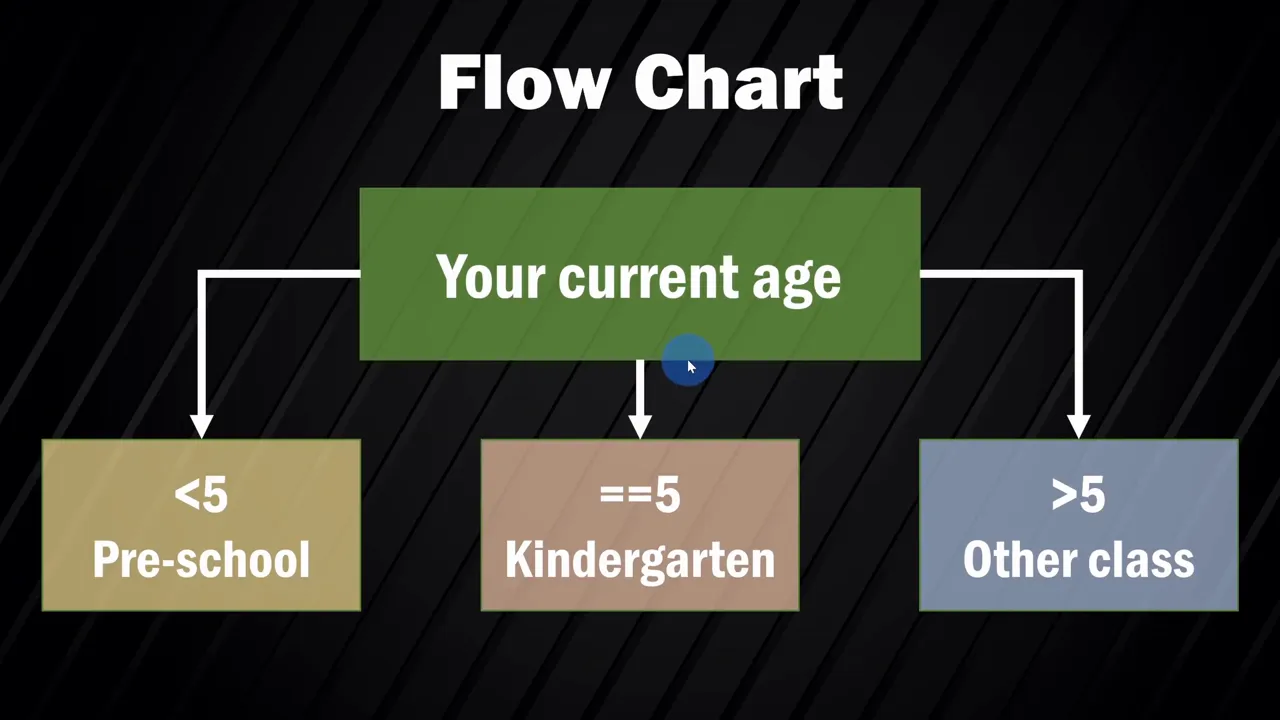
Imagine a simple flowchart: if Thomas is younger than five, display a preschool message. If he is five, display a kindergarten message. Otherwise, display a message for another class.
thomas_age = 3
age_at_kindergarten = 5

if thomas_age < age_at_kindergarten:
    print("Thomas should be in preschool.")
elif thomas_age == age_at_kindergarten:
    print("Enjoy kindergarten.")
else:
    print("Thomas should be in another class.")
Here’s how Python works through that decision:
- It tests the
ifcondition first. - If that is false, it tests the
elifcondition, which means “else if.” - If neither condition is true, it runs the
elseblock.
Only the first matching branch runs. You can add more elif branches when you need additional checks.
Each branch header ends with a colon. The code belonging to that branch is indented underneath it. Unlike optional spaces around arithmetic operators, this indentation changes the structure of your program.
Try changing thomas_age to 3, 5, and 10, running the file each time. You should get a different message for each case.
You can also use an if statement without elif or else. If its condition is false, Python simply skips that block.
11. Make Code Reusable with Functions
You’ve already used functions such as print(), input(), and type(). A function packages a block of code under a name so you can call it when needed.
Why create your own? Suppose I want to print a complimentary message three times. Purely for demonstration purposes, of course.
def print_kevin():
    text = "Kevin Stratvert has a great channel."
    print(text)
    print(text)
    print(text)

print_kevin()
The def keyword defines the function. Its name is followed by parentheses and a colon, and its body is indented.
Defining a function doesn’t execute its body. The final line, print_kevin(), calls it. Without that line, this example produces no output.
Now, if I misspell my name in the message, I can correct it in one place. Every time the function runs, it uses the corrected text. That’s much easier than finding and fixing the same message throughout a larger program.
In a simple script like this, place the definition before the call. If Python reaches the call before the function has been defined, it won’t recognize the name.
VS Code also lets you collapse and expand function bodies using the folding control beside the code. That becomes helpful as your file grows.
Pass values into a function
Our first function always prints the same text. To make it more flexible, give it a parameter:
def print_kevin(text):
    print(text)
    print(text)
    print(text)

print_kevin("Kevin Stratvert has a great channel.")
text is the parameter in the function definition. The string supplied in the call is an argument. Each print() statement uses that supplied value.
Combine functions and conditional logic
Now we can package the school-age example into a function that accepts both an age and a name:
def school_age_calculator(age, name):
    if age < 5:
        print("Enjoy the time!", name, "is only", age)
    elif age == 5:
        print("Enjoy kindergarten,", name)
    else:
        print("They grow up so fast!")

school_age_calculator(3, "Thomas")
school_age_calculator(5, "Thomas")
school_age_calculator(10, "Thomas")
Notice the two levels of indentation. The conditions belong to the function, and each print() statement belongs to its corresponding condition.
You can also pass several values to print(), separated by commas. Python displays them with spaces between them, which lets us combine fixed text with the supplied name and age.
Return a value from a function
A function can send a result back instead of displaying it directly. Here’s a simple example that calculates someone’s age ten years from now:
def add_ten_to_age(age):
    new_age = age + 10
    return new_age

how_old_will_i_be = add_ten_to_age(3)
print(how_old_will_i_be)
The output is 13. Here’s the path that value takes:
- The call sends
3into the function. - The function adds
10and assigns13tonew_age. returnsends13back to the calling code.- The result is assigned to
how_old_will_i_be. print()displays the result.
Returning and printing are different actions. Assigning a returned value to a variable doesn’t automatically display it.
12. Repeat Actions with while and for Loops
A loop executes a block of code multiple times. Think of a weekly reminder to take out the trash: the same action comes around again and again. Python gives you two useful ways to express repetition.
Use a while loop
A while loop keeps running as long as its condition is true:
x = 0

while x < 5:
    print(x)
    x = x + 1
This prints 0, 1, 2, 3, and 4, each on its own line.
Every iteration prints the current value of x, then adds one. When x reaches five, the condition becomes false and the loop ends.
Don’t forget to update the value used by the condition. Without x = x + 1, this example would keep printing zero because its condition would never become false.
Use a for loop with a range
A for loop can step through a range of numbers:
for x in range(5, 10):
    print(x)
This prints the numbers five through nine. The starting value is included, but the stopping value is excluded.
Loop through a list
You can also loop through a collection of values, such as a list containing the days of the week:
days = [
    "Monday",
    "Tuesday",
    "Wednesday",
    "Thursday",
    "Friday",
    "Saturday",
    "Sunday"
]

for d in days:
    print(d)
On each iteration, d refers to the next day in the list. The loop prints all seven days in order.
Stop a loop with break
To print only the days before Thursday, test for Thursday before printing:
for d in days:
    if d == "Thursday":
        break
    print(d)
This prints Monday, Tuesday, and Wednesday. When the loop reaches Thursday, break exits the loop entirely.
Skip an item with continue
If you want to skip Thursday but still print the rest of the week, replace break with continue:
for d in days:
    if d == "Thursday":
        continue
    print(d)
continue skips the rest of the current iteration and moves to the next item. The output includes Monday through Wednesday, then Friday through Sunday.
13. Reuse Existing Code by Importing Modules
You don’t have to write everything yourself. Python lets you build on existing code through modules and libraries.
For example, the standard math module already provides the value of pi:
import math

print("Pi is", math.pi)
import math makes the module available. The expression math.pi accesses its pi constant.
As you type math. in VS Code, suggestions can help you discover other available items. For more detail, the official math module documentation explains its functions and constants.
That’s an important part of programming: knowing when to write your own code and when to use something that already does the job.
14. Troubleshoot Common Python Errors
Errors are part of learning to program. The useful question isn’t whether you’ll encounter them, but how you’ll work out what went wrong.
Syntax and name errors
A syntax error means the code doesn’t follow Python’s grammar. Missing quotes, parentheses, or a required colon are common causes.
For example, print(Hello World) is invalid syntax. If you instead write print(Hello), that is valid syntax, but Python treats Hello as a variable name. Unless you’ve defined that name, it raises a NameError.
If you intended literal text, the correction is:
print("Hello World")Read the error message and inspect the indicated code. Python’s interpretation of what you wrote often points directly to the mistake.
Runtime errors
Some code follows the syntax rules but fails when Python executes it. Dividing by zero is one example:
print(10 / 0)This raises a ZeroDivisionError. The expression is grammatically valid, but the operation cannot be completed.
The error message gives you a starting point. You can also search for the specific message on a resource such as Stack Overflow’s Python questions to find related problems and explanations.
Semantic or logic errors
A logic error can be harder to identify because the program runs, but the result isn’t what you intended:
name = "Kevin"
print("Hello name")
Python prints Hello name. That’s exactly what the quoted string tells it to print, but perhaps you wanted Hello Kevin.
To include the value of the variable, move it outside the quoted text:
name = "Kevin"
print("Hello", name)
There’s no error message to explain the original problem because Python successfully followed your instructions. You need to compare the result you wanted with what each statement actually does.
You Now Have the Building Blocks
You can now install Python, write and run a source file, store values in variables, make decisions, create reusable functions, repeat actions with loops, and import existing code. You also have a starting point for troubleshooting when a result looks wrong.
The real power comes from combining those pieces. An input can become a variable, a variable can feed a condition, a condition can sit inside a function, and a loop can call that function repeatedly. Those small, understandable steps are how you turn an idea into something a computer can do.
Made with VideoToBlog using 👩💻 Python for Beginners Tutorial


