Uploading a video to YouTube is pretty simple, whether the file is on your computer or your phone. Choose your video, add a title and description, decide who can access it, and finish the upload.
I’ll walk through both options using a couple of everyday clips: a swim under a waterfall in Oahu and a video of my son going down a slide. You don’t need a polished production to learn the process.
A quick note: YouTube changes its layout over time, so the position of a button or the wording on your screen may look different. The basic upload process is the same.
How to Upload a Video to YouTube on a Computer
1. Open the upload page
Open YouTube in your browser. Look for the Create button, represented by a camera or plus icon. In the layout shown here, it’s in the upper-right corner.
Open that menu and choose Upload video. Other options may include going live or creating a post, but uploading is the option you want for an existing video file.
2. Select your video file
On the upload page, you have two ways to choose a video:
- Drag and drop: Drag the video file from a folder into the upload area.
- Use the file picker: Click the file selection button, browse to your video, and open it.
For my example, I’m choosing a clip from a trip to Oahu where I swim to the base of a waterfall. Once I select the file, YouTube starts uploading it.
You may see the status change from uploading to processing. Those are separate stages: the file first transfers to YouTube, and then YouTube prepares it for playback. You can fill in the video details while that happens.
3. Add a title, description, and keywords
Give your video a title that tells people what it contains. For the waterfall clip, I’m using Kevin Under a Waterfall.
The description gives you room for a little more detail, such as explaining that the clip shows me swimming toward the waterfall. You can also add relevant tags or keywords, such as swimming and water, where that option is available.
Think of the title as the short label and the description as the extra context.
4. Choose a thumbnail
Once YouTube has processed enough of the video, it offers thumbnail images taken from the clip. Select the one you want to represent your upload. You may also have the option to upload a custom thumbnail.
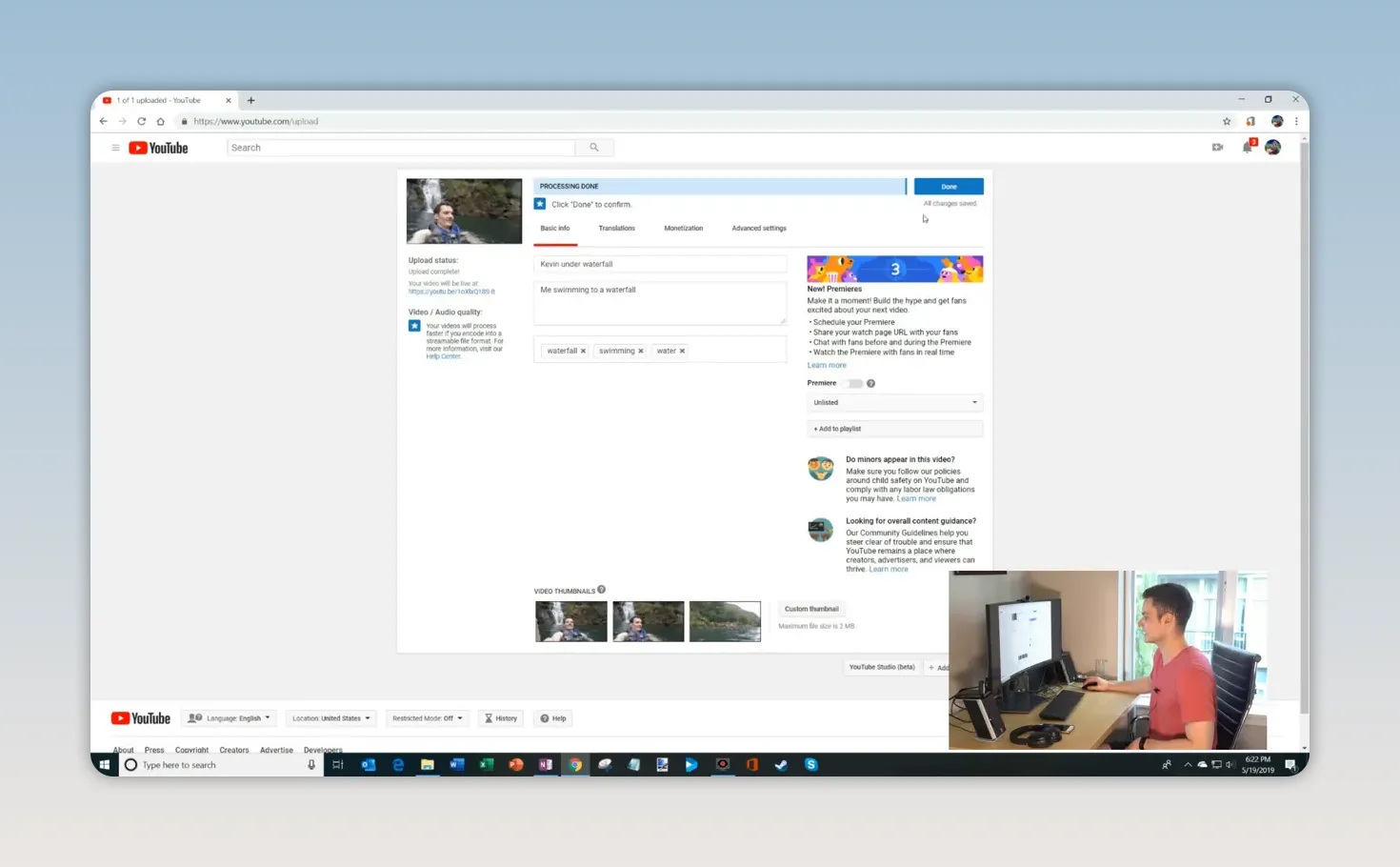
For this clip, I can choose an image of a rather handsome guy swimming under a waterfall. Conveniently, that’s also what the video is about.
5. Choose visibility and an optional playlist
Before finishing, decide who should be able to access the video:
- Public: The video can be publicly discovered, including through YouTube search.
- Unlisted: The video generally won’t appear in search, but anyone with the link can access it and pass the link along.
- Private: Access is restricted to you and the people you specifically allow. Signing in alone does not give someone permission.
- Schedule: Set the video to become public at a later date and time.
I’m choosing Unlisted for the waterfall clip because it hasn’t been edited and isn’t something I want to publish publicly on my channel. Keep in mind that unlisted is not the same as private. YouTube’s video privacy guidance explains the differences in more detail.
You can also add the video to a playlist. That’s optional, so I’m leaving this example out of a playlist. Review your choices and complete the save or publish prompts shown on your screen.
How to Upload a Video to YouTube on Your Phone
You can upload directly from the YouTube app, too. I’m using an iPhone here, with a clip that’s already saved on the phone.
- Open the YouTube app. Tap the Create or plus button. In the layout shown here, it’s in the upper-right corner.
- Choose Video or Upload video. This starts an upload rather than a live stream or a post.
- Select an existing clip. I’m choosing a video of my son going down a slide. The app version shown presents nine recent clips and also offers a recording option; your selection screen may look different.
- Review the clip and tap Next. Make sure you’ve selected the video you intended to upload.
- Add the video details. Enter a title and description. For this example, a simple title like Slide and a description explaining the activity are enough.
- Choose the privacy level. I’m setting this upload to Unlisted as well. You can also add a location if you want to.
- Tap Upload. The app begins transferring the video to YouTube.
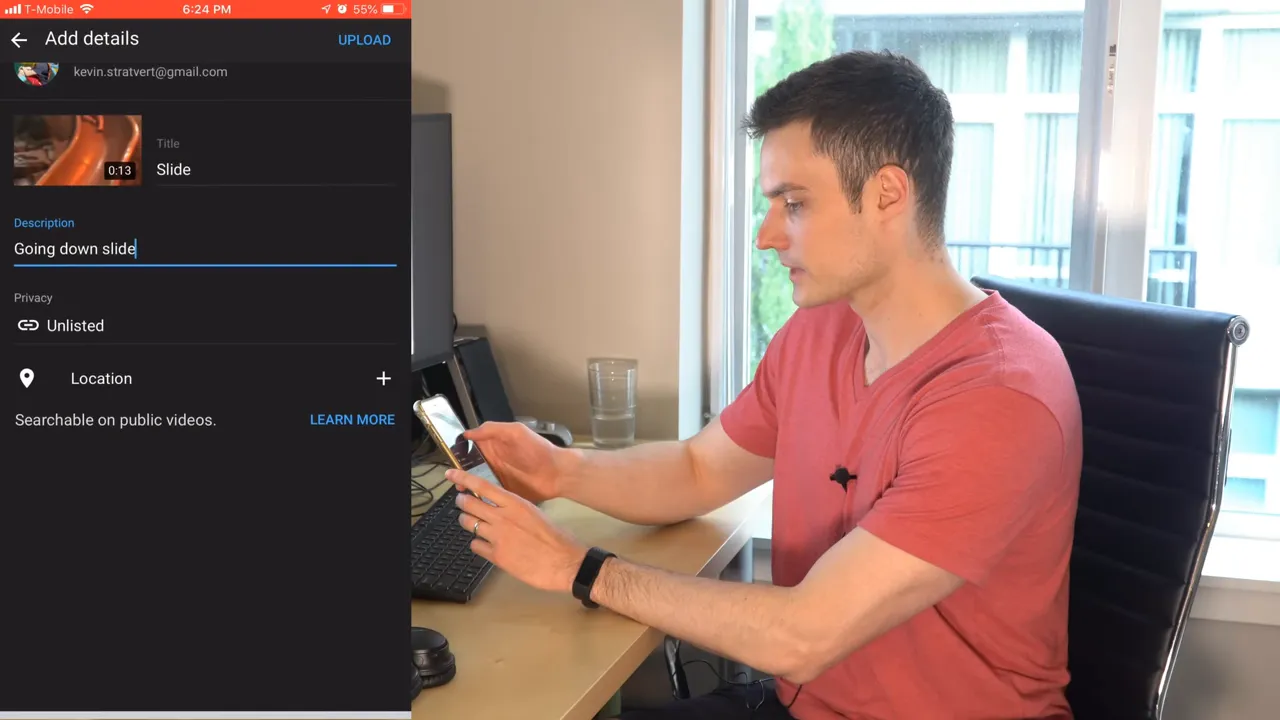
The phone workflow is very similar to the computer workflow. You’re choosing a file, describing it, setting its visibility, and uploading it, just on a smaller screen.
Uploading Is the Easy Part
Whether you use your PC or your phone, getting a video onto YouTube only takes a few basic steps. The important final check is making sure you selected the right clip and the right visibility setting.
Coming up with good content and editing it? That’s usually the harder part. If all I had to do were upload videos all day, I’d be in great shape.
Made with VideoToBlog using How to Upload Videos on YouTube


