Claude AI can work directly inside Microsoft Word to draft documents, give feedback, and revise content using information from other files. It can also work across Office applications, so you can take data from an Excel spreadsheet and use it to update a Word document without manually moving everything around.
Microsoft’s Copilot is already integrated into Word, but it is no longer your only option. I’ll start with setting up Claude and using it safely, then explain the practical trade-offs between the two assistants.
What You'll Learn
- Install Claude in Word and use attached files to guide document drafts and revisions.
- Combine edit approval with Word’s Track Changes to keep revisions visible and reviewable.
- Use skills and cross-file access to streamline recurring tasks across Office applications.
- Compare Claude and Copilot based on workflow, organizational context, security, and subscription usage.
Table of Contents
- Install the Claude Add-in for Word
- Draft a Document Using an Attached File
- Get Feedback Without Having AI Rewrite Your Work
- Revise Documents Safely with Approval and Track Changes
- Use Claude Skills for Repeatable Tasks
- Work Across Word, Excel, PowerPoint, and Outlook
- Claude vs. Copilot in Word: Which Should You Use?
- Manage Claude Usage Limits by Choosing the Right Model
Install the Claude Add-in for Word
To follow these steps, you need a paid Claude subscription, such as Claude Pro, Max, or an eligible organizational subscription. You can set up the add-in in Microsoft Word on Windows or Mac.
- Open Microsoft Word and select the Home ribbon.
- Select Add-ins, then search for Claude.
- Install the Claude add-in.
- Select the new Claude button in the Home ribbon to open its panel.
- Sign in with your Claude account.
You may see two options: Claude for Word and Claude for Microsoft 365. They provide essentially the same experience in Word, but the Microsoft 365 option also sets up the add-in for Excel, PowerPoint, and other supported Office apps.
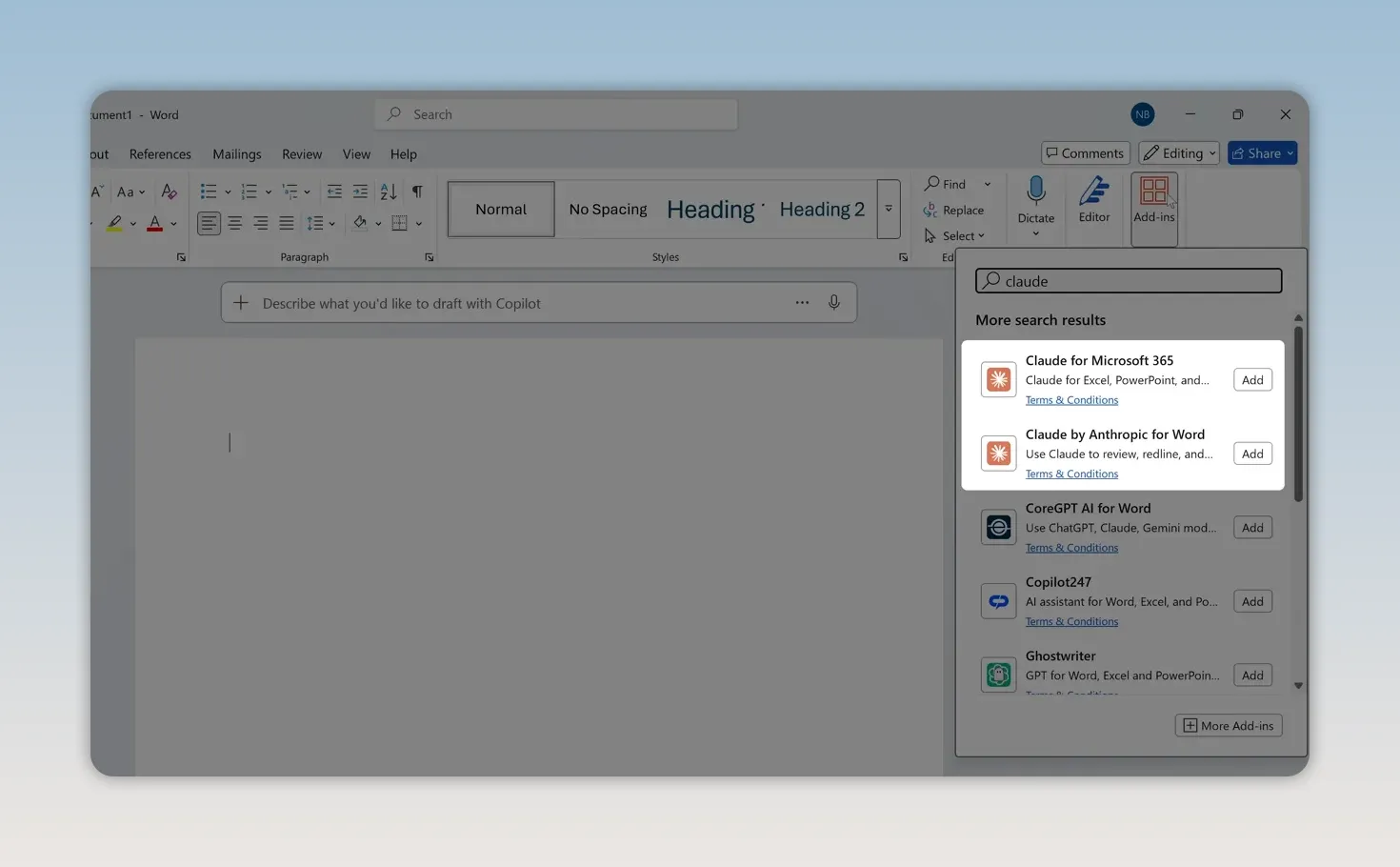
Once you’re signed in, you’ll work with Claude through the panel alongside your document.
Draft a Document Using an Attached File
If you’re starting with a blank document, you can simply describe what you want Claude to write. But it becomes more useful when you give it source material.
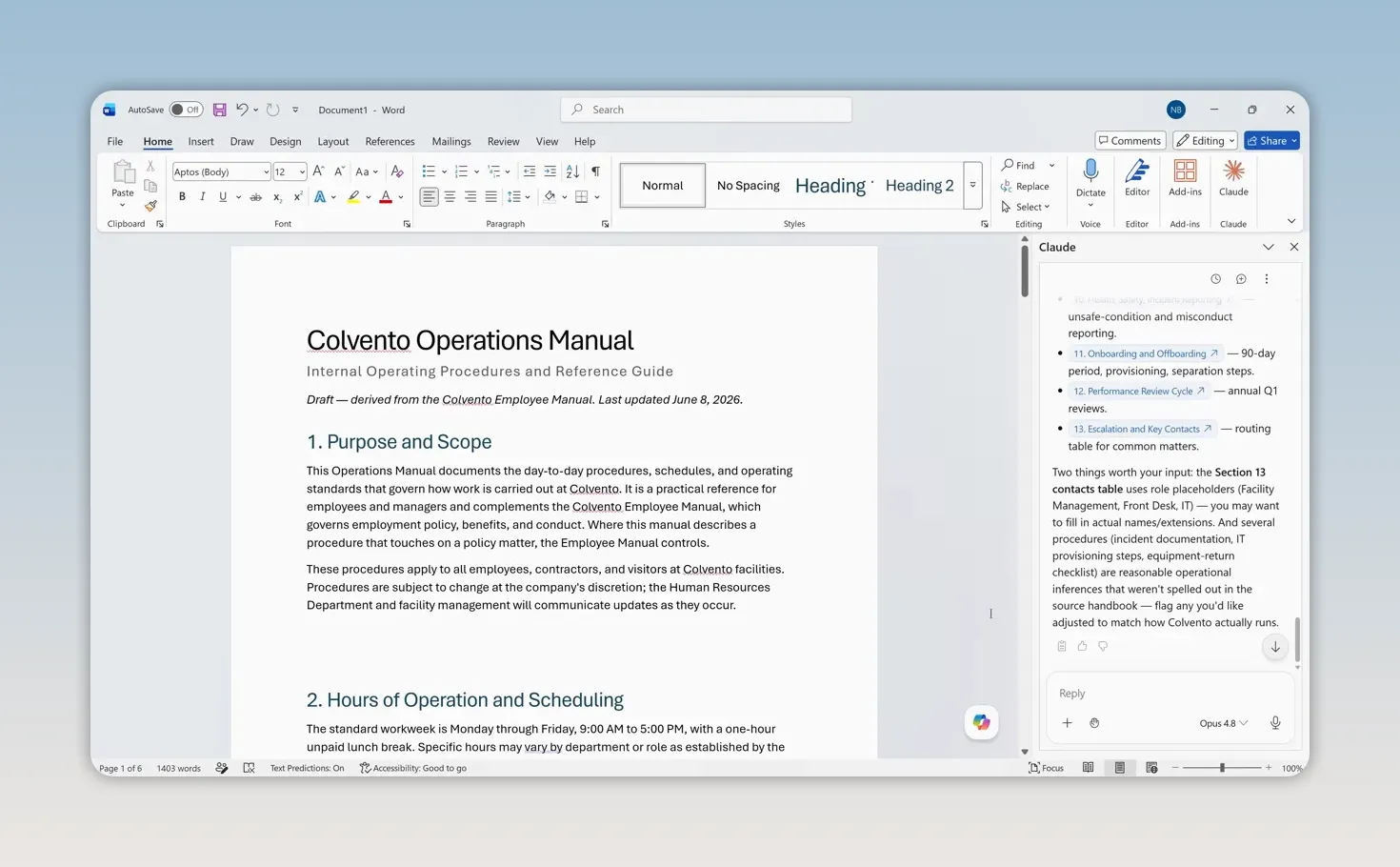
For example, I can attach my company’s employee manual and ask Claude to use that information to create an operations manual.
- Open a blank Word document with the Claude panel visible.
- Drag the reference file into Claude’s chat field.
- Describe the document you want and tell Claude to use the attachment.
- Review the draft, then ask for revisions or additional content as needed.
A request could look like this:
Use the attached employee manual as the source for a draft operations manual.
Claude refers to the file and creates the draft in Word. That gives you a starting point, rather than a blank page. You can then continue developing the document and ask Claude for help as you go.
Get Feedback Without Having AI Rewrite Your Work
Most of the time, I’m not starting with a blank document. I already have something written, and I want help identifying problems or deciding what needs attention.
I also prefer not to have AI do all the writing for me. You can make that preference explicit:
Review section one and identify problems or missing information. Give me feedback only, without rewriting the text.
This is a useful distinction: asking for feedback is not the same as asking for edits. Claude can point out issues while leaving you responsible for how to address them. You keep your own voice and make the revisions yourself.
If you do want Claude to modify the document directly, it can do that too. Before allowing changes, though, I recommend setting up a couple of safeguards.
Revise Documents Safely with Approval and Track Changes
There are two separate controls worth understanding: Claude’s editing permissions and Word’s built-in change tracking.
Require approval before edits
In Claude’s chat field, open the editing permissions menu. You can allow edits automatically or require Claude to ask before making them.
Requiring approval is the more cautious choice. Claude shows the edits it wants to make, and you decide whether to allow them.
Turn on Word’s Track Changes
This next step is optional, but I like having a visible record of what changed:
- Open Word’s Review ribbon.
- Enable Track Changes.
- Set the display to All Markup.
With tracking enabled, Claude’s revisions are marked in the document. You can examine them afterward and use Word’s review tools to accept or reject them.
Update a section from a spreadsheet
Suppose the employee manual contains a paid time off policy, but a separate spreadsheet has the updated vacation allowances. Drag that spreadsheet into the Claude chat and request a targeted revision:
Update the paid time off section using the revised information in the attached spreadsheet.
Claude proposes changes. After you approve them, Word displays the revisions with tracked markup.
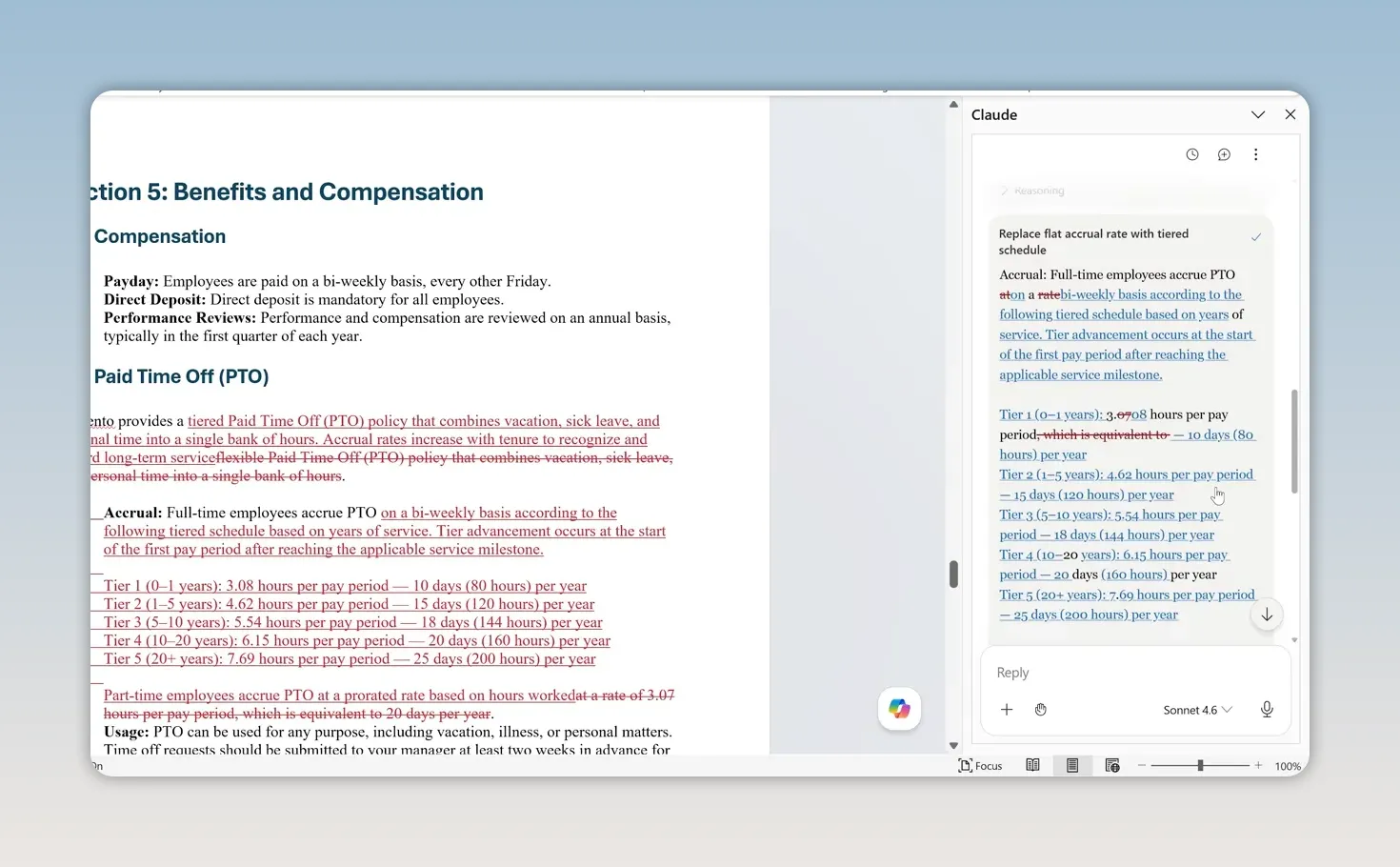
If All Markup becomes distracting, switch to Simple Markup. Word shows red lines beside changed areas without displaying every insertion and deletion. The tracked changes remain available for review.
Use Claude Skills for Repeatable Tasks
One reason to choose Claude is that you may already be paying for it. If you use Claude Code or Claude Cowork, using that same subscription inside Word can make sense.
Another reason is Claude Skills. You can loosely think of skills as reusable prompts, although that description does not capture their full depth. A skill contains specific instructions or parameters, and some can direct Claude to use external libraries.
When you start a new chat, Claude displays suggested skills. For example, you can choose a skill that flags issues in the current document. Claude then identifies problems and may propose changes that you can allow or ignore.
To find more skills:
- Start a new chat in the Claude panel.
- Type a forward slash, /, in the chat field.
- Choose from the available premade skills.
You can also create and organize specialized skills of your own. If you regularly perform a complex task, a skill lets you reuse those detailed instructions instead of rebuilding the request each time.
Work Across Word, Excel, PowerPoint, and Outlook
Claude can share information and coordinate tasks across supported Microsoft applications, including Word, Excel, PowerPoint, and Outlook. This is especially useful when the information you need is already open in another app.
Enable cross-file access
- Open another supported application, such as Excel.
- Make sure the Claude add-in is installed there.
- Open Settings in the Claude panel.
- Enable the option to let Claude work across files.
- Check that the setting is enabled in each application you want to use.
For Team and Enterprise environments, an administrator needs to enable this capability. If it is unavailable, check with your administrator.
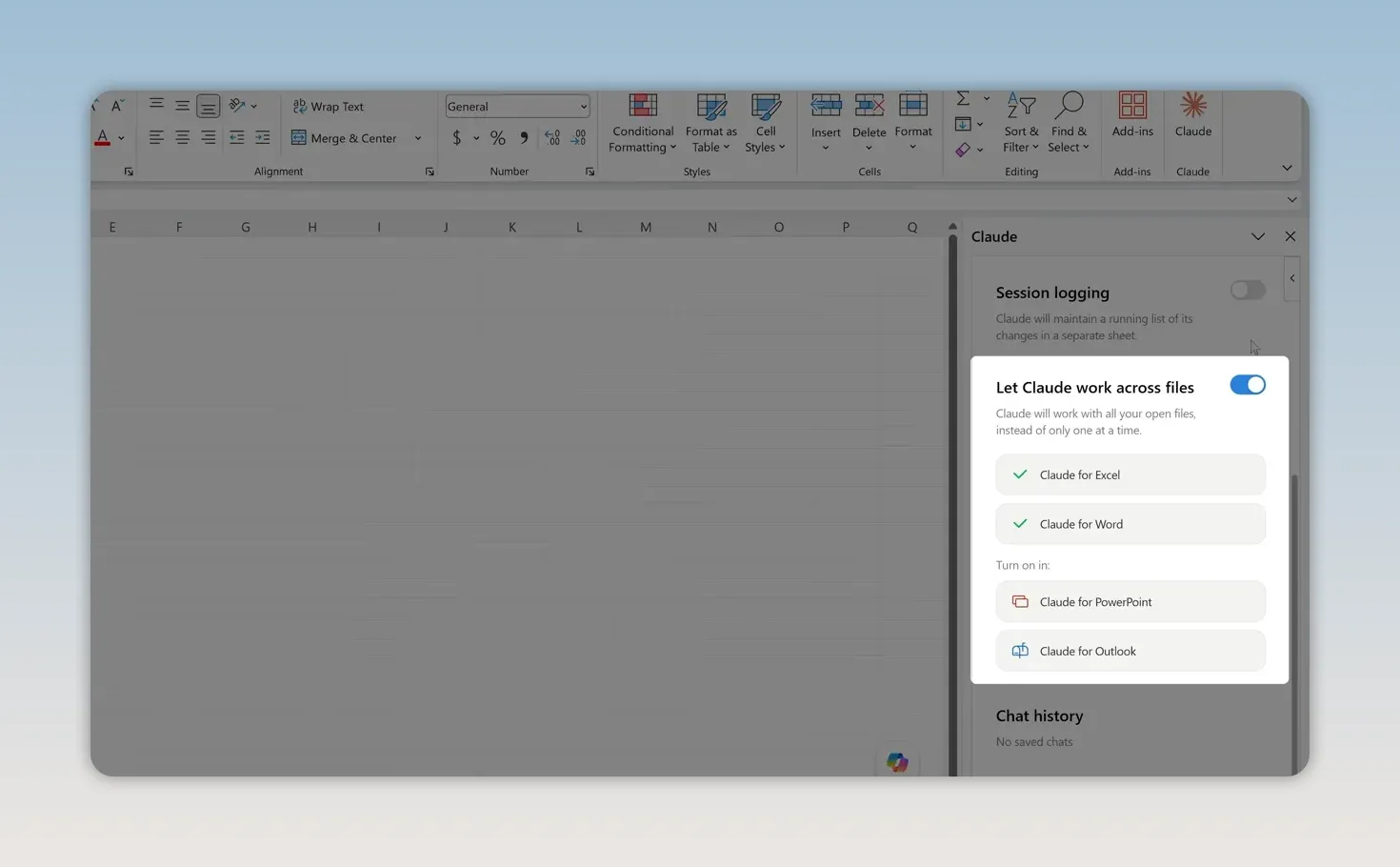
Once enabled, a menu in the Claude panel lists documents open in the other supported applications. For example, Claude in Excel can recognize that the employee manual is open in Word.
Create an Excel chart and add it to Word
Here’s a practical example using the vacation allowance spreadsheet:
- Open the spreadsheet in Excel and the employee manual in Word.
- Select the relevant cells in Excel to focus Claude on the data you want to use.
- Ask Claude to create a summary chart and add it to the paid time off section of the open employee manual.
- Let Claude work in Excel, then switch to Word as it hands the task over.
- Approve the document changes when prompted.
You could also ask Claude to place the chart in a new Word document instead of the existing manual.
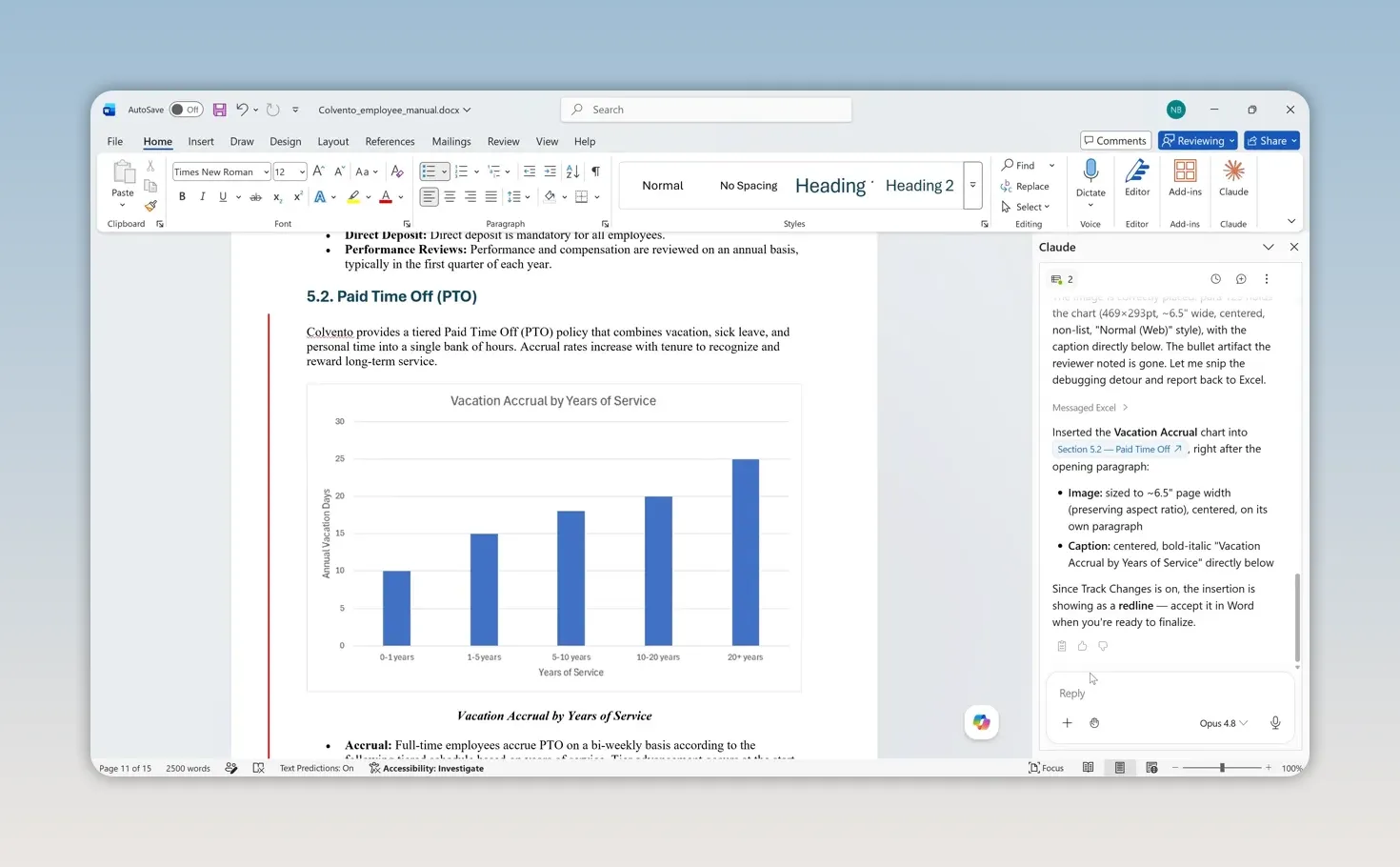
The process works in the other direction, too. You can start in Word and ask Claude to pull information from a spreadsheet that is already open in Excel.
That is a different workflow from attaching a spreadsheet to the chat. An attachment provides reference material for the request; cross-file access lets Claude coordinate work between open applications.
Claude vs. Copilot in Word: Which Should You Use?
AI assistants are in a constant back-and-forth. One adds a capability, another catches up, and the comparison changes again. Think of these as practical differences in the demonstrated experience, not permanent advantages.
Claude is worth considering if you already have a subscription, want reusable skills, or find its cross-application workflow useful. There are also several reasons you might prefer Microsoft 365 Copilot.
Image generation
Copilot can generate images that you can add to a Word document. At the time of this demonstration, Claude does not generate images.
That is separate from creating a chart from spreadsheet data, as Claude did in the earlier example.
Tools directly within the document
Claude’s Word experience takes place inside its side panel. Copilot also has tools outside its panel:
- Select text to access a floating menu with a Copilot rewrite option.
- Use the Copilot drafting field that appears when you begin a blank document.
If you like working directly with selected text rather than moving to a chat panel, those integrations can be convenient.
Deeper access to Microsoft 365 information
Copilot has deeper integration with the Microsoft 365 system. It can reference documents, emails, messages, and meeting records associated with your Microsoft account.
In a business or enterprise environment, it can also draw on organizational information through Microsoft’s Work IQ capabilities. That broader organizational context may matter more to you than any individual writing feature.
Security and organizational requirements
Copilot operates under the security controls of your Microsoft 365 environment. With the Claude add-in, information from a document may move from Microsoft’s secure environment to Claude’s separate secure environment.
Claude has its own security features. The important distinction is that data may cross between two environments. Your organization’s IT security team may need to evaluate that transfer before approving the add-in.
Neither assistant is automatically the best fit for everyone. Your existing subscription, preferred workflow, need for organizational context, and security requirements all belong in the decision.
Manage Claude Usage Limits by Choosing the Right Model
The Claude panel includes a model selector. Anthropic regularly releases newer, faster, or more capable models, but model choice can affect how quickly you use your subscription allowance.
Some paid Claude plans have usage limits. On Pro, reaching a limit can mean waiting for a five-hour usage window to reset before continuing.
For a straightforward task, you may not need the most resource-intensive model. For example, choosing an available Sonnet model instead of a more demanding Opus model can help conserve your allowance. The useful distinction is resource use, not simply whether a model is newer or older.
Check Claude’s guidance on managing usage credits for details about paid-plan usage.
My preferred starting point is simple: ask Claude for feedback on an existing document, require approval for edits, and turn on Track Changes. Once you’re comfortable with that process, skills and cross-application tasks give you more ways to put the assistant to work while keeping control of the document.


