You can turn a spare laptop into a second monitor without buying another display. Windows has a built-in wireless option, and when your devices support it, you do not need any third-party software. You may just need to enable an optional Windows feature first.
I’ll walk you through that setup, including how to extend your desktop and arrange your screens. If the built-in option does not work on your devices or feels laggy, there’s also an alternative called spacedesk that supports laptops, tablets, and other devices.
What You'll Learn
- Enable Wireless Display on your second laptop, then connect from your main PC using Windows + K.
- Choose Extend for additional workspace and arrange the displays to match their physical positions.
- Use spacedesk as an alternative, with wired Ethernet available to improve connection smoothness.
Table of Contents
- Method 1: Use Windows Wireless Display
- Choose Extend Instead of Duplicate
- Arrange Your Displays to Match Your Desk
- Method 2: Use spacedesk as an Alternative
- Improve Performance with a Wired Connection
Method 1: Use Windows Wireless Display
For this setup, you have two computers with different jobs:
- Main computer: The PC whose desktop you want to extend.
- Second laptop: The laptop you want to use as an additional screen.
Start on the second laptop. You need to prepare it to receive the display connection before connecting from your main PC.
1. Enable Wireless Display on the second laptop
- Press Windows + I to open Settings.
- Select System in the navigation.
- Scroll down and select Projecting to this PC.
- If Windows displays a message about adding an optional feature, select the Optional features link.
- Select View features. If a User Account Control prompt appears, select Yes.
- Open the available features list if prompted, then scroll down to Wireless Display.
- Select its checkbox and follow the prompts to add the feature.
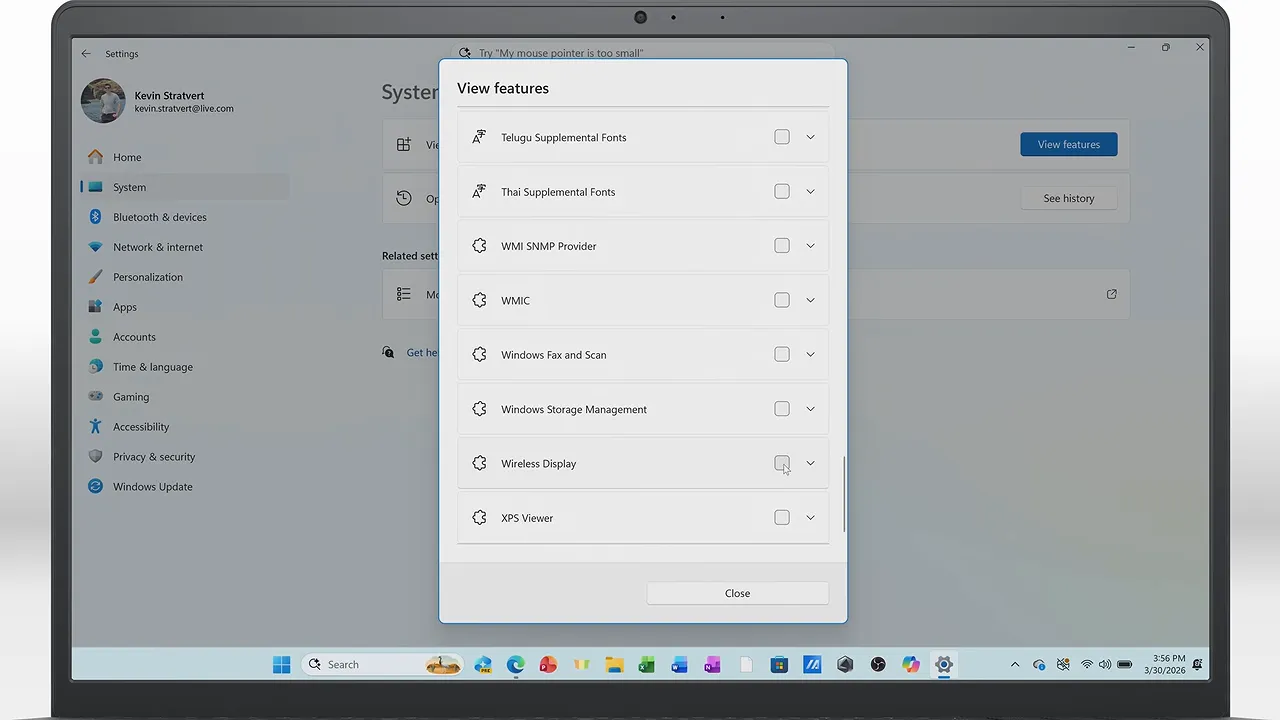
Give Windows a few moments to finish installing the feature. Once it is done, close the optional features view and return to System > Projecting to this PC.
2. Launch the Wireless Display app
At the top of the Projecting to this PC settings page, select the option to launch the Wireless Display app. This prepares the laptop to receive a wireless projection.
Leave that app open on the second laptop. Now switch over to your main computer.
3. Connect from your main computer
- On your main PC, press Windows + K to open the Cast panel.
- Find the laptop you just configured in the list of available displays.
- Select it and wait for the connection to finish.
Once connected, both laptops may show exactly the same thing. That is Duplicate mode. The connection is working, but there’s one more setting to change if you want extra workspace.
Choose Extend Instead of Duplicate
Windows offers two useful ways to work with your second screen:
- Duplicate: Both screens show the same desktop content.
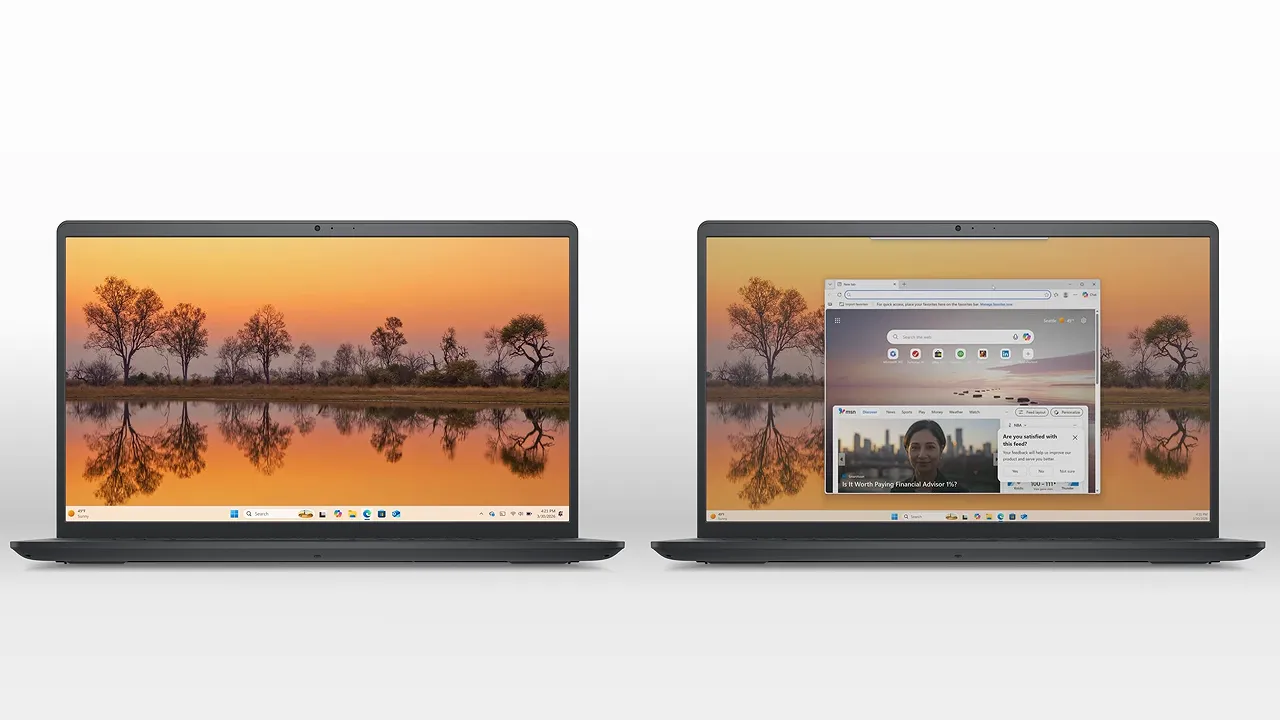
- Extend: The second screen becomes additional desktop space, so you can move windows between displays.
To use your laptop as an extended monitor, press Windows + K again. In the connection panel, change the display mode from Duplicate to Extend.
Now try opening a browser window on your main computer and dragging it across the edge of the screen onto the second laptop. You can bring it back the same way. Pretty cool: that spare laptop is now giving you more room to work.
Arrange Your Displays to Match Your Desk
What if your second laptop is sitting on the left, but your mouse only reaches it by moving off the right edge? Windows needs to know where the screens are positioned.
- On your main computer, press Windows + K.
- Select More cast settings at the bottom of the panel to open the display settings.
- In the display arrangement area, drag the second display into the position that matches your desk.
- Apply the change if Windows prompts you.
You can place the second display to the left, right, above, or below the main display. Match the on-screen layout to the physical placement of your laptops so your pointer moves naturally between them.
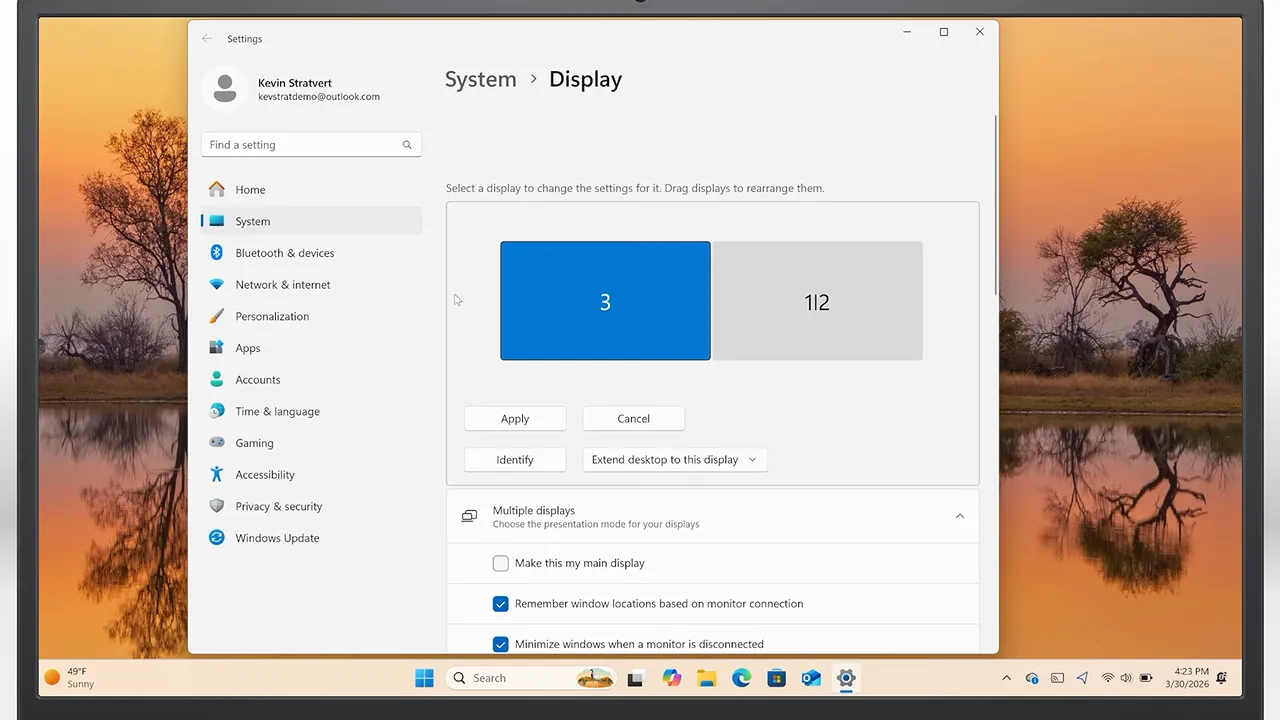
In the same settings, you can also choose which screen is your main display. This determines where the main taskbar appears. I’m keeping my primary laptop as the main display, but you can select the other screen if that works better for your setup.
Disconnect when you’re finished
To stop using the laptop as a wireless monitor, press Windows + K on your main computer and select Disconnect.
Method 2: Use spacedesk as an Alternative
The built-in Windows method works well when everything is supported. If it does not work on your device, or you notice lag, spacedesk is another option to try.
The important part is installing the right component on each device: the driver goes on your main PC, and the Viewer app goes on the device you want to use as a screen.
1. Install the driver on your main PC
- Go to the spacedesk website on your main computer.
- Find the driver software for the Windows primary PC.
- Choose the download that matches your Windows version and system. For my setup, I’m using the Windows 11 64-bit driver.
- Once the download finishes, run the installer and complete the installation.
2. Install the Viewer app on the second device
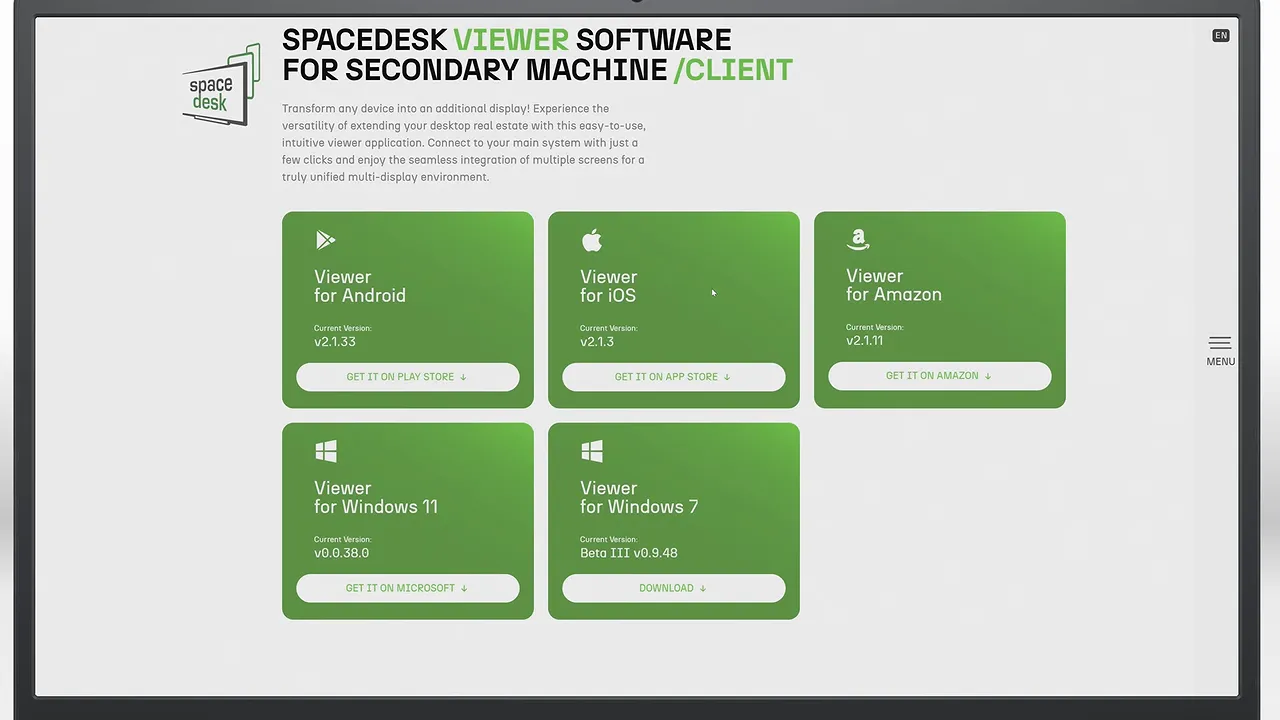
On your second laptop, download and install the spacedesk Viewer. For a Windows laptop, choose the appropriate Windows Viewer app.
You are not limited to another laptop, either. The available Viewer options include Android, iOS, Amazon devices, and HTML5, giving you more choices for a second screen.
3. Launch spacedesk and connect
- On your main computer, search for spacedesk and open the spacedesk Driver Console.
- On the second laptop, open the spacedesk Viewer.
- Select your main computer when it appears in the Viewer and connect to it.
- Switch the Viewer to full screen to use the laptop’s display as your second monitor.
In my setup, the Viewer detects the main computer, and connecting extends the desktop onto the second laptop.
4. Change between Extend and Duplicate
You can control the display mode through the regular Windows settings:
- Right-click the desktop on your main PC.
- Select Display settings.
- Use the display mode options to choose whether to duplicate the desktop or extend it across the displays.
Choose Extend for extra workspace, or Duplicate when you want the same content on both screens.
Improve Performance with a Wired Connection
If you use spacedesk, a wired Ethernet connection can make the experience smoother. It is worth trying if the wireless connection feels sluggish.
Start with Windows Wireless Display if you want to avoid third-party software. If compatibility or performance gets in the way, try spacedesk. With either method, switching to Extend and arranging the displays correctly turns your spare laptop into useful extra screen space.


