Choosing the right topic can make all the difference in how a YouTube video performs. You can spend hours creating a great tutorial, but if there’s little interest in the subject, you’re making discovery much harder than it needs to be.
I’ve spent years growing my channel to millions of subscribers, and I certainly didn’t start with a great topic strategy. One of the biggest lessons I’ve learned is to research an idea before investing the time to produce it.
That’s where vidIQ can help. It brings together personalized video ideas, YouTube keyword research, competitive insights, and tools for improving existing videos. Here’s how I use those features to make more informed decisions, without letting a score make every decision for me.
What You'll Learn
- Connect your channel so AI Coach can suggest ideas informed by your actual performance.
- Compare search demand, competition, and outlier videos before committing to a topic.
- Use optimization scores as feedback while prioritizing clear titles, thumbnails, and descriptions.
- Bring vidIQ research into YouTube and analyze channel data through ChatGPT or Claude.
Table of Contents
- 1. Create a vidIQ Account and Connect Your YouTube Channel
- 2. Find Personalized Video Ideas with AI Coach
- 3. Research Keywords, Search Demand, and Competition
- 4. Find Outlier Videos and Learn What’s Working
- 5. Optimize Existing YouTube Videos
- 6. Use the vidIQ Browser Extension Directly on YouTube
- 7. Connect vidIQ to ChatGPT or Claude
- Use the Data to Make Better Decisions
1. Create a vidIQ Account and Connect Your YouTube Channel
You can create a vidIQ account for free. During my setup, vidIQ offered the Max plan for $1 for the first month, which provided access to additional features. Offers and plan details can change, so check the terms shown in your account.
You don’t have to upgrade to get started. If you prefer the free plan, select New Chat in the left navigation to begin using the available tools.
The first thing I recommend is connecting your YouTube channel. That allows vidIQ to analyze your actual videos and audience rather than provide only general suggestions.
- Click the plus icon near the top-left corner.
- Select Add Channel.
- Follow the steps to connect your YouTube channel.
- Open the Feed to review your channel overview.
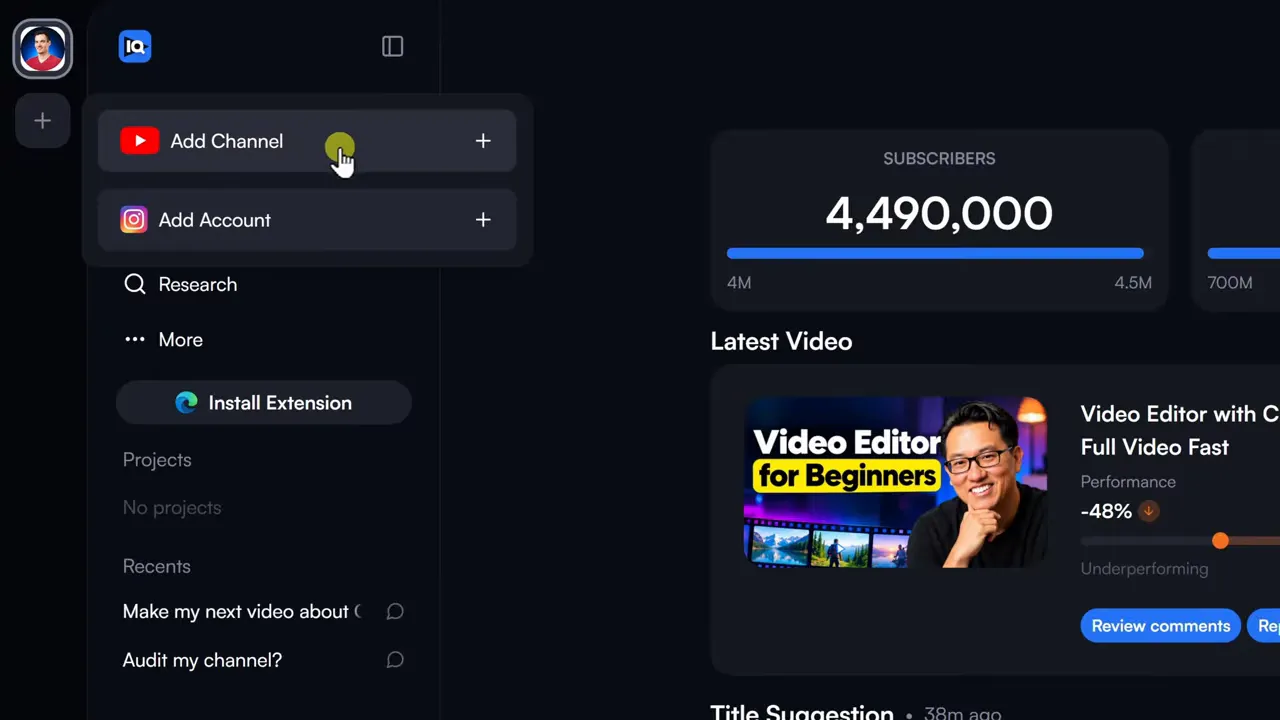
The Feed shows key channel metrics, recent video performance, and proactive recommendations. For example, vidIQ suggested updating the title of one of my ChatGPT videos.
Think of this as a starting point for identifying opportunities. It can help you decide where to investigate, but you still need to review whether a suggested change makes sense.
2. Find Personalized Video Ideas with AI Coach
I’ve made quite a few ChatGPT tutorials, and new features keep arriving. The challenge isn’t finding something I could cover. It’s choosing something people are interested in that also fits my channel.
Select New Chat to open vidIQ’s AI Coach. You’ll see a familiar prompt box, but the useful difference is that AI Coach can draw on your connected channel’s performance and research what’s working on YouTube.
Choose a thinking level
The menu beside the prompt lets you choose how much thinking AI Coach does and shows the credit cost of each option. At the time of my demonstration, a free account included 150 credits per month. I used the default Deep Thinking option.
Ask for ideas grounded in performance
Rather than asking for generic ideas, give AI Coach a topic and ask it to consider both your channel and the wider YouTube landscape. Here’s the kind of request I used:
Suggest five topics for my next ChatGPT tutorial based on what has performed well on my channel and what is currently working on YouTube. Explain why each idea could be a good fit.
The response took about two minutes. What stood out wasn’t just the list of ideas, but the reasoning behind them.
AI Coach noticed that my tutorial about editing with ChatGPT had more than 265,000 views, roughly 3.5 times my average. It also considered topics I had recently covered, so it wasn’t simply suggesting that I repeat the same tutorials.
Its top recommendation was a video about using ChatGPT with CapCut. That made sense as a research lead: it built on a successful topic and pointed toward a related search phrase with relatively low competition.
A recommendation is a starting point, not a commitment. Before making that video, I want to understand the demand, the competing videos, and whether the proposed workflow is genuinely useful.
3. Research Keywords, Search Demand, and Competition
Click a keyword in AI Coach’s response to open it in Research. You can also select Research directly from the left navigation and enter a topic yourself.
For this example, I explored how to connect ChatGPT to CapCut. vidIQ displayed three main metrics:
- Search volume: About 47,000 estimated monthly YouTube searches.
- Competition: A score of 24.1, which was relatively low.
- Overall score: 72, which vidIQ classified as high.
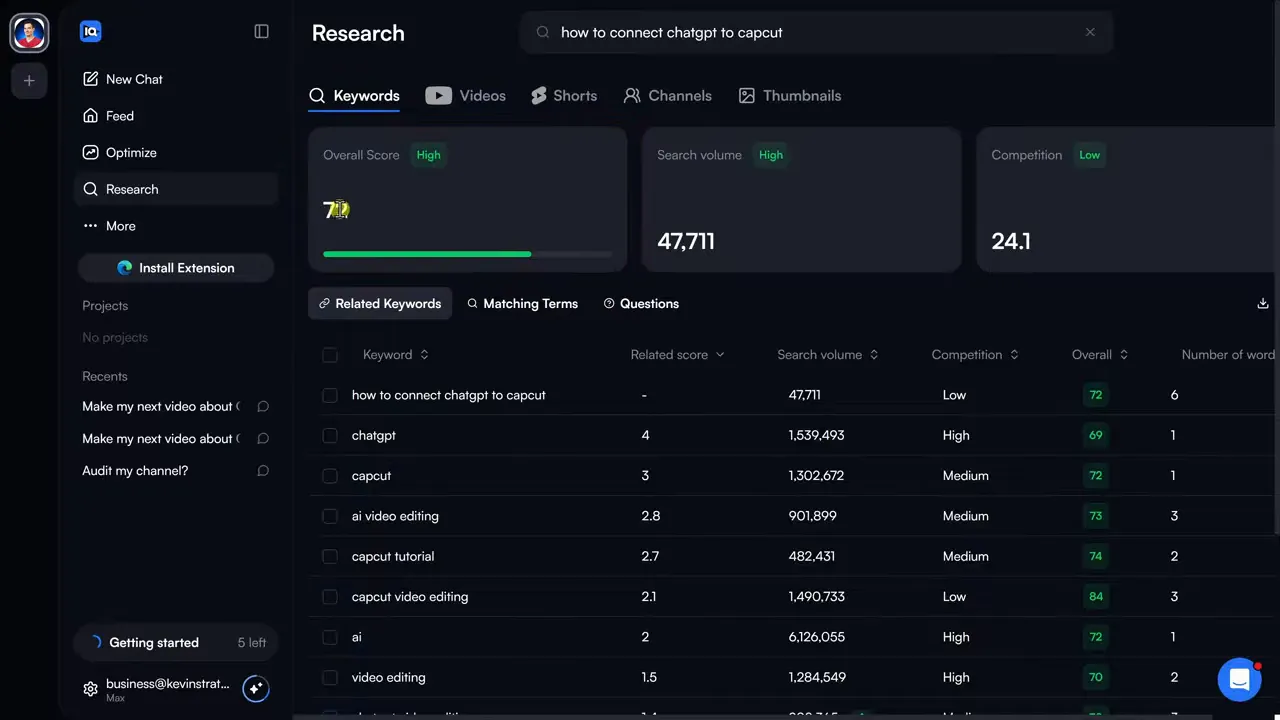
Search volume estimates how many people search for a topic each month. Competition estimates how difficult it may be to rank for that phrase. The overall score combines those signals to help you compare opportunities.
These numbers are estimates, and a high score does not guarantee a successful video.
Why the biggest keyword isn’t always the best target
In the related keywords, the broad term ChatGPT had about 1.5 million monthly searches. That sounds appealing, but what do those people actually want? A beginner tutorial? Image creation? Help with a particular task?
A more specific keyword gives you a clearer picture of the problem your video needs to solve. It may also have less competition, which can give a focused tutorial a better chance of being discovered.
I’d rather understand the intent behind a smaller search phrase than chase a huge number without knowing what the audience needs.
Explore matching terms before choosing your angle
Open Matching Terms to see search phrases containing your original keywords. This is useful for discovering variations you might not have considered.
Compare those variations using the same questions:
- Is there meaningful search interest?
- How much competition does the phrase have?
- Does the phrase describe a clear problem I can solve?
A variation with slightly lower search volume may still be the better choice if it has less competition and a clearer purpose. The goal is not to collect the highest numbers. It’s to find a useful topic you can cover well.
4. Find Outlier Videos and Learn What’s Working
Keyword metrics give you one perspective. Next, open the Videos tab to examine the actual videos associated with your topic.
You can review their titles, thumbnails, view counts, publication dates, and performance metrics. One of my favorite signals here is the outlier score.
What is a vidIQ outlier score?
An outlier is a video performing significantly better than other videos on the same channel.
For example, if a channel typically gets 10,000 views per video and one video reaches 100,000 views, that’s a 10x outlier. This makes it easier to spot unusually strong performance, including on smaller channels that might otherwise get overlooked.
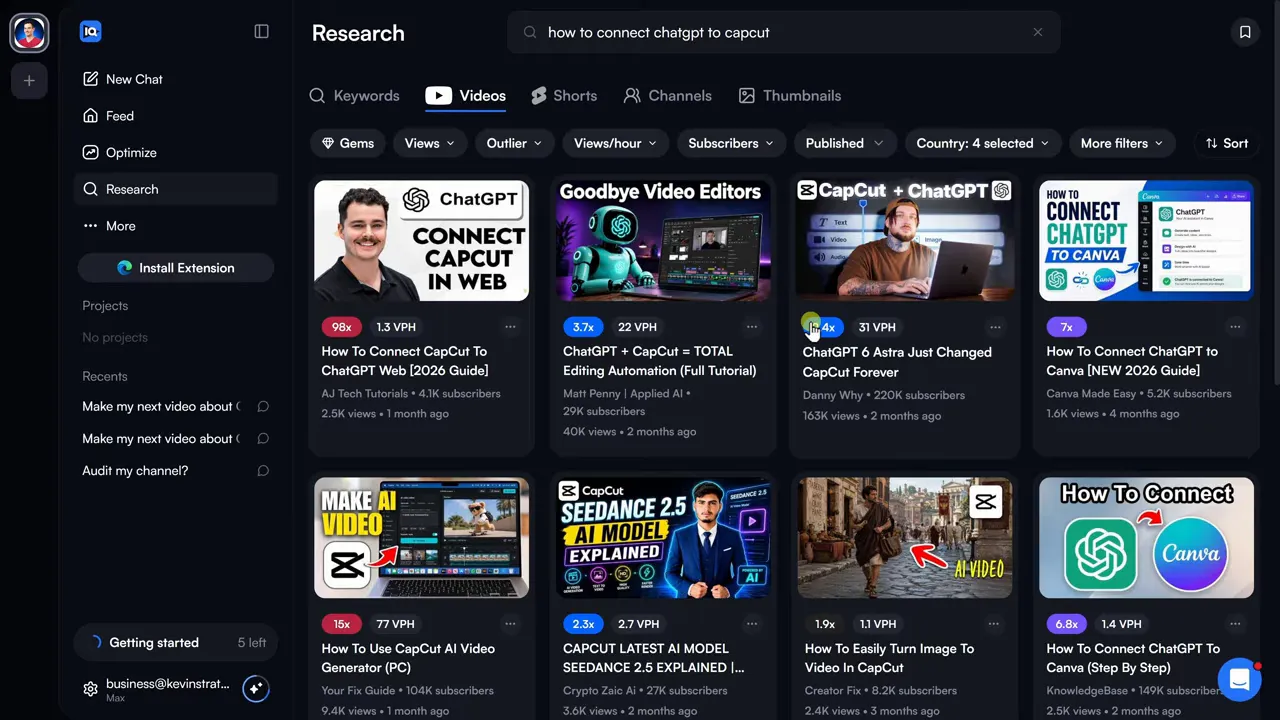
The available filters include:
- Views
- Outlier score
- Views per hour
- Subscriber count
- Additional filters in the filter controls
I especially like finding recent videos that are outperforming their channel’s usual results. Then I look at the topic, title, and thumbnail to understand what might be resonating.
This is research, not permission to copy another creator’s work. Look for the underlying need, then consider how you could make something original and more useful for your own audience.
Test the idea before you produce it
The ChatGPT and CapCut topic looked promising based on the research. But before committing, I would test the workflow myself.
Can I actually do what the proposed tutorial promises? Is the result useful? Can I explain it clearly?
Strong search demand doesn’t matter if I can’t deliver a great video about the topic. That final check is just as important as the keyword research.
5. Optimize Existing YouTube Videos
vidIQ isn’t only for deciding what to make next. Sometimes an existing video could benefit from a clearer title, a stronger thumbnail, or a more useful description.
Select Optimize in the left navigation, then choose a published video. I used my Remotion with ChatGPT tutorial, which covers creating animated graphics.
Review title suggestions
In the Title section, vidIQ scored my current title at 84 and offered alternatives below it. The first suggestion scored 92.
You can select a suggestion and apply the change to YouTube. But I wouldn’t automatically choose whichever title has the highest score.
My preference is a title that clearly tells people what they’ll learn. A higher score is useful feedback, but it doesn’t prove that a title will perform better or accurately represent the video.
Generate and compare thumbnail ideas
In the Thumbnail section, vidIQ gave my existing thumbnail a score of 47. Not so good! It also offered several ways to explore alternatives:
- Describe a new thumbnail in the prompt box.
- Use the option to include your face.
- Click to generate another thumbnail idea.
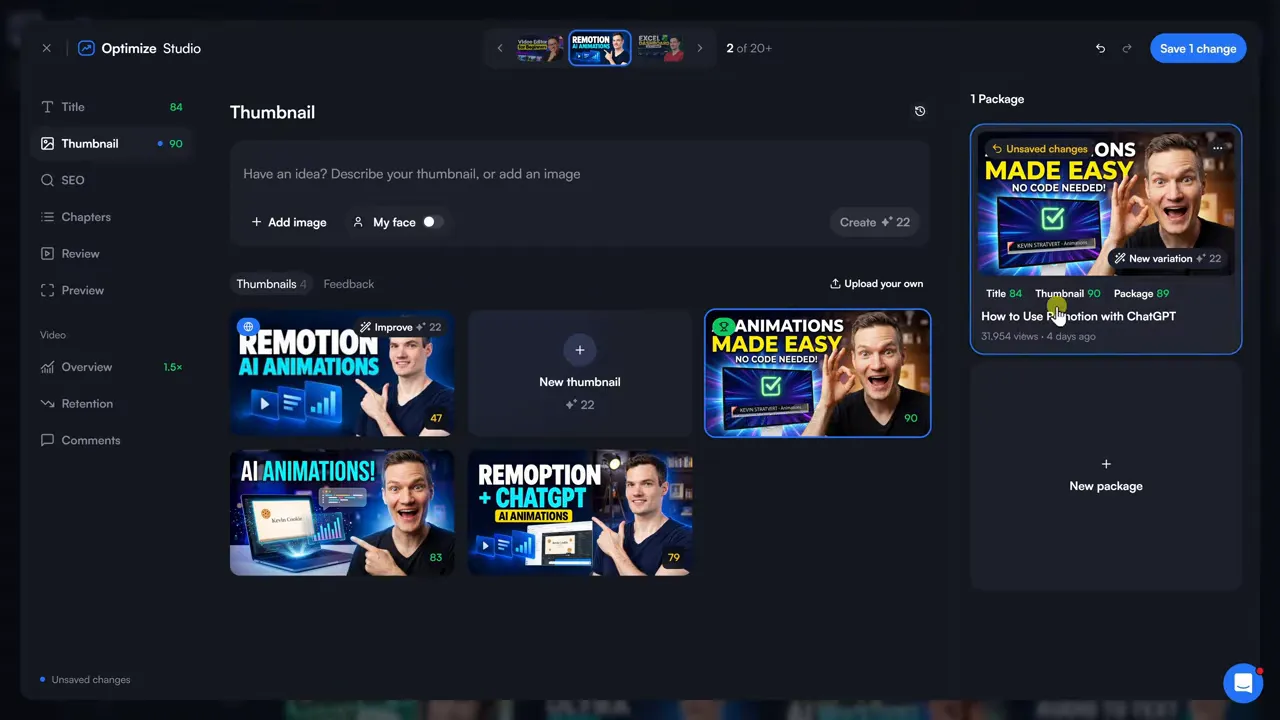
The preview on the right combines the thumbnail, title, and view information into a video package. That’s helpful because a thumbnail doesn’t work in isolation. It needs to make sense alongside the title.
Again, I care more about clarity than a score. Is the thumbnail easy to understand? Does it communicate the subject? Does it give someone a reason to click?
Refine the video description
Open SEO to see the existing description and a suggested replacement designed to help with search discoverability.
- Read the suggested description.
- Refine it so it accurately reflects the video.
- Keep useful resources and links.
- Apply it only when you’re happy with the result.
I prefer descriptions that clearly explain what the tutorial covers and provide helpful resources. You can also consult YouTube’s guidance on video descriptions when reviewing your approach.
6. Use the vidIQ Browser Extension Directly on YouTube
You don’t have to do all your research on vidIQ’s website. Its browser extension adds research information directly to YouTube.
- Return to vidIQ.
- Select Install Extension in the left navigation.
- Add vidIQ from your browser’s extension store.
- Return to YouTube and search for a topic.
I searched for the same ChatGPT and CapCut phrase. With the extension installed, the results included extra information such as outlier scores, views per hour, and channel subscriber counts. A panel on the right displayed keyword-level metrics.
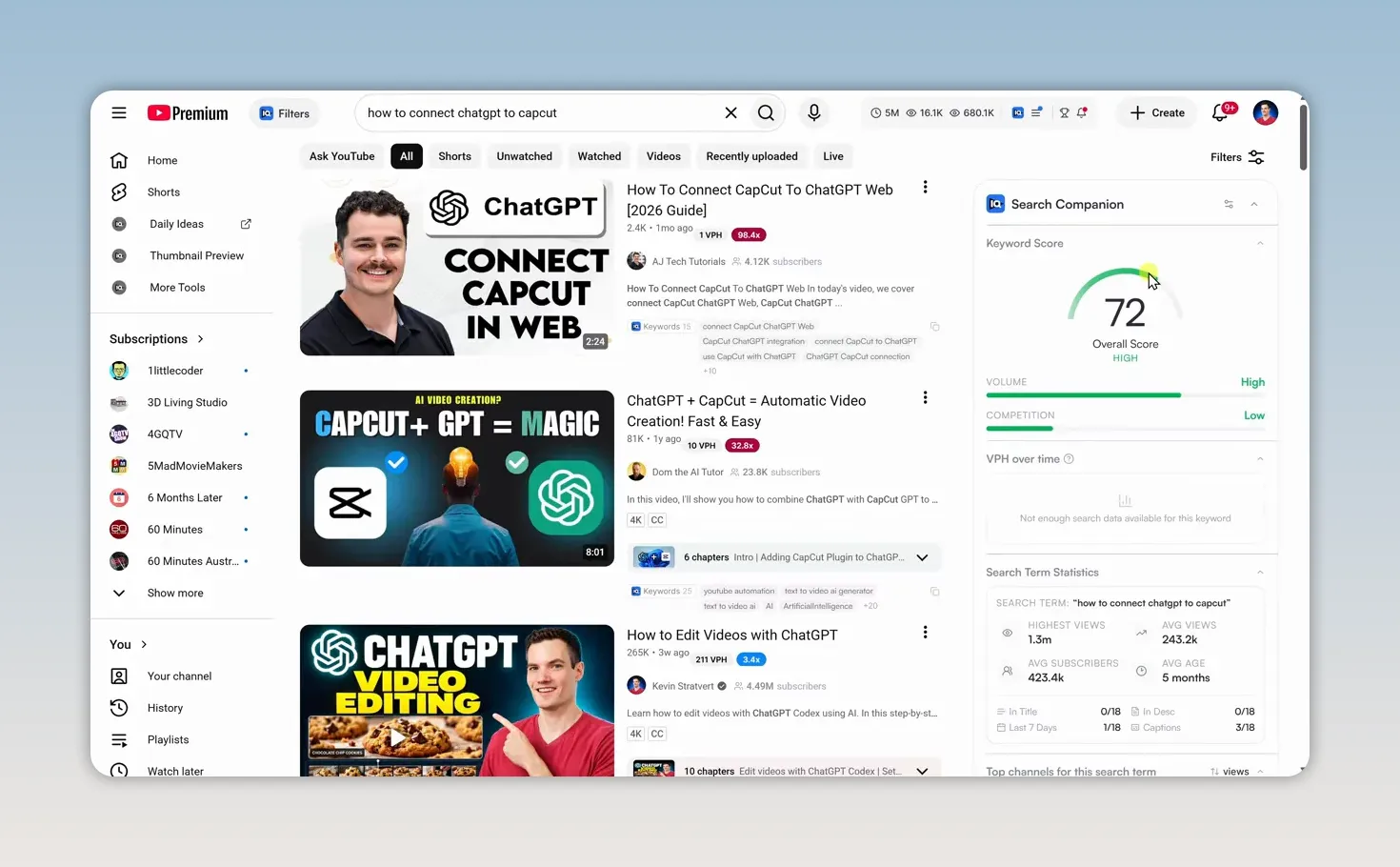
Opening an individual video provides more insights about the video and its channel. What I like about the extension is that it brings the tools into the place where I’m already researching ideas, instead of requiring me to keep switching between websites.
7. Connect vidIQ to ChatGPT or Claude
You can also connect vidIQ to ChatGPT or Claude to research ideas, analyze your channel, and request personalized recommendations.
In the ChatGPT interface I used, the setup was:
- Open Plugins in the left navigation.
- Search for vidIQ and install it.
- Start a new chat.
- Ask it to use vidIQ to analyze your channel.
For example, you can ask it to review recent channel performance and identify three opportunities to improve over the next 30 days.
Once connected, ChatGPT used vidIQ’s tools to pull in my actual YouTube analytics, including views, watch time, subscriber growth, and traffic sources.
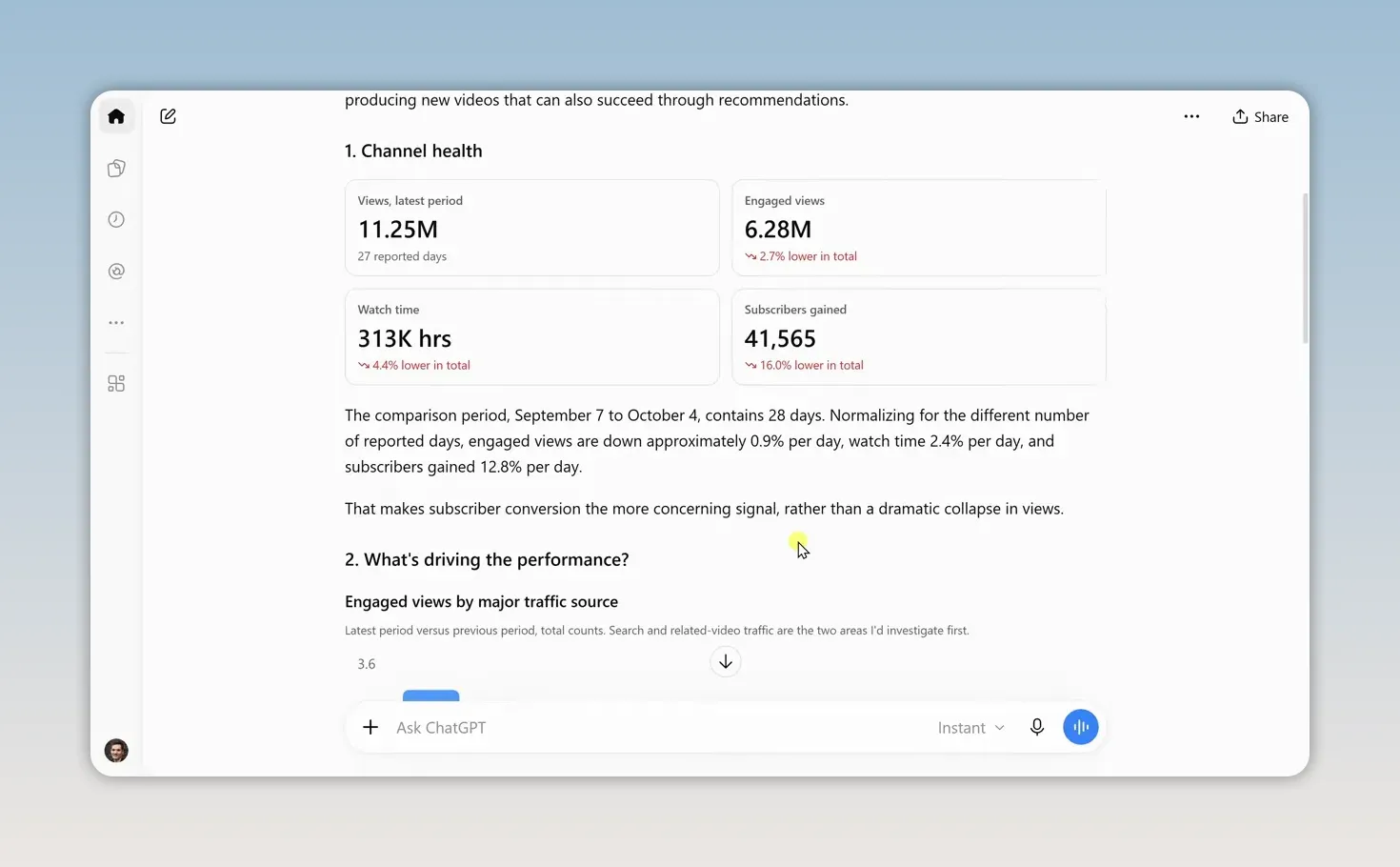
In my example, the channel had received more than 11 million views over the previous 27 days. That sounds great, but the analysis also identified declines in some engagement metrics.
That’s the kind of insight I want. A large total alone doesn’t tell me what needs attention. The analysis finished with three recommendations to focus on next, helping turn the data into possible actions rather than leaving it as a collection of numbers.
Use the Data to Make Better Decisions
The most useful vidIQ workflow is straightforward: generate ideas based on your channel, validate demand and competition, study unusually successful videos, and test whether you can deliver something genuinely helpful.
Then apply that same judgment to the videos you’ve already published. Review titles, thumbnails, and descriptions, but don’t treat a higher score as proof that a change will work.
No tool can guarantee a successful YouTube video. What vidIQ can do is help you replace some of the guesswork with evidence, so you can make better decisions about where to invest your time.
If you’d like to try vidIQ, you can use my affiliate link below. If you sign up for a paid plan through it, I earn a commission at no additional cost to you, which helps support my free tutorials.


